
Updating a mod to DT shaders (instead of legacy)
This is a short and sweet guide on the above, that covers MOST cases but not all. As some ground rules, this is NOT talking about pre-dawntrail mods. those MUST be either remade from scratch, or thrown through textools' DT updater. This is referring to mods using the characterlegacy shader that you want to move to the new Character shader. if you have a pre-DT mod that has not yet been updated YOU MUST RUN IT THROUGH THE TEXTOOLS UPGRADER FIRST.
This assumes you have basic familiarity with either textools 3.0 (post dawntrail) or penumbra. if you don't, then you will need to find another guide for them.
This guide is also only referring to CharacterLegacy shader to Character shader conversions. For any other shaders such as transparency, skin, furniture, scroll, etc; there is more involved than this and the mods may need to be remade. That said most need for manual conversion post using the updater falls in this category, as this is often asked about for Gear.
Remember to hit save after every big step. you don't want to lose your work. In penumbra it's the "save to file" button. In textools, it's "save to TX/transaction" at the bottom right.
Step 0- Select your mod and tool of choice
Pick whatever mod you want to update, and your tool of choice. you can use either textools or penumbra. I will show both UIs. You will need to install the mod into whatever tool. for penumbra, this just means installing the mod normally. For textools, prepare or begin a transaction in SAFE mode, then install the mod IN SAFE MODE WITH THE TRANSACTION RUNNING.
Step 1- Changing the shader
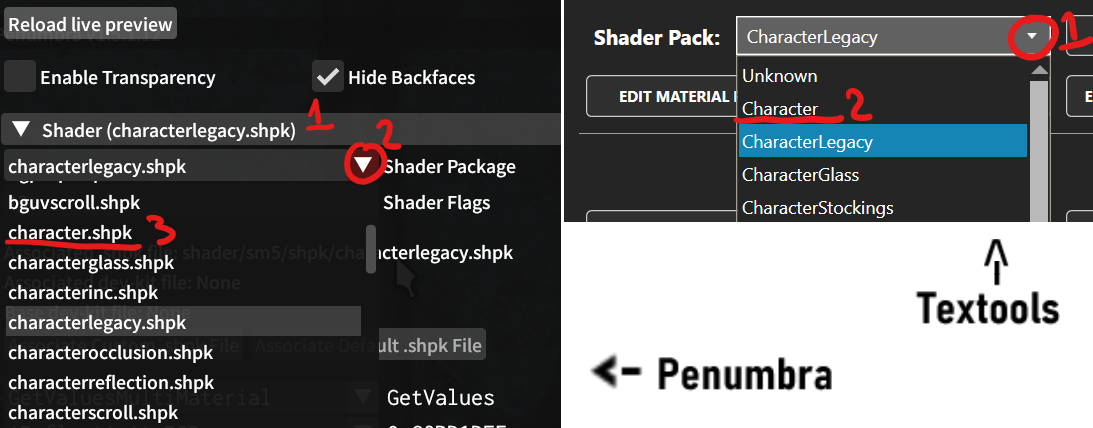
Go to your mod of choice and edit the relevant material. In penumbra this is in the materials tab of advanced editing under the "shader" dropdown. in textools this is in the general "materials" tab.Find the shaderpack selector (image below) and swap it from "characterlegacy" to "character".
Step 2- Fixing the material
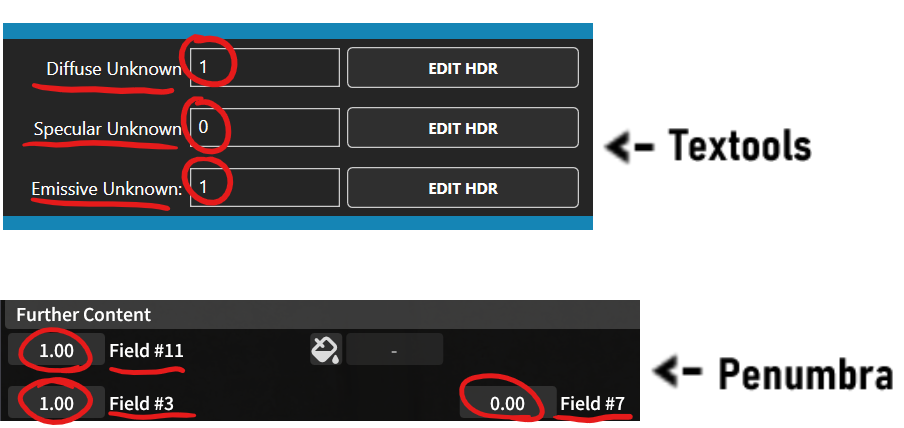
Once you've done this, you now need to change some material parameters. This needs to be done on every colorset row you plan on using. as of right now, there is no way to automate this in either tool. In penumbra, scroll to the bottom under "further content" and change Fields 3 and 11 to 1 and Field 7 to 0. In textools, go to "view/edit colorset" and change the fields Diffuse and Emissive unknown to 1, and Specular unknown to 0. Hit save.
Step 3 (OPTIONAL)- Fix dye templates and metals
if you have normal gear that you don't care about dyeing, and that does not contain any parts that are meant to be metal, this is entirely optional and unneeded. but if you do have those things, they're also pretty easy to fix (though you may want to tweak past this yourself.)
For dyes-
Legacy uses dyes with 3 digit numbers. the new shader uses the same templates but with 4 digit numbers. to get the same dye results, just pick the dye template that matches the last 3 numbers of the old template (it will still show the old template when you manually convert until you fix it). this needs to be done on every dyeable row. For visuals on what the templates look like, please check out the Dye templates Document also posted on this wiki.
For metals-
The big difference between legacy and non legacy as far as metals are concerned is the addition of the metalness value, and the fact that the new Character shader doesn't use spec color for the color of the metal. to adjust for this, copy the hexcode of the specular color on the metallic row, and paste into the diffuse color's spot, then make the specular color white. You will likely want to mess with the metalness and roughness values to get the shine you want.

(you do not need the roughness and metalness values to match this, this is just what i liked for this mod)
TL:DR;
Change shader from Characterlegacy to Character
Adjust Shader/Colorset/Color table Extra values
Save
Optional: Fix dye template and/or metals by swapping the dye template to the same one with a 1 in front, and the metals by moving the spec color to diffuse and making spec white. Add roughness and metalness percentages.
Done.
No comments to display
No comments to display