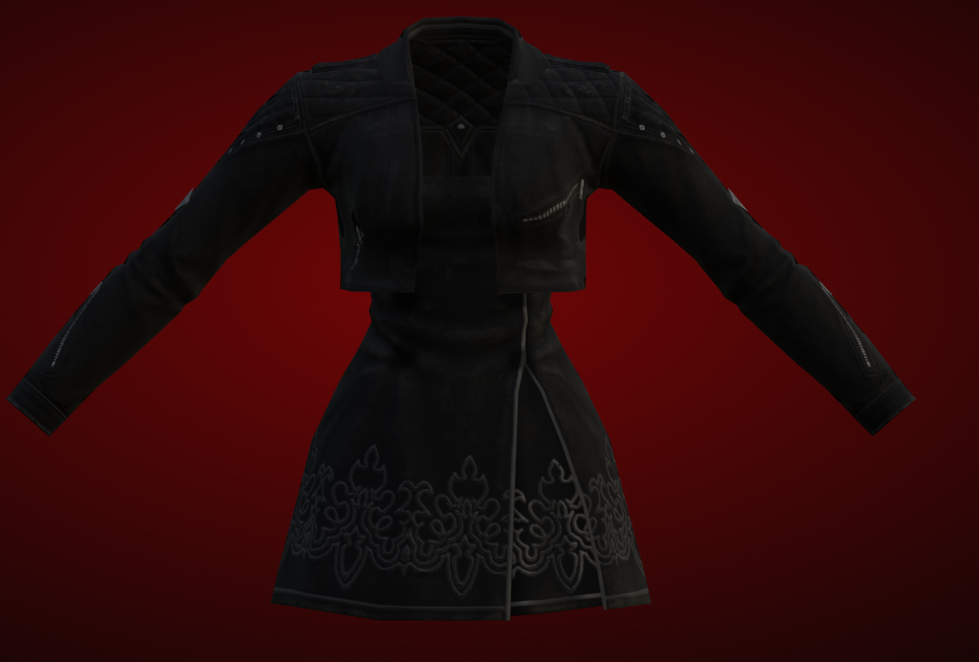
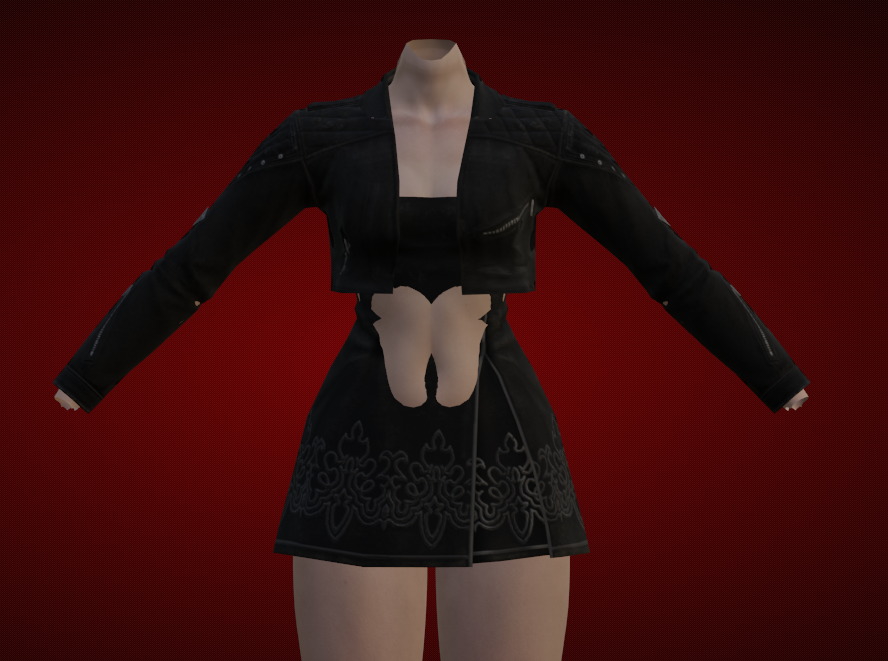
7.0 Mashup Walkthrough

Intro

    Installing TexTools

      https://www.ffxiv-textools.net/

      https://discord.com/invite/ffxivtextools 

      To start, grab the TexTools download from the site. It’ll have the most recent version for it, but you can also join the discord if you’d like to get it from there! 

      Installing Blender

        I use Blender 3.6, but any version below 4.0 works just fine! 

          - https://www.blender.org/download/releases/3-6/ 3.6 Download

          - https://www.blender.org/download/releases/4-0/ 4.0 Download


          Changing Default Settings

            When you boot up TexTools, it’ll have you navigate to where your game install is. You can point it to your base game, or, if you have the space, point it to a dummy copy. 

            To find the settings, look at the top left space of TexTools, and you’ll see these 6 buttons. 

            AD_4nXcI6FLyonsP6xzYomkdZpttRnZTlgc8fkRL8ebAdnSUGqw6TDCIieQE7gd2829DdTwljB63ugHr1D5FuYEMybxZHl1ehn-wNGWPTRY3c1DfiOdr-N-1pGM4X-LHo6L4zRzc2ZqXJMONI3Drt-txTA?key=x2SAouDxP3EayyutRfDV1A

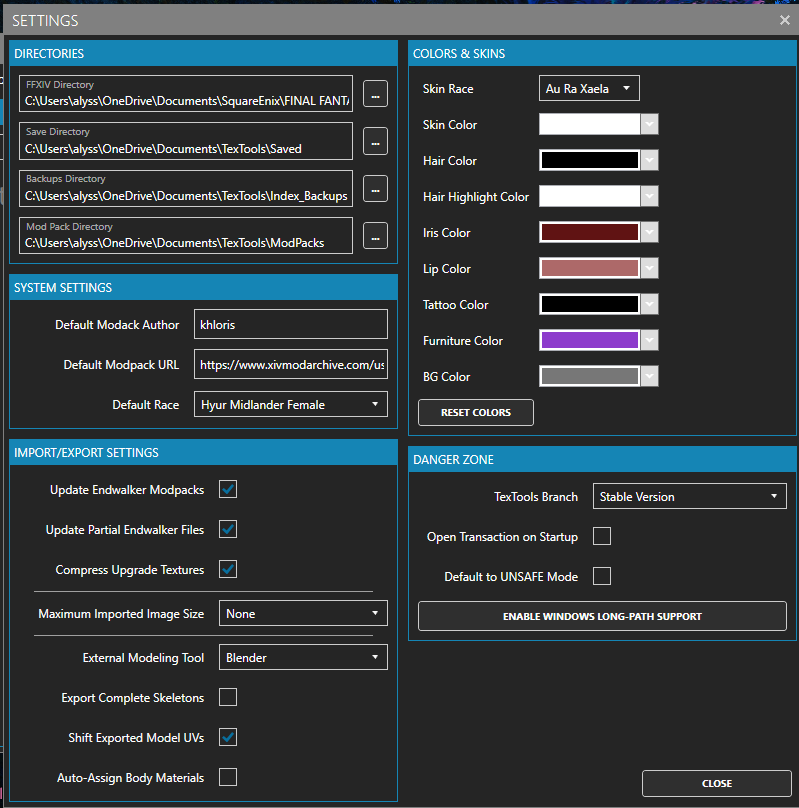
              From there, click “Options”, and you’ll be met with these. They allow you to customize what your various export options will look like. They also allow you to change the default author, modpack URL, what race / gender model pops up by default, etc. Play around with these, they’ll help you in the long run! When you’re done, close it out! I’d recommend turning on “Default to UNSAFE Mode”, as that allows you to start modding without having to tick it each time you start TexTools up again.
              AD_4nXctPXDkIYK2jJ9YFklYIA9vpdtof5QWGl58A9E4MvtgzT2YKAMnRAbXtAtbgBm3ssZTI_C82fSg_ZJGSNBvExRKvjS2Rj2YS9eMHz2pQMpegb1IsVh1CpIc0ICPD9PttkUpTkSOInBWZ_eIHQTtXg?key=x2SAouDxP3EayyutRfDV1A

                Here, you can also change where the game directory is, or where the mods will be edited / changed. This is NOT detectable server-side, it’s only client-side. If you have a dummy copy you made after installing / updating TexTools, you’ll want to change it to that directory here. 

                  FFXIV Dummy Copy

                    - To do this, navigate to where your FFXIV install is (for me, it’s in Programs Files x86), copy the Square Enix folder, and paste it wherever you’d like. I have mine in Documents. 

                   - A dummy copy allows you to make / edit modpacks without having to log in/out of the game constantly. This could chance with the Penumbra Integration, but I still find this to be the easiest method for now. 

                  TexTools Setup

                    Let’s start with the basics. I’ll be covering what each of the buttons at the top left does, some in depth, some not, it depends on how much this information will contribute. 

                      Mods

                        Manage Mod List: Allows you to view the various mods you have installed onto TexTools.

                        All Mods: Allows you to Enable, Disable, or Delete all mods. This just works for the modpacks you have installed. If you’ve made mods to publish, you’ll have to start over / disable those manually.
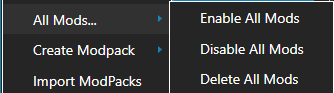
                        AD_4nXdqpwnoYofPOJWPdFRXPKT8cSb3amTt1gFlobCWEBTy9zuKAilkWrc_c8RajmSdmpXtLUOwQ2HxeX1xG6GnxwLKKDkBmLzxP1NqCJMkfxnA0cuKs17H-VuCR00dPPqip973zbMUFuf1uDJ7ycsaVQ?key=x2SAouDxP3EayyutRfDV1A

                        Create Modpack

                          Advanced: Your new bestie in making mods! This is my personal favorite for making mods. This allows you to load basic modpacks to combine into one for options, import model variants, allow the people who download your mod to tick options, etc. It seems complicated, but it really isn’t!! 

                          From items: A more basic form of creating mods! This doesn’t allow for options, but if you have a mashup with no options, this’ll be the easiest way to pack it!

                          From files: This is the most complicated one (in my opinion). It allows you to pack various files that have been imported / edited into one modpack. It essentially functions how a basic modpack did in Endwalker TexTools.

                          Create Backup: This combines every mod you have in TexTools to one modpack, for easier handling. You won’t be using this if you’re creating mods, but it is very useful if you have to move PCs!
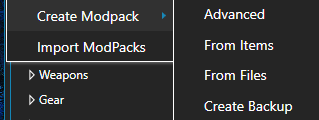
                          AD_4nXcxVfbXSuzRaHjrS_zpibwYQzn0me5wWkhHGB2nuHcRwaJeH09S4RRCoNBBVUUVhsoh-cHzRCXZ7TOdgO3vPftHZZmyh_LR1J6mkOdcyhFDmPn1edjiNQye17ZjFgjOxSp5W34rhkwLNnwF8cUB?key=x2SAouDxP3EayyutRfDV1A

                            Import Modpacks

                              The most simple of them, you click / select the mods you want to import into TexTools.
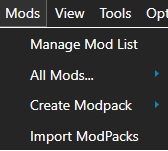
                              AD_4nXdS-DtmsOrd5j7Z6KjQyjBcH0yY5KWwVXrmYtmx5thGKYRrndIkIBN07AamwGAmgNrwuRDD5lGLw4MkOnvueguxYFPCUAi8XvMWdKxy-QMQVF-0PC9MSdcbEJU74SIQieIcEFMbK39Y9nGOUZrWKg?key=x2SAouDxP3EayyutRfDV1A

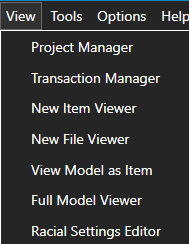
                              - View

                              - This section won’t be as in depth, as I haven’t explored most of these options. What I have written here is inferred, and may be wrong. 

                               - Project Manager: Opens basic modpacks to view their contents. Doesn’t work with advanced modpacks / modpacks with options.
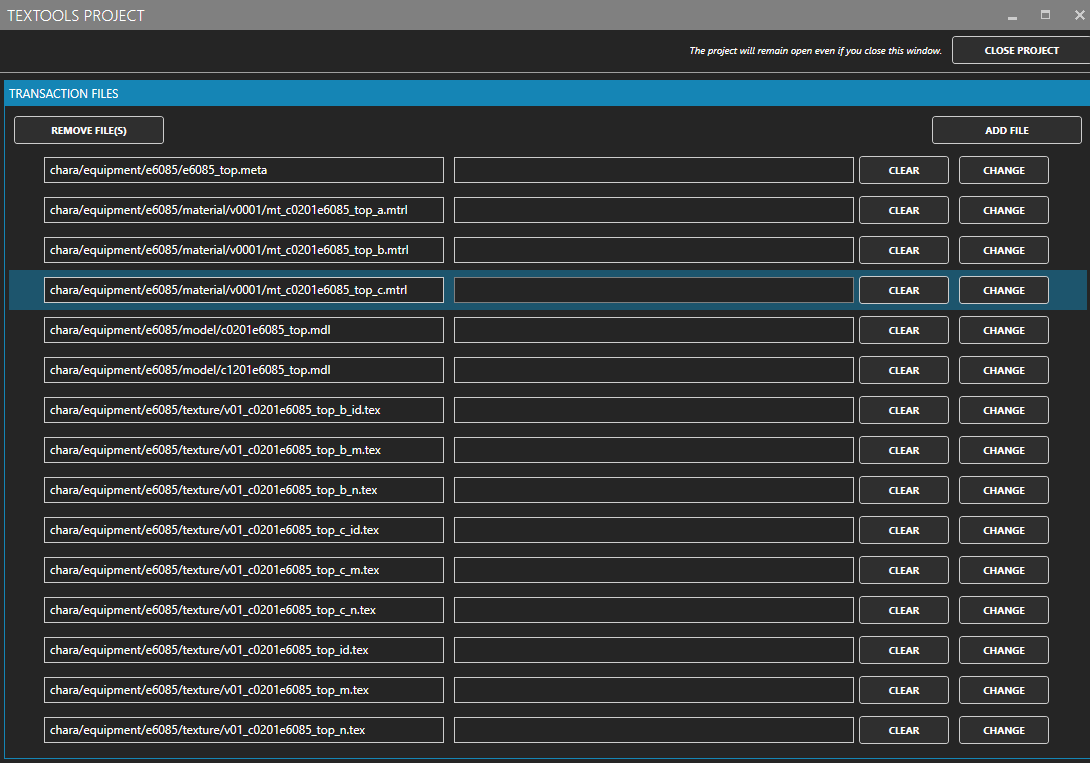
                              AD_4nXc0u92lqUJXeiHV27x2PpNceCi68Tg5u-VFyhjiwtjyFKC0akh-cAE5RAe5IbMMPsEdggZIRUl2_Au_4N7RljzWxURz_MRKgd-IiVzYKuGXDJUQkhpGncAtkkfAc-b_WAJiYRnL6GpIFJUE5aYHlg?key=x2SAouDxP3EayyutRfDV1A

                                 - Racial Settings Editor: Allows for you to change how drastic the in-game scalers are for each race. For example, it allows you to make your characters shorter without the use of customize plus, or makes their tails longer, etc. 
                              AD_4nXeIA4lRsrTx_7b3RjvT9VGA1kGfbLdXRIWKRVcMUvaAHEyTVBP56x_ekcEKmAV7bs_2OrNXZSUSHfrI9iEOa_hs4SgC-mjdal1psohTouxmf6sJhVtRe4i4wopKlEqU4whZDX6YKlKw8hchqBHODA?key=x2SAouDxP3EayyutRfDV1A

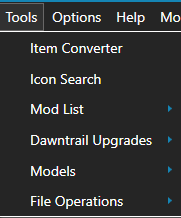
                              - Tools

                               - Item Converter: An item swap for TexTools! You choose the item you’d like to swap, and the item you want to swap it to! Doesn’t work for cross-slot items though, like necklace -> ring. 

                               - Icon Search: Used to bring up various icons found ingame, such as the inventory icon!

                               - Mod List: Checks your mods to ensure they’re installed correctly.

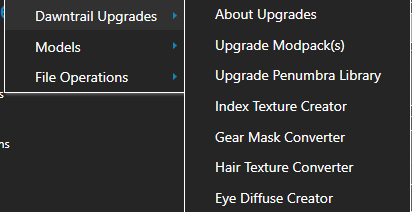
                               - Dawntrail Upgrades: Allows for the user to easily convert their various mods created before Dawntrail, that no longer work due to the graphics update. It works for clothes and hair primarily, but there are other features in this category!

                                - Upgrade Modpack(s): Modpack goes in, Dawntrail Compatible modpack comes out. It’s pretty simple, and while it doesn’t work 100% of the time, I’ve had most of my mods work very well with it!

                                - Upgrade Penumbra Library: If you have a Penumbra library full of mods created before Dawntrail, this tool will convert most, if not all of them! It lists within the tool which mods will / won’t work. 

                                - Index Texture Creator: The new texture system uses Normals, Indexes, and Masks. Indexes were created for assigning colorsets, so when converting gear mods manually, you’ll have to pass Pre-DT gear mod normals through this to get the new colorset. 

                                - Gear Mask Converter

                                - Hair Texture Converter: Converts Pre-DT hair textures to DT

                                - Eye Diffuse Creator: Converts Pre-DT eye textures to DT
                                AD_4nXfYsrUll9VxWwTf1XMFEbc4rm9KNcvCaLq_mkFl3SLIPpNx7jsSeEyX31xDpx2BYVRdDX0FlQTle40RCq9LHg432EzDcbp7vpWRYAdkKfqW1fkgmrGap_BFh6VOh0s8M2PeZH0cqzLyXMtAgQ-b?key=x2SAouDxP3EayyutRfDV1A

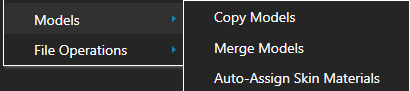
                              - Models

                               - Copy Models: Works the same as an item swap, but for models only. 

                               - Merge Models: Essentially mashes up items within TexTools. We will not be using this, but it is nice to note.

                               - Auto-Assign Skin Materials: same purpose as “Update Bibo Material” has in Penumbra.
                              AD_4nXeECb1LGtbnv88S6RHqROn5VRkbNiDnQ_sE0G1ueAeuClBvlTlsnzhPUztDXVUM6QMFRYvuigL8IHoDQt3WUB_aVL0gSPBrHLUNcH7erUwhh_ledita0g4PTZ1FQtVCX7w0odW1m2mZaWXOYR-K?key=x2SAouDxP3EayyutRfDV1A

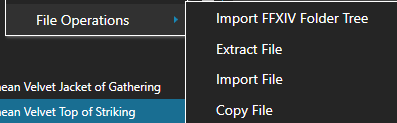
                              - File Operations

                              - I haven’t used this function, but I’ve included pictures incase you’d like to explore it. 
                               AD_4nXekvdnxsF14iQnpyfMM3QDYZyvPP4tk3olOU7AIKr4NmQLL7PKW8EfF4JgN1xI27JJ2A1IBgnmpi8pm-qKJgD9CSuzSRz3Ww451E4mFM_Xb-EyUWzHbiXUibgeU_OeSarMO_WnOswwsXF_JyP-8?key=x2SAouDxP3EayyutRfDV1A

                              AD_4nXcOV2F2j0W7h55GPsHKCUHrvYIu_k77Tt2ud40XABFmdYH0dF_ti4pQ0rB8yFfcDIle0ur2_CEVwwXtuuIEgWfA3rF34KQb_sidZftmzYZzzHH5Bi9D_EYWO6ltObKyItdc01fzhq8Sa7TXqxbPAg?key=x2SAouDxP3EayyutRfDV1A

                              - Options

                               - Settings: Covered up in the “Changing Default Settings” section

                               - Theme: Lets you swap between Light Mode and Dark Mode

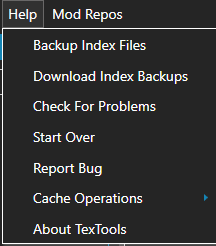
                              - Help 

                               - Backup Index Files: Backs up all your vanilla files in your game install!

                               - Download Index Backups: Downloads the index files you backed up if you used the previous tool!

                               - Check for Problems: Ensures your game files are uncorrupted!

                               - Start Over: Restores your install to its vanilla state, removing all mods / edits made in Textools
                               - Report Bug: Opens the github link to TexTools, where you can report bugs.

                               - Cache Operations: The options in here also ensure your game files are uncorrupted, I won’t be going into these in depth, since they aren’t relevant to the creation of mods.

                               - About TexTools: Shows credits / who TexTools is maintained by. 
                              AD_4nXdCLzsWGuPqaDePVHmu8OCAIdIEqO3BVPVZs8j4Q8nowjJQjv47GcNC31lKRQ65MF0Qk7XxSpKIiCkQYI23ShLiM1H5AG66tVZtwm4WOmR-6DA2NnmCwmJLZcsmBSe_tgq_GjIsa_6_pcNQWRvOgQ?key=x2SAouDxP3EayyutRfDV1A

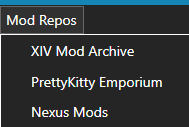
                              - Mod Repos

                              AD_4nXddA-Y8uVSMUQvPDU14Zt4_nc-ZE-0IdNqsEryi4tl5U6wwViHUErlXXdUxKckVJlV3seW6Ob33EafWSt5m_Ksbz99FU8D0obscE4O6ulaF2A623E1XrX7nZxY88v354z0tQD3CFnJfDrOUkyaFYQ?key=x2SAouDxP3EayyutRfDV1A


                              Exporting from TexTools

                              Exporting Textures

                                Your textures are stored in the Textures tab, at the very top right of TexTools when you’re viewing an item.AD_4nXeatw7rL_Ujmu_vK2YlWu-SbMLtYSqriWYZnr0g6J-vYCaebOhGHAxCmIBVZ4fall0iAXJf6010noHjsITZYTZfSe175c69kL2OQWbGrJsx-_6KQeYgWtSB9FHTTZsW8D3ZaiQXUfIsnXo9zWZGVA?key=x2SAouDxP3EayyutRfDV1A

                                To export your textures, click the dropdown box, and click on any one of the textures, you’ll have to do this for all of them. 

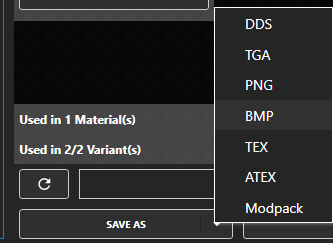
                                At the very bottom, there’s an option that says “Save As”AD_4nXdJewxT5rsnwV9AzzT7ekBVRVZ3j2Btf7K2JRfegX5h3PSbwuXLG4ZugIz1XpLRT0Egtfkmq8iU0tcM_Qf12PdyBR8SeNX2ZV_17HpT9OwXZu4h72-1r9-L3Ufhn7zBWEUtu7jzhaFMNKhWThufOw?key=x2SAouDxP3EayyutRfDV1A

                                You’re going to want to export as a PNG, especially if you intend to edit your textures later on. It’s possible to edit DDS textures, but PNG is used more widely, and it’s the one I personally use, since I use Procreate to edit most, if not all of my textures. 

                                Save this somewhere easy to find! If you’re using multiple meshes in your mashup, I’d recommend naming the textures different numbers, correlating to the part number.

                                  I use 1n, 1m, and 1i for the normal, multi, and index. 

                                  Do this for each individual texture, all of them are necessary!!! 

                                  Exporting Colorsets

                                    Your colorsets are located in the Materials tab, in the middle!AD_4nXcSp4-FhDmLkfzFiWcbl9yRFZ7pyjMlgqRsGxPEVXP5zRgvUMiNJ9sZHa-htwvoqxfqcAab_g7Zhy-Q1-ALtX4b8jfI0uNkjH4OVRWsVwqWB78udgrz5RlJZQt_AwOT82gt0drkfpc6LurMRYWX?key=x2SAouDxP3EayyutRfDV1A

                                    To export your colorset, go to the material, where you’ll see this menu. AD_4nXc_kVxHKJvaNAdQw03Qx_CBFZZwhoDgy89vRNHMV20lSLHWSUSfmL_eF6KDPggj7cefcOJEEw8ZQIXc3mapDi2gbdAUeAMsmJaLLcLgcDDjKptdBNrbzhafL5qE9gGK02RR4asaWglOG9mydGqm-A?key=x2SAouDxP3EayyutRfDV1A
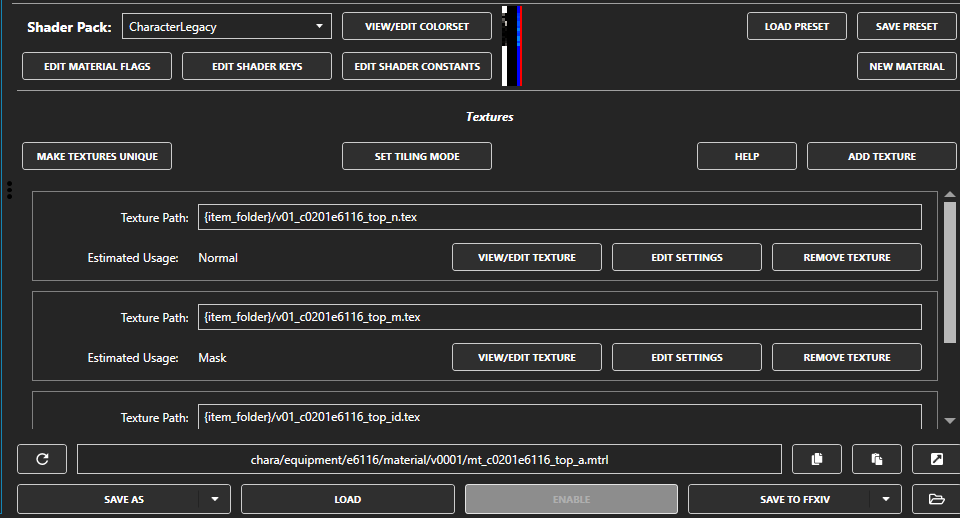
                                    Go to “View/Edit Colorset.” Here lies your colorset! AD_4nXeVHx-X0bBG4GIOCh9Jp7l_jhntxhnsueSb4_h-hXcTXPH4n9Bgs67-NgTExJnTBahj1-W8cJNoAHFw-oLFyoGj1OZGrKoQmLi25SSVDfXpRG4nkCas6PTkdtoItWQLpZckDpWvSfxqPh-W3Cevzg?key=x2SAouDxP3EayyutRfDV1A
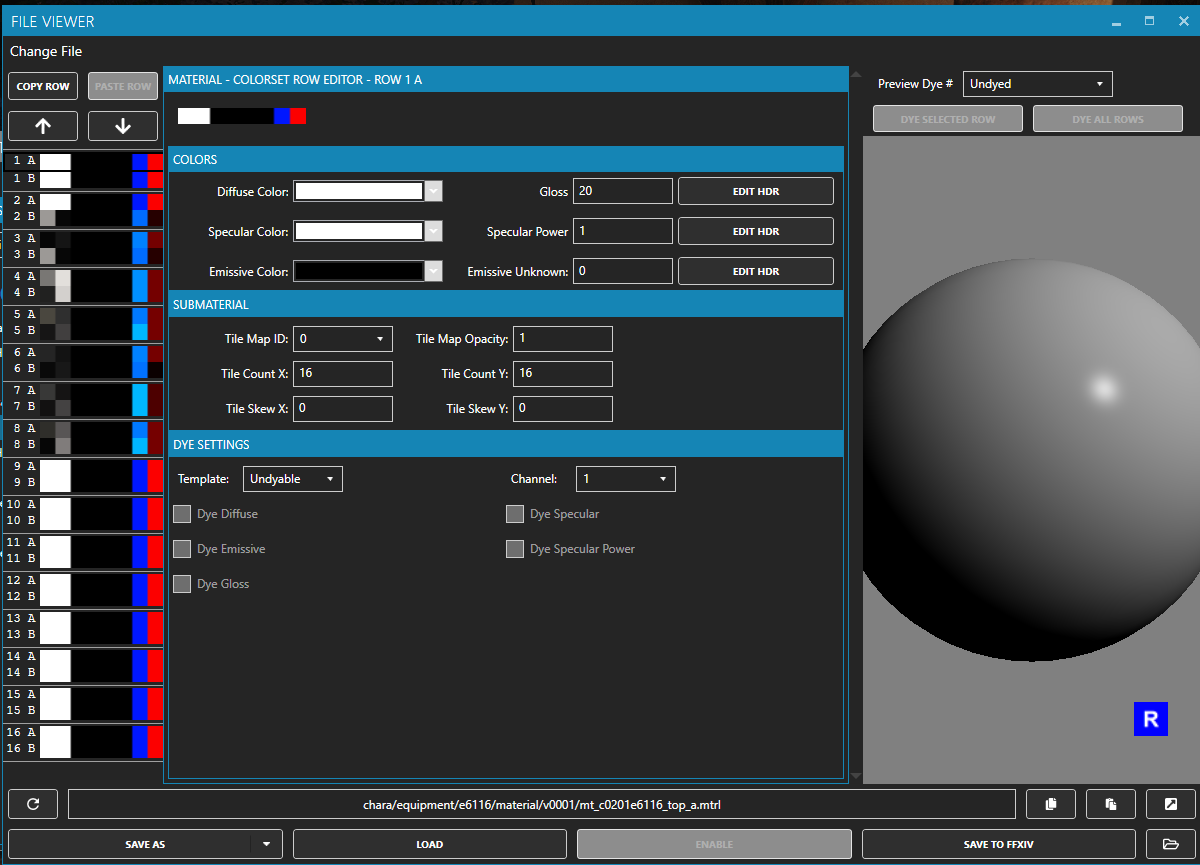
                                    To export your colorset, hit the dropdown next to “Save As”, and save as DDS.

                                      If you want to include colorset options in your mod, you’ll want to save as a modpack! This is one of the methods of doing so, but I won’t cover that here.

                                      Exporting FBX (your mesh)

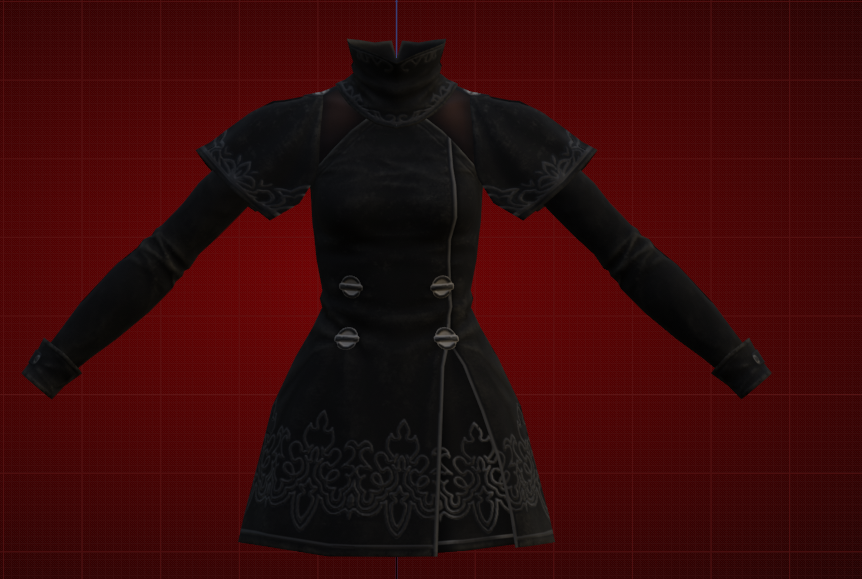
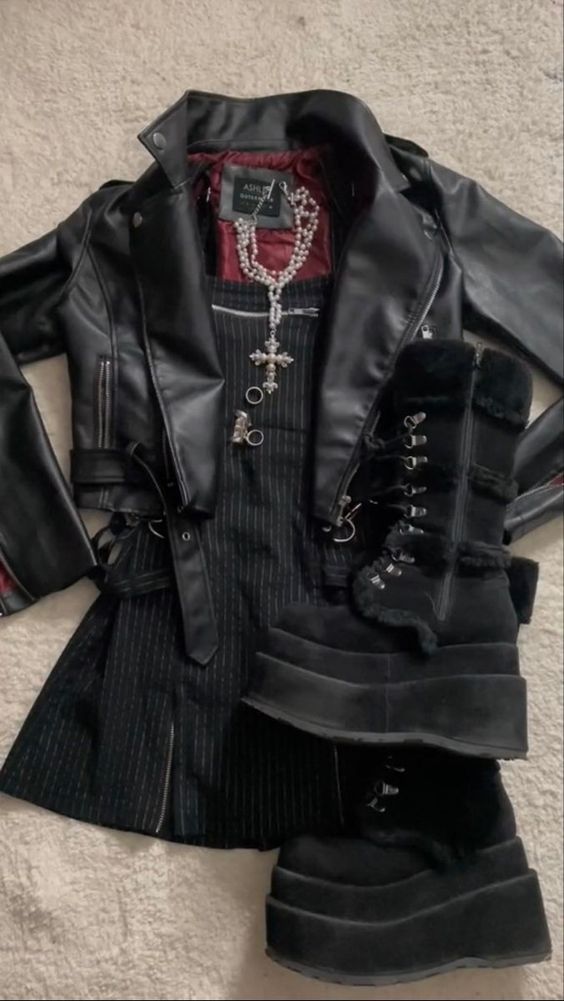
                                        Navigate to the gear you’d like to be your base. I’m going off of this inspiration picture:
                                        AD_4nXcE-leFDrLfeS9djpF4eeN7NYT_S1gtIA8cGO-1uDh8PAZkbo3tjH22wJEFUiN-3eDC3faIfU3IZEYtj7SDNRm1yuWVBIAcie771pYoUHAIzAEblA9sEbSMqmAPAMKV47eqei32Z_AOngObrRiJdg?key=x2SAouDxP3EayyutRfDV1A

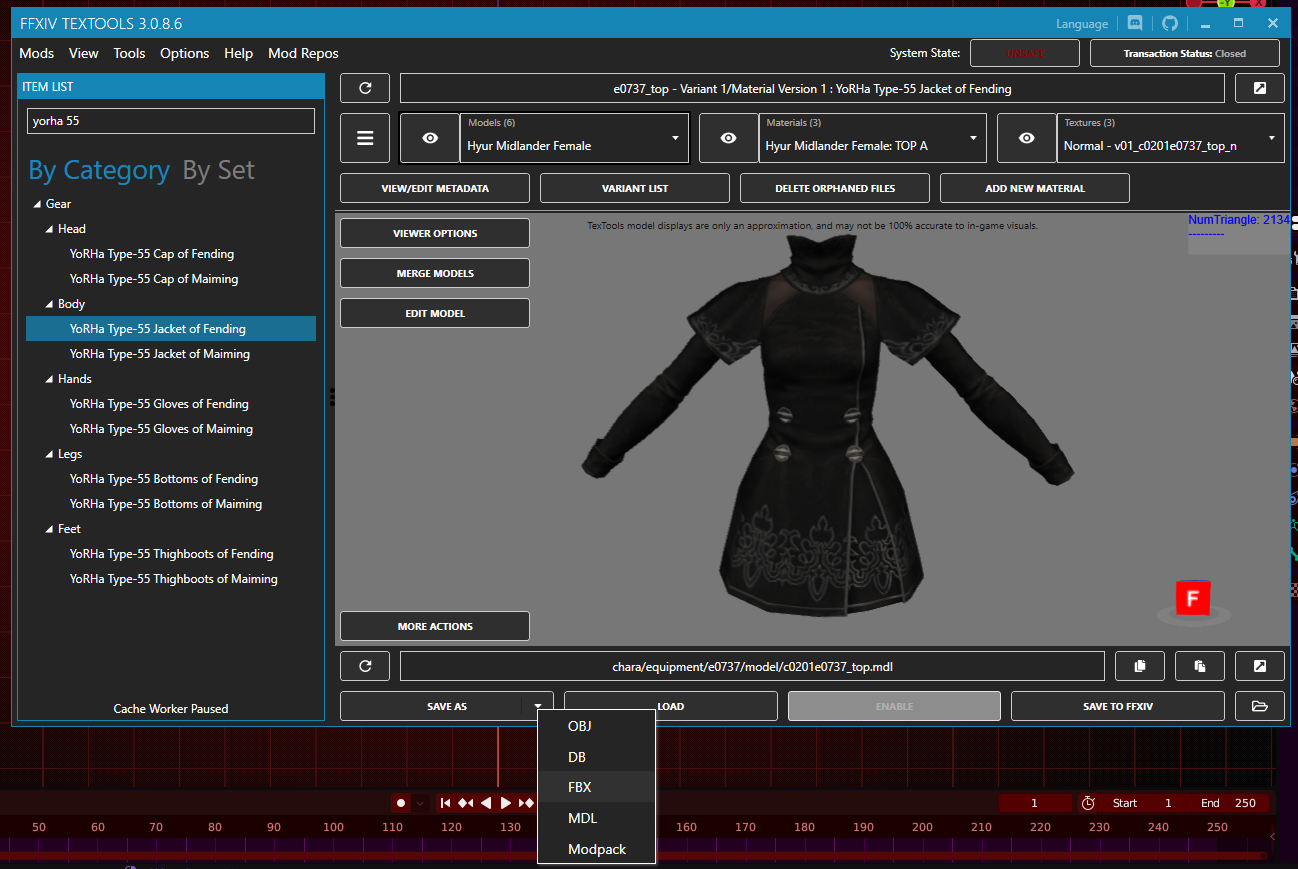
                                        I’m choosing to use the Yorha Type-55 Fending top or the base!AD_4nXcntlqXN1Ft-z22VOPe-ErF1CEFo_1oqvhxWSXcJr0H5h1OQZdvFUr0XFQFgi-8UzOOzXJwrrFLAqTTFEl37PWFZCvc86EGL9GFnSOemX-KU-INgxRaL1zR6aUzOmnG5n8y6ifipOd2TEHVkTGrTw?key=x2SAouDxP3EayyutRfDV1A

                                        Export this top as an FBX, and hit save.

                                        Editing the Mesh

                                          In Blender, once you have your base, you’ll need to import it! AD_4nXeOpc8Tbx0VRtDXx5rDAL9SgYzGrEJckXP6J-fLTqzdOgDM9p-uag6z9Ejn7bXXSL9gqZfCZDxlNhZYSJo0WncAf-0G6nZtzTw22aUy497jWa2MxdQmnO0vAVq3kUBwlzNEkfP3v3E_r55gpzNQUg?key=x2SAouDxP3EayyutRfDV1A
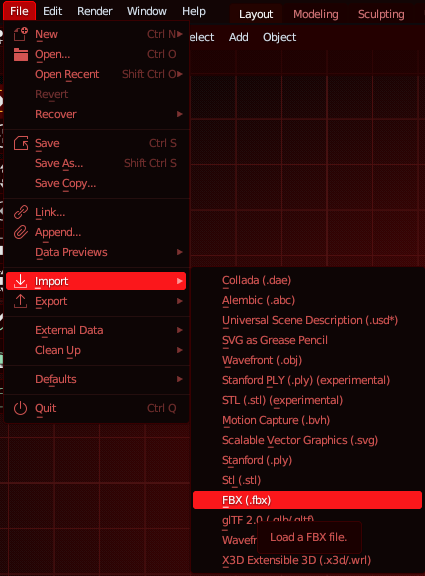
                                          Import your mesh using these settings, and you should have it in blender now!
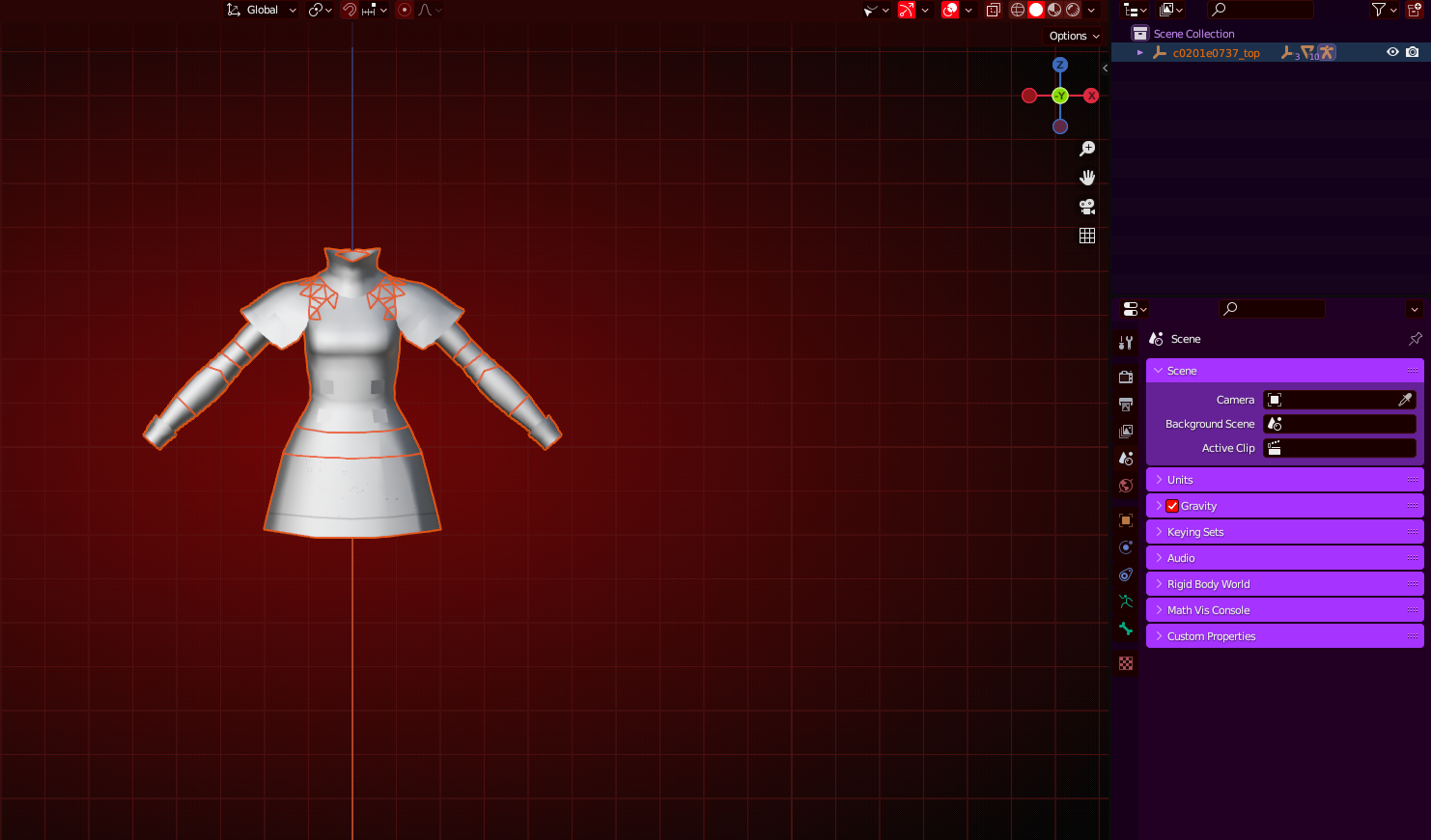
                                          AD_4nXdZw_ynZysP0TWQV0ZVHOMd9zNzw4FDipuit-47vUySS9gKuioEdUE6kr0vjqcQCtFcGBZve_tet5dngt0_U1ew3WzeXlmlK5ivmhfYAjXKtxX3gnxgeu28CSU-iks-xqVEppw8dTONt1ELhfwsGw?key=x2SAouDxP3EayyutRfDV1A

                                            You’ll notice it’s a white, undetailed blob. Let’s fix that! Up in the top right corner, you’ll see 4 orbs! You want to change it to the 3rd option, that looks slightly checkered.
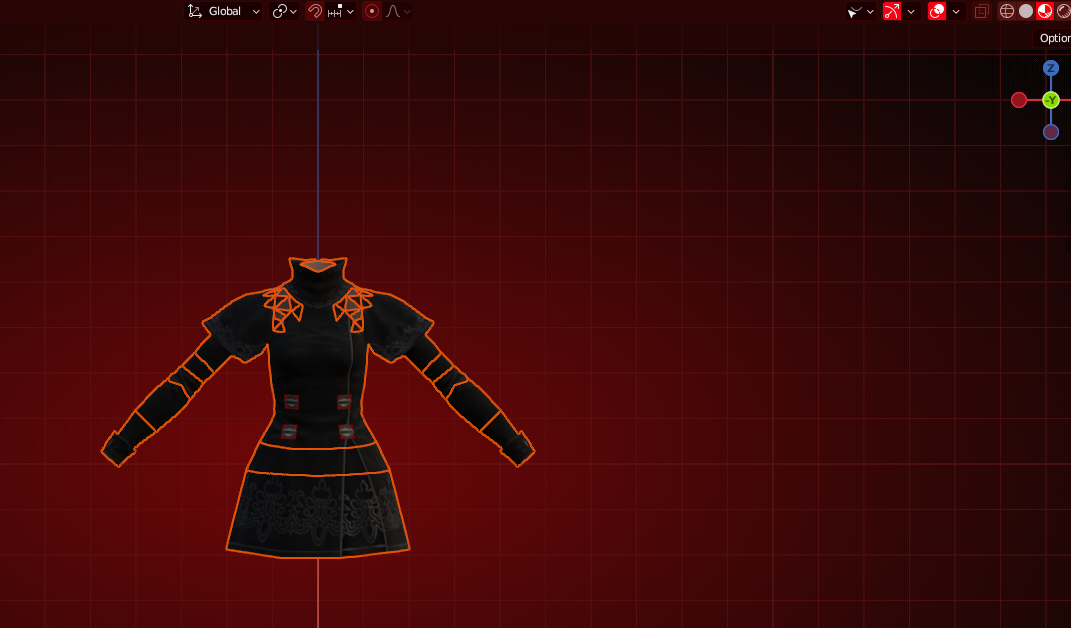
                                            AD_4nXfpuvCrjCawHRBGOnwcsLTlrhzA1CMiaR6vKuzIlQ3Kg_WJhK4YoupeVpIvAY-QzVgo4KeRMFaI4cYIAqzkNPOCfQ9zNrkq30xAKTKbDqErSaNjzQGzh2eoah4OsHokfLnZtyB4vyjDT4Pc7Ul1gg?key=x2SAouDxP3EayyutRfDV1A

                                            You’ll notice that some bits of the clothes are transparent, like the 4 buttons. That’s fixed in the material settings.
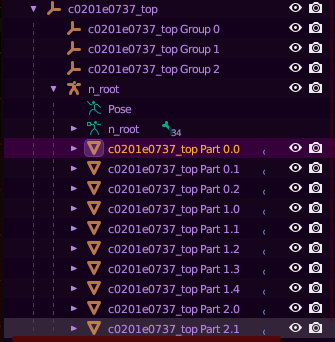
                                            AD_4nXcu_3Lacms8NTCi1C2h8rraB8hAbp3xZbBg6N7yfzusPl049mH_9d6TiJqmYZvh5JAyhEYI0TF5WiMtmeUDvBNW9TRYzoo53rPEt4dXUqwqfbyKtLrgmsiXaBeJyTDhvbDDhz74UdtfrI77v3jefA?key=x2SAouDxP3EayyutRfDV1A

                                              You need to click various parts to fix their material settings. Each part is divided into various bits (0.0, 0.1, 0.2, etc)

                                              If you change the material settings on 0.0, it’ll affect 0.1 and 0.2, as they’re all bits of the same part. You’ll have to do this for each individual part, so in this mesh’s case, 3 times!

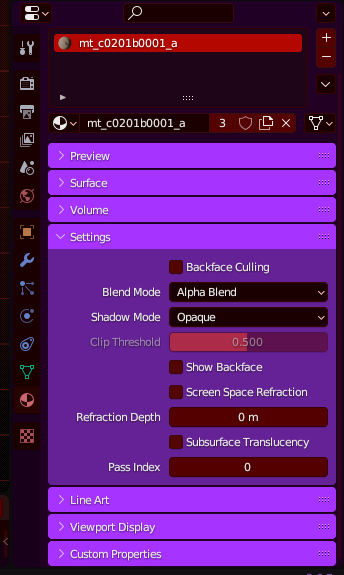
                                              Below the meshes, there’s this box. Click on the checkered orb, and close the boxes until you see Settings. 
                                              AD_4nXdeYSH9hkTDKJUYLQx3-TjKGLzPJOjJg3MEpAT2HYy3QxY3j4SJjieR7ogpSeOZ2_O12V8NUCoAZ1_WwuXb3bh_eSTZhz5L6h4OMm4Y8fGyNZy46QcOpp-0LavCuqK48t_vkoqvaEQGWZ5Fn6KVMQ?key=x2SAouDxP3EayyutRfDV1A

                                                Check Backface Culling, and change the Alpha Blend mode to Alpha clip.

                                                Once you’ve done this for all 3 parts, it should look like this!AD_4nXfXHUM7Cs9ryZdc__K_Sk64gJlzFVMxmxuOYVyeoz5Bdjd8EuouizOKqYyyRaM3F2FHZkHTlrXwgxZFDp0KcwykcR70n3_p2lS1zu56sSHCmX0uvlJZWKUgmGIkvZeXEI7ISKLm5KT6fhnRjE57?key=x2SAouDxP3EayyutRfDV1A

                                                We can get to working on our mashup now!

                                                Typically, Vanilla items will use part 0 as their skin material. Always check before you do so, but if you intend to upscale your mashup to a Bibo, TBSE, or Gen3 body type, you should delete part 0 as you start!

                                                I upscale to Rue+, so I’ll be deleting this part.

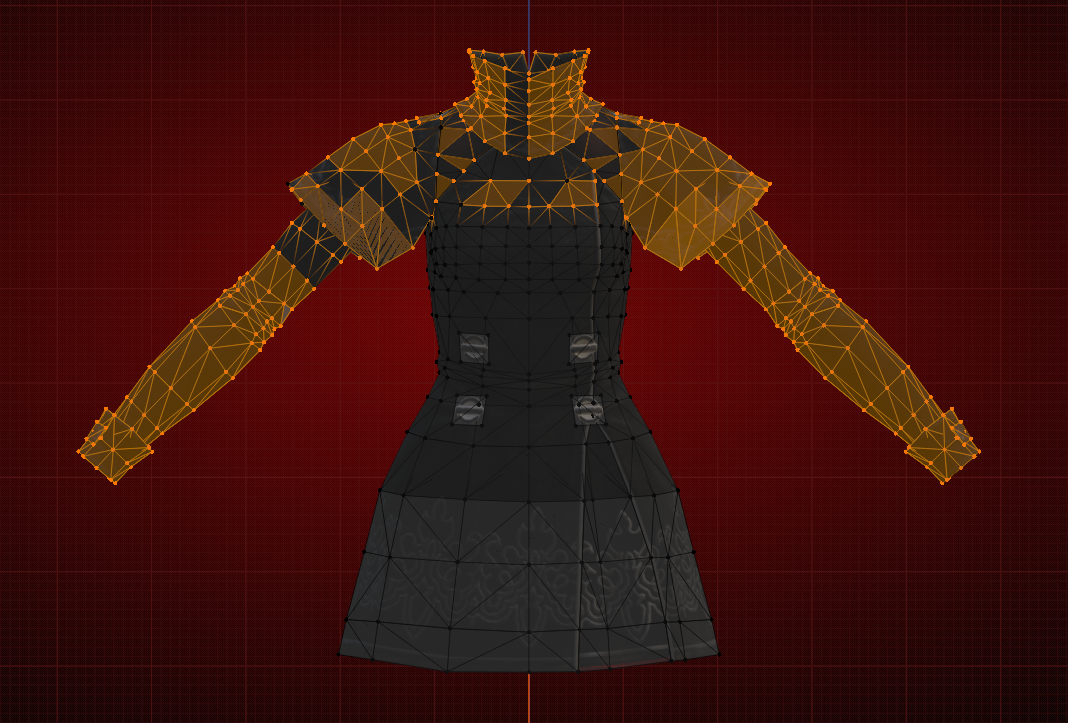
                                                In my inspiration picture, I can see that my dress is strapless, so I’ll be deleting the sleeves / everything above the collarbones for a start.

                                                To select all of your mesh, hit A, and go into Edit Mode via the top left dropdown box.AD_4nXes8BxmNFMplBn8oR1bL6QD2bhDy0XD7nXCnKAl3aMUdkFkTbYdwkrhFTOzn7MJfaRSiL6jR6G7tpb5j7dai3wtAl40tFw9P3iI1F3VLy62PvJ-7Cwij-6T3FXrAH6YluNkRUzOz5D-h8qgx-kUEg?key=x2SAouDxP3EayyutRfDV1A 

                                                Toggle X-Ray

                                                  You’ll notice some bits aren’t being selected. This is changed through the “Toggle X-Ray” option, next to the 4 orbs! AD_4nXczelECIQ9feJyWqiBf8jnsFHY_4hlEAeqF4dXpHpz9_VZ8tMrI8-1udf6nD3dvOK3D5baiz-uFuV5CGEcFQnPOa2fnG0XYD6sUQ3Cx6wvNLTKAIdemb8GY8xxSB1fk6tyoKlQuLDUjtAjAVwqecA?key=x2SAouDxP3EayyutRfDV1A
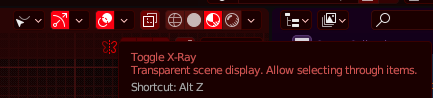
                                                  Once you’ve turned this on, a LOT more vertices will appear. AD_4nXfZV3NU42r_X6_vKiZngU7ogJkUiChyxDxGbdsHAVXP-BDq61VWDeMyGOX9YGv-sxmuIHfQ_c0OIfkRgAkySo636l03glqne4qpTMpjd2jw8Io_G4swe4XmfDbJpB4RCQY9-EJvfwlD-ImL94sL?key=x2SAouDxP3EayyutRfDV1A
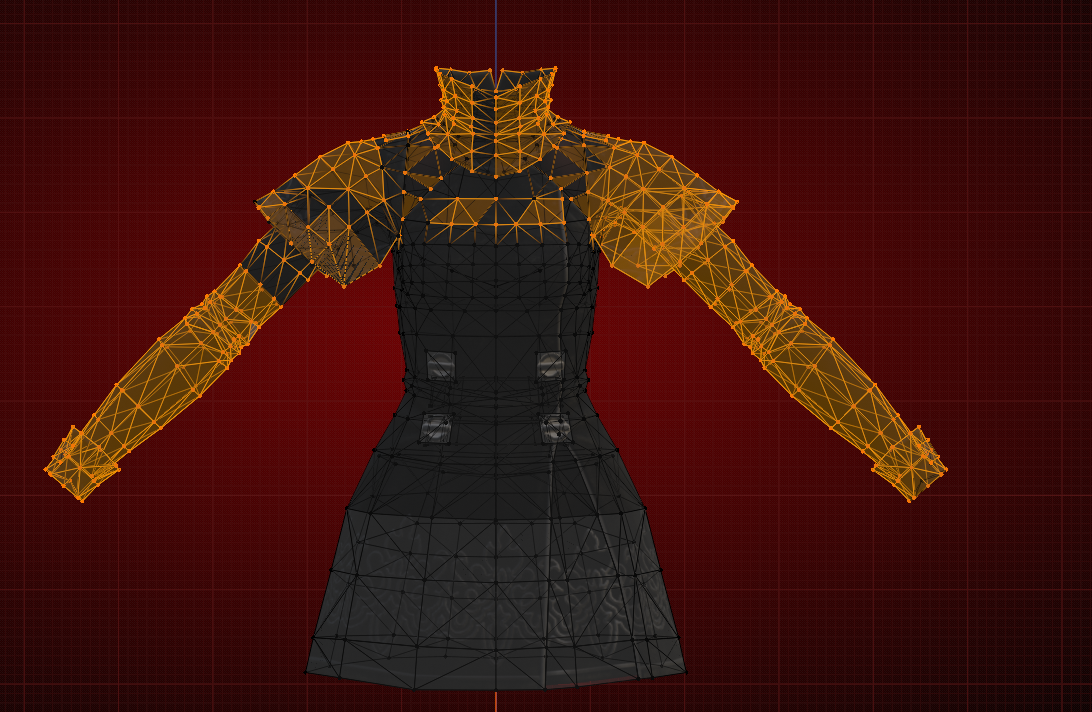
                                                  Keep selecting the bits you want to delete, then right click -> delete! AD_4nXdareXAF38zU95b8MSMwgUWqfJeRglyYGhrA4PHBhoqQnJYi26hnivQd4eQPtG45lqiiNECy3eEUT1JzMiQHiEmihrOQ2WeLQP4z0ZaMkRC9cK6KhtSd_m1E9kUWQkt6zTRgh-_iOpdrN2wcC7sTQ?key=x2SAouDxP3EayyutRfDV1A
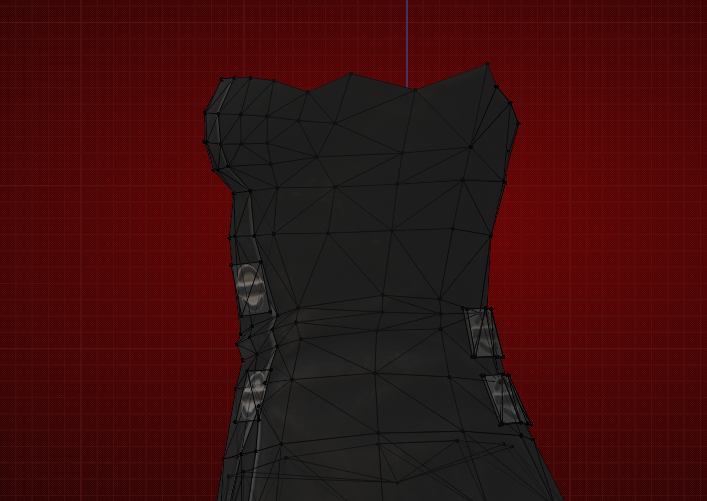
                                                  You’ll notice, if you look from the side, that some bits are wonky looking. Select these vertices, and adjust them with the move tool until you’re satisfied! (you can also delete them, just depends on what you want to do!)
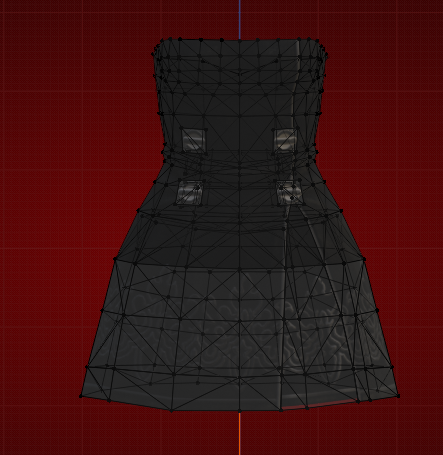
                                                  AD_4nXf45wTdpaA7nwUz1Tk7E7skzoCk6OerJ5_IUbQYFDFwXNR8R5zHjUb1QnymuvDZ09Bk3hCTdCHfzVUK6pRrIU8Q3N3n9j3A_Zk-W3GRIU1pz8qQYxaKaWbouMc_9I4my_FYNY-a-psbgsn6OOpKhg?key=x2SAouDxP3EayyutRfDV1A

                                                  From here, I’m going to delete the buttons on the front and the back!
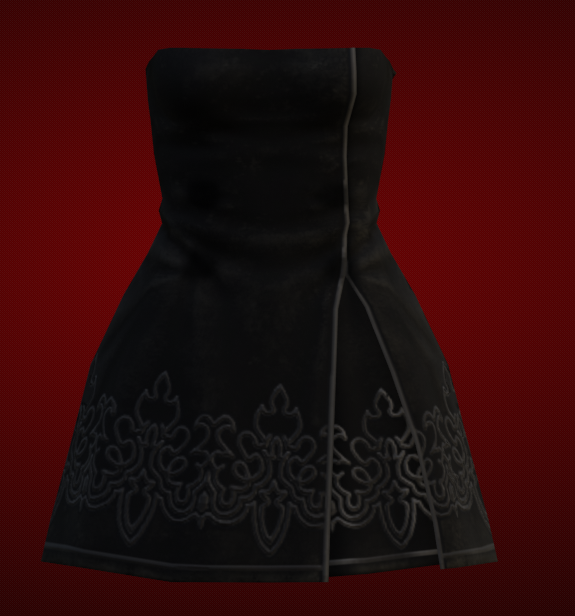
                                                  AD_4nXdkoI9H8s_EPuNK-MZa-wsOV-it01YlAD2AvNgAsZVPNaXskDR1rDkY3jea6DFl1faotPnU-S6e0rbf0J02vVgdzsm2AyFSAlT0pGRvJL1S0Hk19rt73c1TZCkADXrgBm1gUF4CJmvFWCzfRHlv?key=x2SAouDxP3EayyutRfDV1A

                                                    For the last touch, I want the dress to be symmetrical with the slits.

                                                      To accomplish this, we’ll be using the Mirror Modifier!

                                                      Firstly, delete the half of your mesh you want to replace. In my case, that’s the left half!
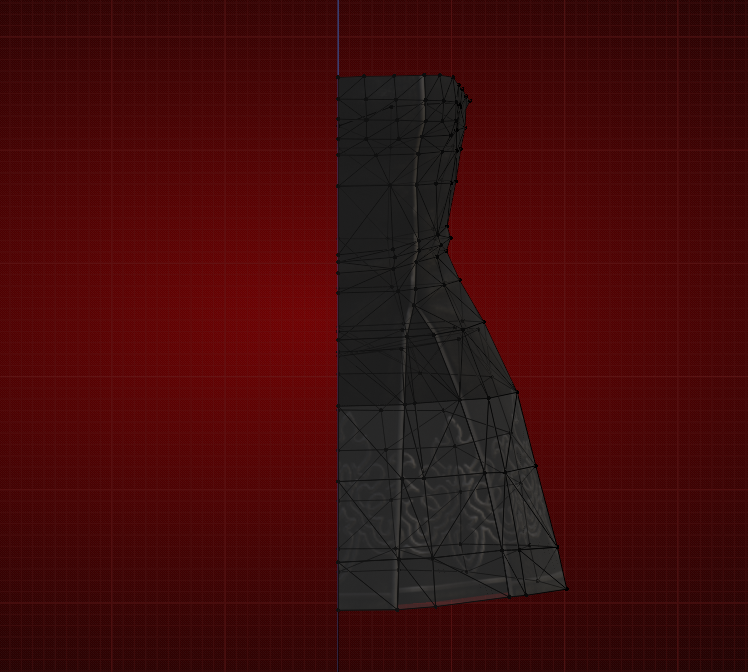
                                                      AD_4nXcbPuu2IC_VISnvL6v8HqmayTJiXbIbUH3jzZZUM1A_yb1CS-_YJzCWzlri_zeudIKKVqLYa3cVOYglkuiba2X6q7HkputqG8I9-oWBacA_khKqr9EswCY65DC3sz6OOh_9UXFyxz2jXomi9KDI3w?key=x2SAouDxP3EayyutRfDV1A

                                                      Make sure that this is directly down the blue line, or the Y axis!

                                                      Mirror Modifier

                                                         Located under the wrench tab, you’ll add the mirror modifier, like so!
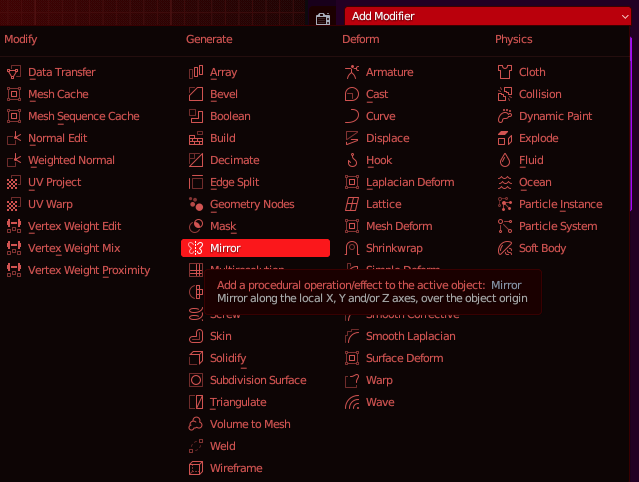
                                                        AD_4nXfRR7uw9Erp5nj7_zSKDRdK_Erjym84XgfjZ4GQqnqUdzdmGVNXcPGV1ljaporiNGVu2UIOJxbA71ahfqxgxA5emTihSAZ2ufz5FrcsH0K1HFsnzTvImb7KrKvX9Wpn3J5hIiuFq6LgOb0qkUqvVA?key=x2SAouDxP3EayyutRfDV1A

                                                        Apply the mirror modifier! 

                                                        Shape Keys

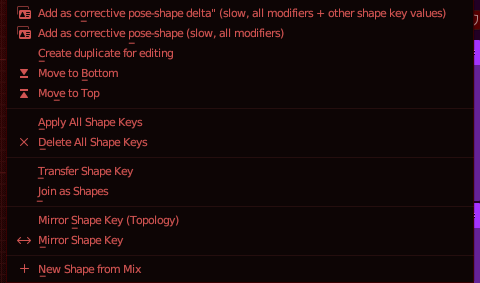
                                                          Note: you can’t do this with shape keys, if your mesh has shape keys, you can easily remove them! Navigate to the green triangle tab, underneath the wrench. 

                                                          To remove the shape keys, you can hit the minus sign, or you can hit the downward arrow, and select “Delete all Shapekeys”AD_4nXc6nT5hjFqN5BwPESOL1jSsdFuzXh4ze4G-bvVZ0gse7h_hrhPpZ56M9cKW2gbKVbzOqxfqhQOttsnOxDdVQqJNoKzVKhkw9bduXUkBtYuqRxUrD2W8e_2i6jlmVPnNB4gP8y5DInJTCO3i8U8Uig?key=x2SAouDxP3EayyutRfDV1A

                                                            After the mirror modifier is applied, you have one more step: merging the middle vertices! It’s simple, but worth mentioning. 

                                                            Using the “Select Box” option, select all the middle vertices that fall on the Y axis, like so: AD_4nXeuJs9VmmjAW17JYzGkM5PKAewG0pNSa0I7Rb-kJ8PG5yr_JqosGkzEfdDxXG_dZwLMpOW3lFJho_dowplIyMWBBw6OxbUAX6u19uxECPopIt-03AtwzFqNrIGdPwMVxjEwTlYXmYIcosoBZ0ZwwQ?key=x2SAouDxP3EayyutRfDV1A
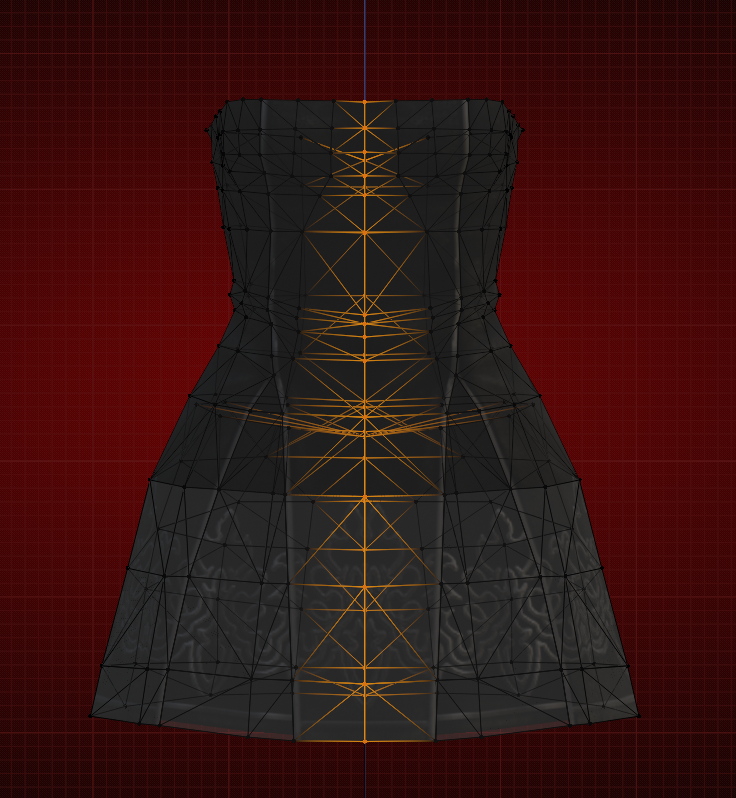
                                                            Right click -> Merge Verticies -> Merge Verticies by Distance

                                                            AD_4nXf90ODCoHZcu5rdenLyYr1itgmVRLhZM0eyjtCpfWHY9n77iEdLZ2SMi5lvSozVUu0NBIGXiB7ukQqGKLjbJJm6CExvGa6G1hFBrhouJuETjx8qXSFU-M0CUgtkp-_qRLZtG5ultELsDvqp6adcEQ?key=x2SAouDxP3EayyutRfDV1A

                                                            When you get the “Removed (x) vertice(s)” notification at the bottom of the screen, you’ll know it worked! 

                                                            All done with the dress! I’ll be adding a jacket on, again like the inspiration picture!

                                                              The jacket I’ll be adding onto the dress is invisible on the inside, let’s fix that!
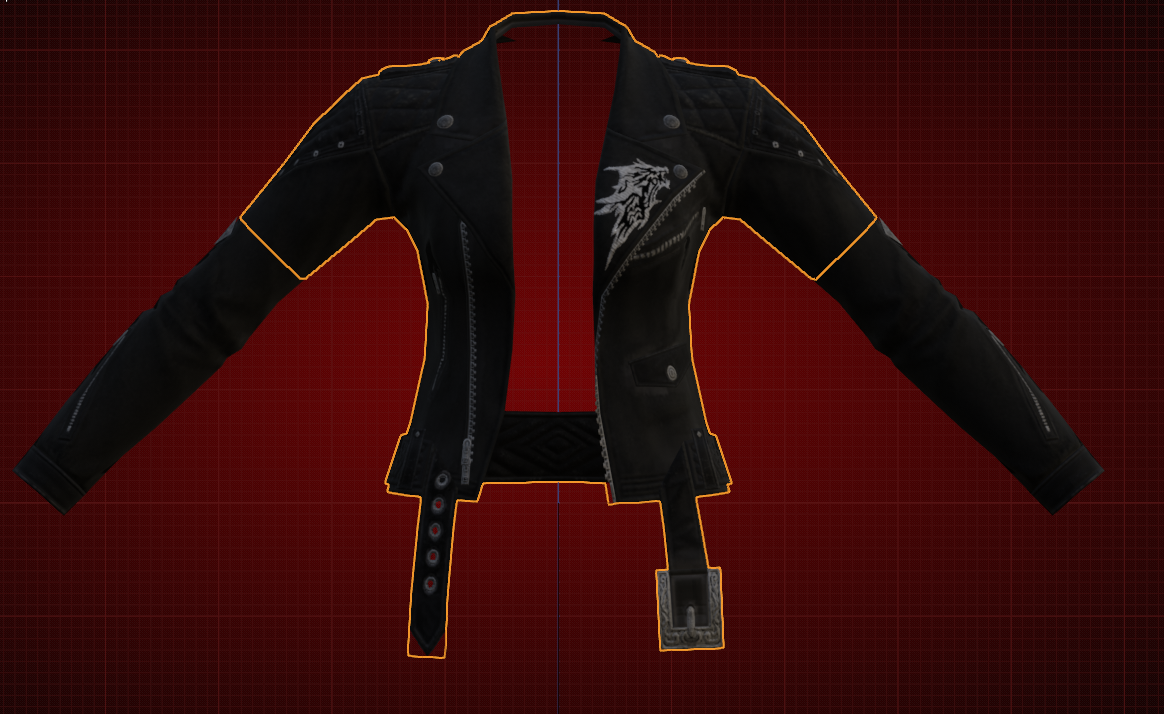
                                                              AD_4nXdIqgLSeR7heUqKzTrGwoizyWTc4xWMnao1ydpoGyJiZJnnChm75y0KtZ7iN0O0x-AeYhLFIzL_I7Oi4-9dZb9ENY9S5f-YtPVpdUDNKnvPq11qzdaDRV2iahw4XO46iyjjN7RKc7uXw0DEoWnh-A?key=x2SAouDxP3EayyutRfDV1A

                                                              Right click your mesh in the right tab, and copy it. Paste it, and expand the tabs again.

                                                              Select your new mesh, go into Edit Mode, and hit A to select the entire mesh. 

                                                              In the top left corner, there’s a box named Mesh. Open it up, and navigate down to Normals. You’ll want to hit “Recalculate Inside”.
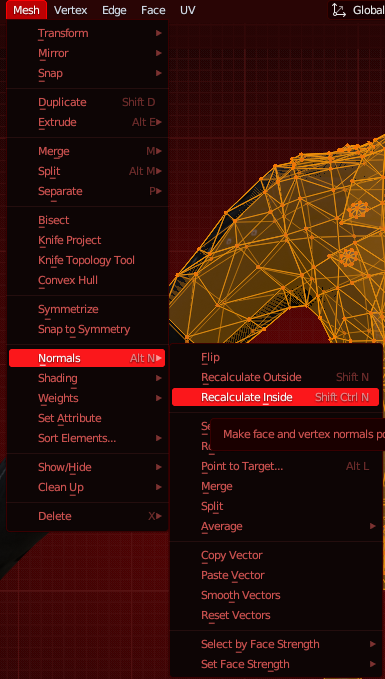
                                                               AD_4nXeSYzQX7gSkstN1otGUKxQM33eiJZee3PmsNIZcIhNa71hwOqC5hg-izDC8X5Biwq6MjFF7Wb-9To6K08Oqj141etD6CsZC2JJS1-I2-jG1YgDBj3z4E4Fdc3wkjtEoVqESNnFjPC-3OhsQSE3e0w?key=x2SAouDxP3EayyutRfDV1A

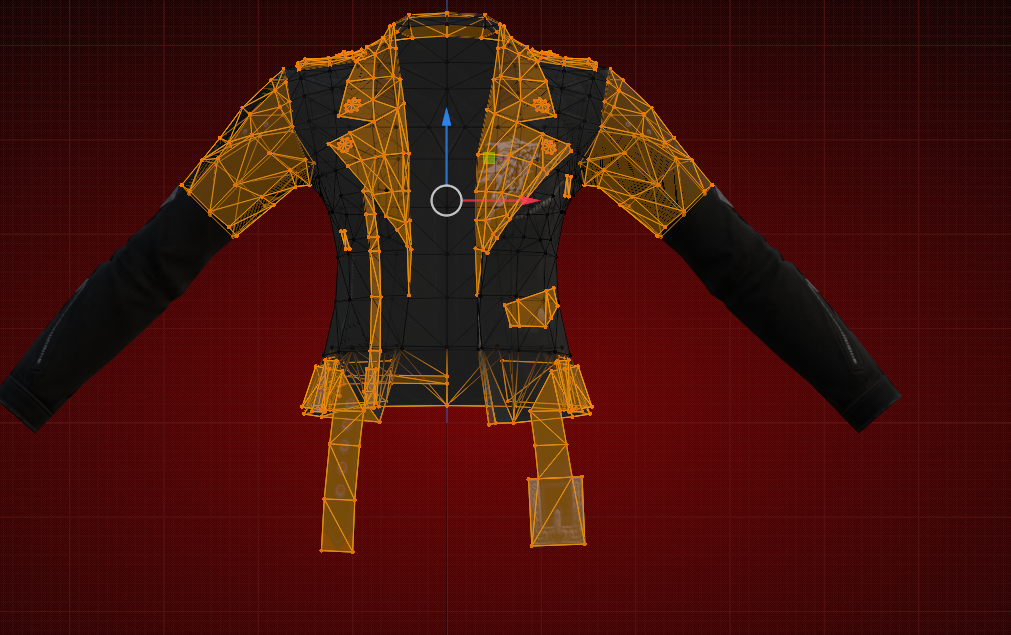
                                                              Afterwards, you’ll want to delete the bits that either wont be visible from the inside, or that already had backfaces. For this jacket, that’d be the collar bits, the arms up to the shoulder, the jewelry, and the dangly bits. You could technically leave them, but lowering your mod size is always a good idea! AD_4nXe0QiXzL92ioCaKLWsseCMekkshyRhhMaCjpJCrvANqV9FPHI9puZ5SaAvADp4KZ1un_WWDtDh4RFVGHz9ijQQhggMosFlugFK-x_bGJEmQVneox7CpKM09wovN6y6qQA6TUtnpAHrWjfFncf84?key=x2SAouDxP3EayyutRfDV1A
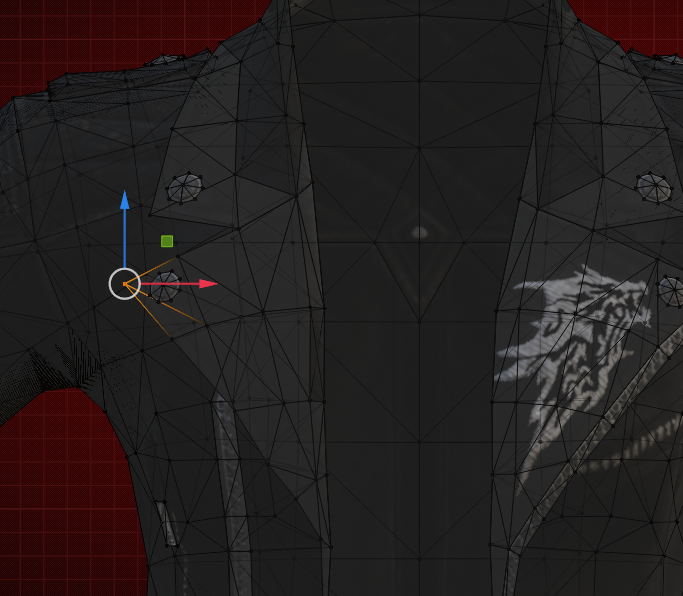
                                                              When you’re selecting bits like this, you can hit Ctrl + L, and it’ll select everything linked to it.
                                                              AD_4nXckp9h7pG-TCRqfE6SBUrv2_vgZwLeGynFdLSERtoSTdo8N1Uv09v385klh7w25IKDks_1JpdwsqP5mpyQja0KfERViRa4nMByO_SuNlzKmA1RtvHwJKJ6uhMJkSN4oCG4LFpf7m92FoP65yUXn?key=x2SAouDxP3EayyutRfDV1A

                                                              Here’s everything I’ll be deleting off this mesh!

                                                              From here, it’s small edits. Select the copy of the mesh, and the original mesh, and move it around until you like it! Proportional editing is fantastic for this! It’s the little target option at the top-middle of your screen. You can also hit O to turn it on! 

                                                              Afterwards, select a vertex and hold G, then zoom in. There’ll be a circle that decreases as you zoom in. This is the radius of vertices affected by proportional editing. Play around with this, find a radius you like. You’ll have to change it a few times to get used to it!AD_4nXfVh9Elw0g_G5kZxh7rRp3HcVPVEcnMFwWO0Tih2zpMWYoI7loGdQFLO56KaYPR6GdL0apsbEQ_blsMl2yP3nSFpbQDuZpZu2v7Zao09w_kZB4-EQgeBQAPVxJ_6XWC16pHYcgRwSAr08gojRTx4g?key=x2SAouDxP3EayyutRfDV1A
                                                              AD_4nXdMUZKlPhVCbhGJTGH0ln15-DhB-O0w0398mgGSgL2D1Z6P2WtCjZm2-4GTZELi2zaF2-1sN4aiK0um0wMSLsP42etqpRr9ZSu6stv5lXupTQMKRVm32Hvrg7qBORWewu-tnoCk2PLHl4maWYX2Qg?key=x2SAouDxP3EayyutRfDV1A

                                                              In the end, I’m left with this, after all the edits!

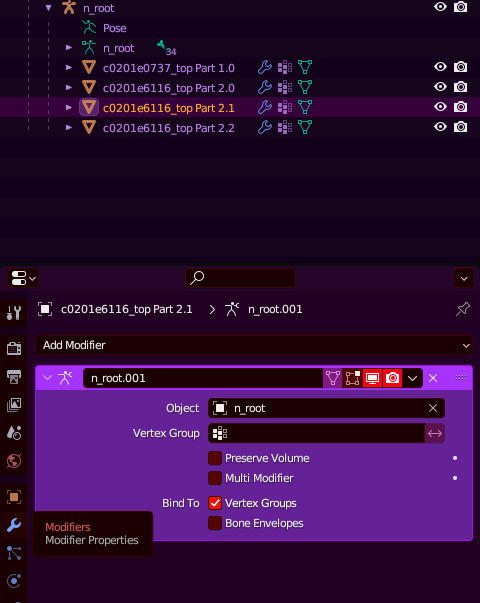
                                                              I like to move my meshes into one group + rename them before I work on refitting & weights! In order to do this, select all your meshes, drag them over one n_root, hold Shift + Alt, and drop them! 

                                                              After you’ve moved them over one n_root, make sure that your armature modifier matches the n_root it’s under, like so:
                                                              AD_4nXesmmejyk18CSFMb1KJ029ZlH_y3mgxzrANGN71-YU6yLGiBzxroEocsADGzf6nVs7kfmCqpdp0teeQcu8BGfxqzF8In9HTeAev8eFFXD_0BcAtRd7vgIMYwmUF_xrQ5y9s2SYTlLose1HG1CIS?key=x2SAouDxP3EayyutRfDV1A

                                                              If it doesn’t match, click the Object box, and make it match! If it’s under n_root, then the object needs to be n_root. 

                                                              To rename, just double click the name. You want each mesh that comes from a different item to have a different number. For example:
                                                              - Skin: Part 0.0
                                                              - Yorha Type-55 Jacket of Fending: Part 1.0
                                                              - Calfskin Jacket: Part 2.0

                                                              Refitting to our Body

                                                                After you’re done with your base mashup, you can move to refitting it to your body!

                                                                I use Rue+ small chest, and Skullcrusher legs. I already have those meshes exported, but if you’d like to grab them; import the base body, select your settings, and export the Emperor’s New Robe, Pants, and Gloves. Gloves may not always be necessary, but it’s good to have! 

                                                                Import these into blender!AD_4nXeyv3fqF8o1HU0Mc_qUW0t26NEXmioybdT0t_JrO_B9jVy7M0p6uupxykG8yYz8o6Ynto1Alv6EdACZ6M60KY1TApFDFUOAkYjCw7hzwYlMn2Q0Fus06aOdvwu_1K6msmgdz2eHnNdDqM4hz3Nd?key=x2SAouDxP3EayyutRfDV1A

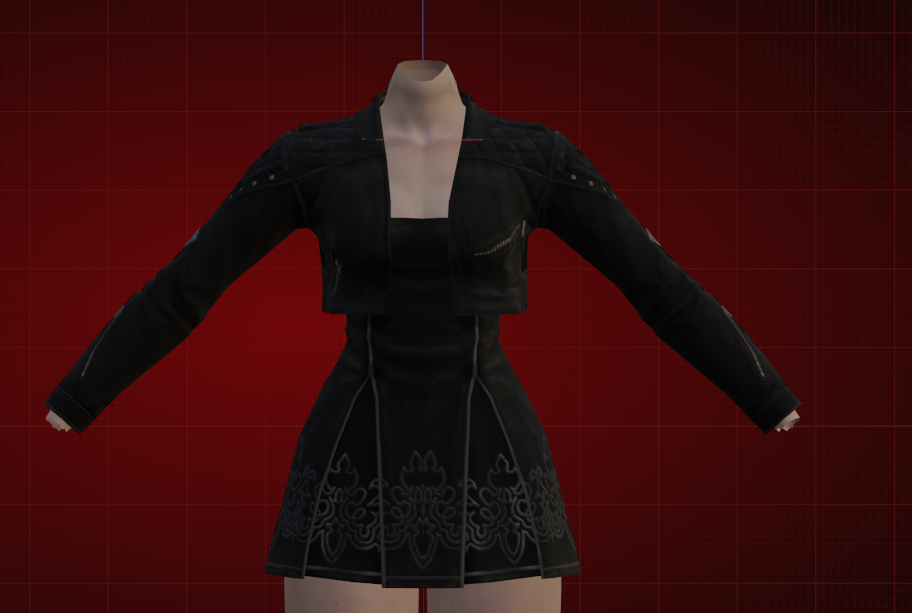
                                                                You’ll notice that there’s quite a bit of clipping. Same as when you made your mashup, you’ve just gotta go and move the vertices around until it looks decent. Don’t worry about getting it absolutely perfect, if you can’t see the skin, you can delete it afterwards!

                                                                A very big part of re-fitting clothes is Proportional Editing, so make sure you have that on for this!

                                                                The mirror modifier is also very useful here, and if I have to do a lot of refitting, I’ll use it here!
                                                                AD_4nXcDKF5COiPzhySWbBWir38kfwSokKfwGE0XkG-RqHYvunRmTKMJhr9bhXElxY-03z_ANgEcv6a9DLP2fE1vBjjsSlogp7Fj2NKpB447k41fyKu5jW0JPu1VQAdTxQKreETCZKEybONltM6MCvLU?key=x2SAouDxP3EayyutRfDV1A

                                                                After you’ve finished refitting, it’s time to cull the skin underneath!

                                                                Sometimes, in mods, you can see the skin was kept, but I’ve found it lightens the modpack size + the weights work nicer if the skin underneath is deleted. 

                                                                Again, this process is a lot of moving vertices around, and looking at different angles through your mesh. 

                                                                I’d recommend hiding the parts you intend to delete first, to ensure you won’t be deleting anything that’s visible! AD_4nXfyAPKuwGULUYwQJaK2HKNw8Hx-wOup4uFubF1pw_WOffK4VXu8-qlfgZ5bFWfOR5n4-FLy5iQFsnpmw7eObNpXQ2btclW5R3dhfJLIm9A_BkNGWR3I3wnASILRP8_OAMiA6VwjAv7wx4Q2ZCuVxA?key=x2SAouDxP3EayyutRfDV1A
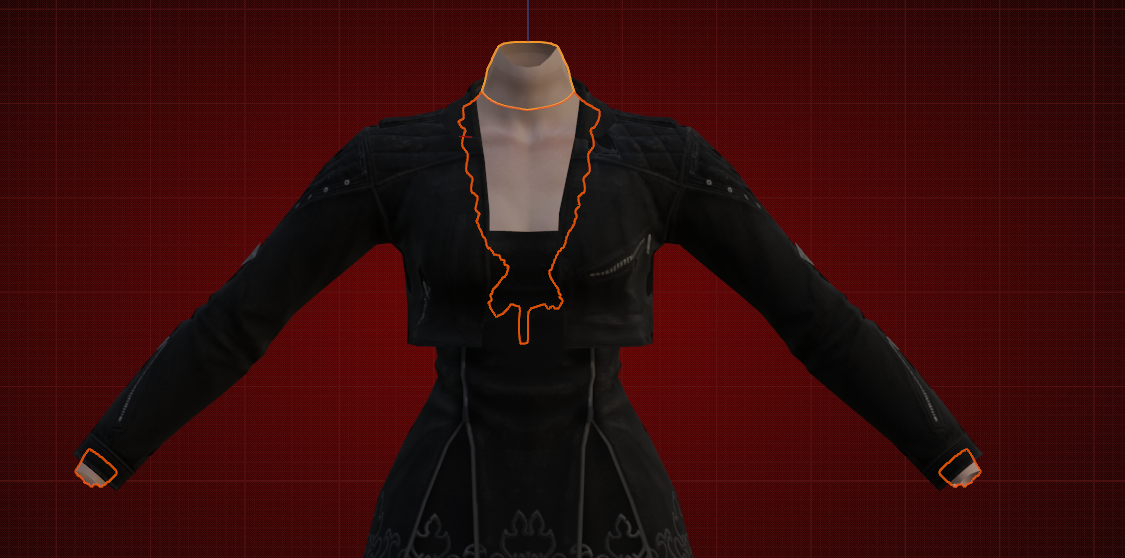
                                                                As you can see, the majority of the skin material has been deleted! We can move onto the weighting! Make sure to move your skin material underneath your mashup’s n_root before you progress!

                                                                Weighting

                                                                  We’ll be weighting our mashup through weight transferring. It’s the simplest method that I’ve found, and it works the majority of the time!

                                                                  In order to weight transfer, we have to find an ingame glamour that’s similar in shape to what our mashup looks like. I’ll be using the Yorha Type-55 Jacket of Fending, since I have it on hand, and it’s a similar shape to begin with. 

                                                                  Import the item you’re going to weight transfer from. You want the item to be one cohesive part, weight transferring from multiple parts is a pain in the butt

                                                                  Select the bottom part, hold shift, and select the bottom part. AD_4nXchQlRV1hIa254pfeHyON4hc3ydqkRKQjEV-m0Rhl1uQCtdNN_-NHAV4bSddLvqziByIkWe071wIYEAY6PIL4nvyDrKyVBaomMHPdR_4JeIUDBK56DtyBbh9p9WYwS9fbMktTLrrNTrM2e_B0yQ2A?key=x2SAouDxP3EayyutRfDV1A
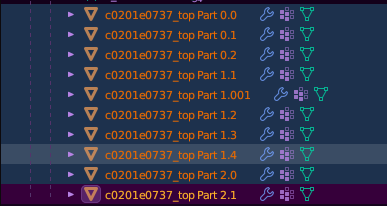
                                                                  Hit Ctrl + J to join all these parts!

                                                                  You now have an easy to work with mesh to steal the weights from!

                                                                  Prepping for Weight Transfer

                                                                    Before we weight, we need to remove our mashup’s weights, otherwise they may go funky after weight transferring.

                                                                    Move to the tab we went to for shapekeys. Vertex Groups, our weights, are also held here! 

                                                                    We’ll be removing all of these, for each part.
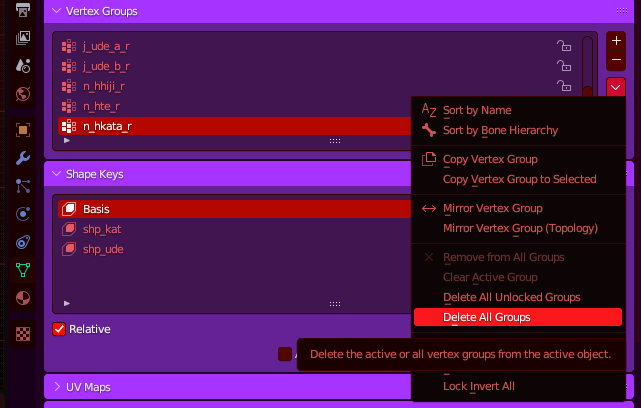
                                                                    AD_4nXfjAybWJRpyqYl52OqVlyPzQfLpYHRL8XwRWBT9Y9HRZdLIiVfO7e3fJYQ_DrBXSDM3L-Lg1iMC1GqAg-otolWmdx-Hj8HVfZKa-oCPC13Ftbb5ENgd5g5uT90L7zOKYt_nHJzRsla3YYhPRBFCXQ?key=x2SAouDxP3EayyutRfDV1A

                                                                    Similar to removing shapekeys, hit the drop down button, and “Delete all Groups” 

                                                                      You do not want to do this by hand, trust me, there’s like 20 groups, it really hurts afterwards.

                                                                      Do this for each part, until the Vertex Groups tab is clear. We can leave the shapekeys, if you decided to keep them!
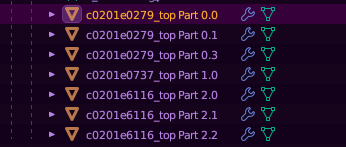
                                                                      AD_4nXfyMT2Zu0YV2lQrj1ZaWnc-gOAg9tYdYjBFXAt5Rmb_EAOrQHBxseG66_QUB58ylJOstPt8JzUzDz6IXEKGEw1GYhd27No9EXoWMJF6C_nTrOXJbt_x7KmXjlbe2KTCCobx7I6ktvQhdfy81WsjIg?key=x2SAouDxP3EayyutRfDV1A

                                                                      If your parts still have the honeycomb icon, shown below, you haven’t removed the weights.
                                                                      AD_4nXcWmqHGmm1coP4beZBjAirULbCIXWPCyunterDdShpOgXTpZmJZ_pw99NglQZIzbZT4uu6kVXIZFYB61V323zH8Za5JOk5V82XwOIabBP6uX4SVzjUce-a38EfurUquXqMAExnu7Ib0ewsahV__Ig?key=x2SAouDxP3EayyutRfDV1A

                                                                      This next part is tedious, unfortunately I haven’t found a quicker way to do this. 

                                                                      Select the mesh you’re stealing the weights from, hold Ctrl, and select one of the parts from your mashup, like so:
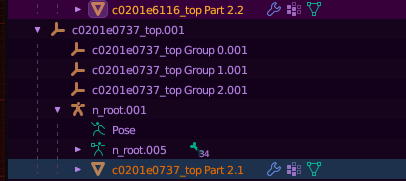
                                                                      AD_4nXf0vzFit1p6FImZSz-cvFNgbXalPEJiMLu4Ikk3c4Rt5Hn94WXPeDNOHKvVx3NyWQj9O8oL9JOQYTOXjPy_iBKL1LeEN6F8zX7b2ABildoYEd84CTTgcBZEGRxe9Fuigoi-5Y3cd8bqb67Eh_FTZA?key=x2SAouDxP3EayyutRfDV1A

                                                                      Weight Transfer Settings

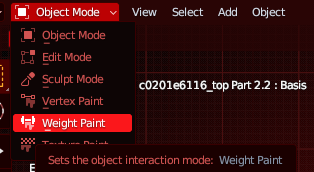
                                                                        Move over to “Weight Paint” from the top left dropdown menu!AD_4nXcGwGwmQDbcXVFhXRjOp8nkqHyJzhgfixPzHrU8AqtCHn0WMSQtlLgEIcRsRLJRMwpGh2doNq4K1k-rl30rIX6TkEbsAEW7XglEAbU7sC6Tw1h4NZn_MPcvOHLkSk3msaylrS8hPeVLwc8wS_L7OA?key=x2SAouDxP3EayyutRfDV1A

                                                                        The part you are weighting should be blue. If the mesh you’re stealing weights from is blue, you did it in the wrong order! 

                                                                        We’ll be using the weight transfer function!Go to the Weights tab on the left, and move down to Transfer Weights. Clicking this will bring up a little pop-up menu on the bottom left.
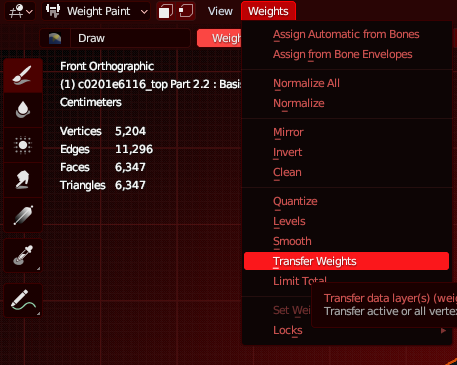
                                                                        AD_4nXd3JrzFwgm9LRpXlYXvsW7mz1em_zeEfhTxF4pZWzcyRT8qHHmYUKKbMecDC4U3x3IwJkqdcajdnDF8S0DJBtLVTXoYVmhLENHY198RkYMPyzw4hYJvce9VrLxg7r80-2cknpcDdV73wlVMnrXq-w?key=x2SAouDxP3EayyutRfDV1A

                                                                        Open this pop up menu! We’ll be changing the settings used!

                                                                        Make your settings look like this. These are the settings I personally use, and they’ve always worked!
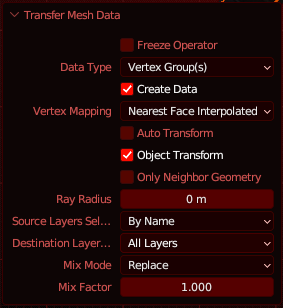
                                                                        AD_4nXe0i89-5WmJWfHp4WKIT-KAsO_qH39zV-3gigYXhWTOMqRqporp4PZjPmCh3fUadSFZm8BymhAdR99SAGdOjkQXPVu23RqvwXUINMM07Hvlam7kim0l9SfeKORcG3a1LrKkBondSf_NcZMA7iA-5A?key=x2SAouDxP3EayyutRfDV1A

                                                                        After your settings look like this, you’re ready to weight transfer on each of your mashup’s parts. Again, it’s very tedious. 

                                                                        Your parts should all have the cute honeycomb icon back now! 

                                                                        Now, move your parts to the mesh you stole weights from using Shift + Alt, and re-set the n_roots. This ensures the weights you just transferred have the correct skeleton to use! 

                                                                        And with that, we’re done! 

                                                                        Exporting from Blender

                                                                          When you’re ready to export, go to the File tab, at the very top left corner. You will be exporting your mesh as FBX, or whatever file type you chose to export as. AD_4nXcUnvkjL0pEiMO7SHA6hekA0rVXINrpFTSTKGR89mTgaQYojxP9lB3aZYwSQgHJw3_Pr_8KSMniOm8aVQRp6kH9SdstuFkTCIhZXMtzzeSiwjtNszZo5qYsaLUB0nUVG1w02YYpvZCaoRFfXWzMlg?key=x2SAouDxP3EayyutRfDV1A
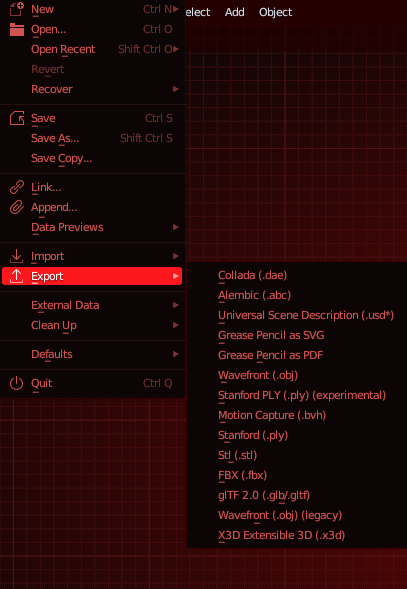
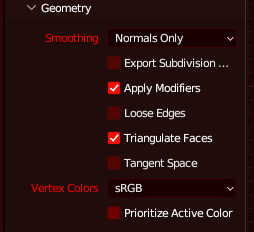
                                                                          Most of these settings, you can ignore. However, there is one setting that you should take note of. Close the include tab, and the transform tab, and open the geometry tab. AD_4nXfYySQquG9RTTPA47ks5ekMZ1LiukCoGvIlLoDAlpxRmNTGDrBnBR9sazF9DhPr0wl59cFRrPR2w3Yyf7nx8aEHGAhApXgcNXAHJJIwNw1IgaTCpyA8jmmlJ5m8-JgD220jyyBpA645HDzIxkPNQg?key=x2SAouDxP3EayyutRfDV1A
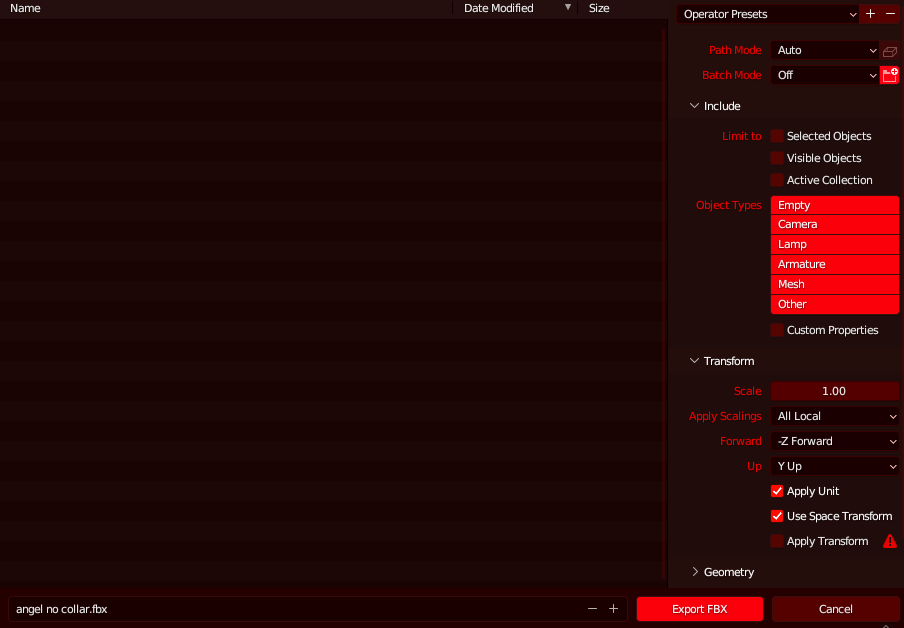
                                                                          “Apply Modifiers” and “Triangulate Faces” are the important settings to note here.

                                                                            Apply Modifiers ensures that you can leave Mirror Modifiers, Shrinkwrap Modifiers, Armature Modifiers, etc. unapplied, and they’ll still work. 

                                                                            Triangulate Faces fixes your mesh if you choose to subdivide it. 

                                                                              Subdividing doubles the vertex count of the area you’ve selected, and makes it easier to work with. I haven’t done it in this guide, as it simply wasn’t needed this time around. If you subdivide your mesh in the future, however, you need to have this setting turned on, or TexTools will not take it. 
                                                                              AD_4nXfKQ-szNRrUuNvEj1eSRyPM40r2kFX6RAT6jAN7isahoL2dmZG2jJ-JvbqlkM1q9quNGhI5MZu6j9-VXHJpE7XRsZ_tycx8YPCQ8lM-IEMrB0fMX4qTkYLa87AO0YayVqWLigKXWmq2g8z1D3cIQA?key=x2SAouDxP3EayyutRfDV1A

                                                                                Once you’ve ensured that these settings are ticked, ensure that you’re saving your mesh somewhere you can easily locate, and hit “Export FBX”.AD_4nXeIAkkqiNDAIxyFiMYMirRSKOpZrZU2vWmSnelMB0lSrF96fPIU8R85omdn2H6dAtqroyhMn3lFSzLLCk6CygeCByuPMzNNMEJ1i-vDX8MY1rq0Mc0CkdTZ2gBQuuiQbaqBlOioRZ6TQAHckziSwg?key=x2SAouDxP3EayyutRfDV1A

                                                                                Importing to TexTools

                                                                                When you’re ready to put your mashup together, navigate to the item you’re intending to replace with your mashup. 

                                                                                Making a new Material

                                                                                  On the item you’re replacing, there’ll be 3 lines! Click that, and it’ll bring up this menu. AD_4nXepyJVttO_3Uq1H3Hm1upICa2wuPpGoDrsUNu9BTK9ePEraRYdmTs7-KXV9Zk_EbJnK24JIqukWXQvdvei0tgsITJtFpuDlTb1SA04WN99_gEDSHqplYjDoIS9AV6nzLU7Ou6etMn0yl7E1lTzhXA?key=x2SAouDxP3EayyutRfDV1A

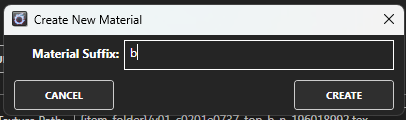
                                                                                  It doesn’t matter what you name materials, but I like to set my names to correlate with my part #s. Part 1 gets Material A, Part 2 gets Material B, etc. 
                                                                                  AD_4nXdqJaG9LTWpMt86iT_5ksxLZnlftA4sr4erg63YIL3wmBynN0EFFXgjkJ4IbqgrIkW57Byf18w03xcYCoE7bdk3a70EJ8gPf85Qh3bf0xhSrYJJGYS9BE9fRy9C9H02fgxHryMkBamPjYoVBlBHwA?key=x2SAouDxP3EayyutRfDV1A

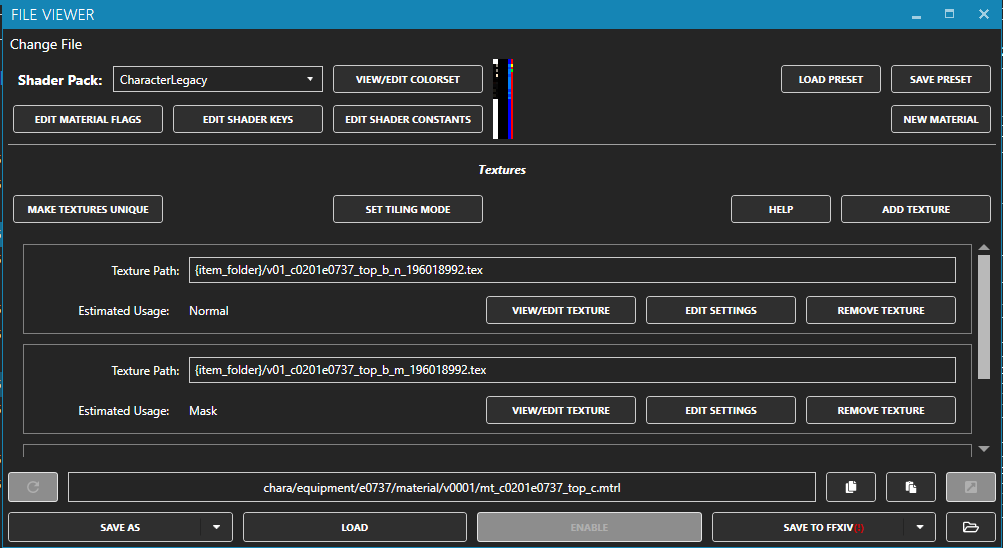
                                                                                    Hitting “CREATE” will bring up a new menu, where you see these options! Here, you can load colorsets, add different textures, load presets, change shaders, etc.AD_4nXeucaOyEw_o3ohHqkyIKiQY-6vuCWAL-gAwUVrQ6rtNEX8X4z9Y1O2ZP2oRsy0BuOeE-GSpSjCYlTykgIWTctOtf1PaeRd2lSVonTGUU2fudFJHJzDRZ0-Uep2znNC5vOmb4WJFiMk0XGz-mYbIGA?key=x2SAouDxP3EayyutRfDV1A

                                                                                    For now, hit “Make Textures Unique”, and then hit “Save to FFXIV”. 

                                                                                    Importing your Textures

                                                                                      From here, we’ll go to the Texture drop down menu again. Start with the Normal, and import the Normal you saved earlier. Remember to hit “Save to FFXIV”

                                                                                      Move to the Multi, load the Multi you saved, and hit “Save to FFXIV”

                                                                                      Finally, move to the Index, load the Index you saved, and hit “Save to FFXIV”

                                                                                      That’s it for textures!

                                                                                      Importing your Colorset

                                                                                        We’re going to move back to our material that we just created! 

                                                                                        When you’re at the Material tab, hit “View/Edit Colorset”

                                                                                        Load up the colorset you just saved, and once again, hit “Save to FFXIV”

                                                                                        Enabling Translucency

                                                                                          Transparency is used for hairs, and for specific clothes. If your mashup uses any transparent parts, you need to have this on, or it’ll, at the least, look wrong, and at the most, won’t show up at all. 

                                                                                          In the material tab, there’s an option for “Edit Material Flags”AD_4nXfYrOzuj2cJ2FZ2nfEeOvcncyU0b2UbEgPYJPINx9R_gTf6IaQf3GA5Pgh3QRT4TUfZgChCmXR6X3Tx3Vov5V2UKIAhylXBESQmwhIQ_aUUPX96UGIFaIussIzEo7eKLseSqRIjNNzTHqqW3HP6bw?key=x2SAouDxP3EayyutRfDV1A

                                                                                          You’re going to click on this, and it’ll bring up another menu. AD_4nXf6J5m75Fy6g8XpSL5vlh-8rXsCz8hWRySsV32lYEE4RvZI3KqJnHsX3eJ9mtH2_0WaqegHjOaOjLelOx1WCYlfvjysqM83J8sEkTmlg-ftk2r5SDL7CzqL4HoG8uXfbnOyHF8CowzWhXLsacEvug?key=x2SAouDxP3EayyutRfDV1A
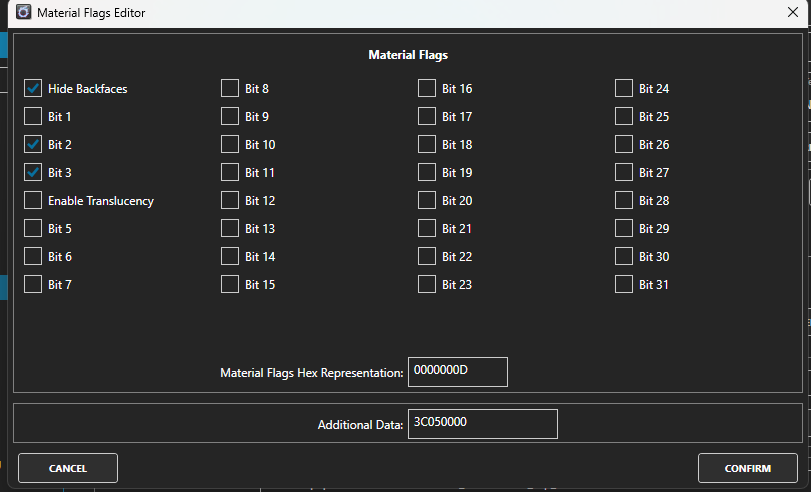
                                                                                          As you can see, the “Enable Translucency” option is not ticked. For the mashup I’ve made in this guide, I don’t need translucency enabled. However, this is a good setting to note, as eventually, you’ll make a mashup with transparent bits, or you’ll make a mesh transparent yourself! 

                                                                                          Importing your Mesh & Assigning Textures

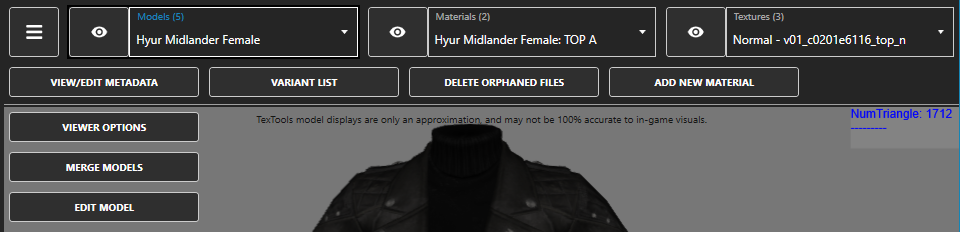
                                                                                            At last, we’re getting our mesh into TexTools. Move over to the models tab, and select the race / gender your mashup is for. Mine is on Midlander Female. 

                                                                                            Your window should look like this, with an unmodded mesh. If the mesh is modded, hit disable. You may need to start over your TexTools, and that’s fine! Ensure you don’t have any other mods that you’re working on / cannot re-acquire before you do so. AD_4nXfvlaplyUbDNAfR5AcpRrY8aP3evhn40hFci0hZvJ1-cSK60P_m9L3LWEz1yC_nBK56IOcLM_3crv-3k1KB14RQOZvSzTM4LvrTmElbIA2Vyou94j-VHP9a8StpyB6exRXD9E5lgvMquzKuFMYIlQ?key=x2SAouDxP3EayyutRfDV1A
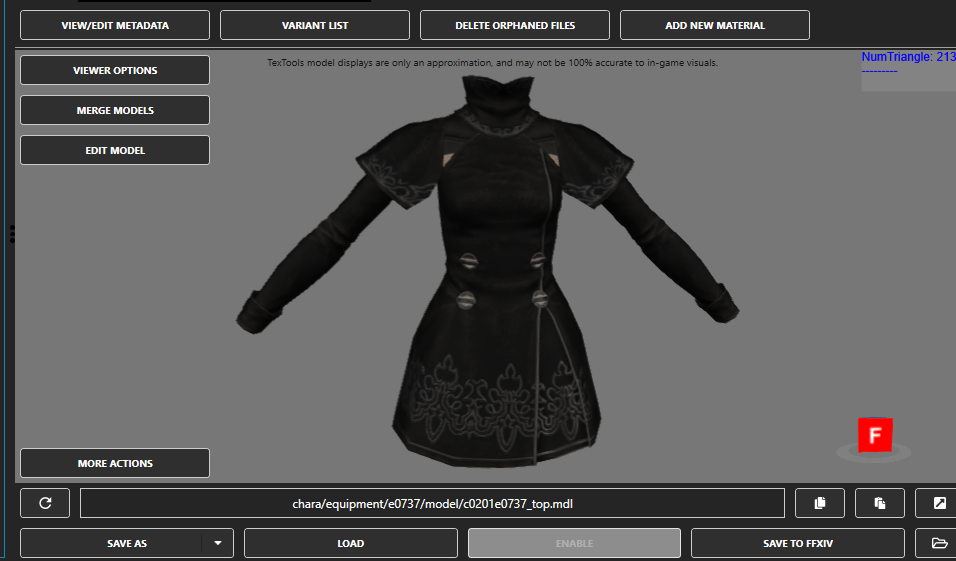
                                                                                            To load our mesh, we’ll hit “Load”, and select the FBX we exported from Blender. 

                                                                                            There’s a few settings to take note of here, specifically “Shift Imported UVs” and “Clone UV1 to UV2” AD_4nXfocUKP_F6v5S33Y3ia7dKHI2YY3jiASdr_M66KZ2wUq9_ch0s5Q9ZPw0Uw8a8dC-B3zHUwLdL6rg3YFRGe02MVGCsaeZ828E1IVvbTIuyirIgpZAgL5fuROSyPqJ8FkD77K6w5DRnnNI0g07Mg5A?key=x2SAouDxP3EayyutRfDV1A
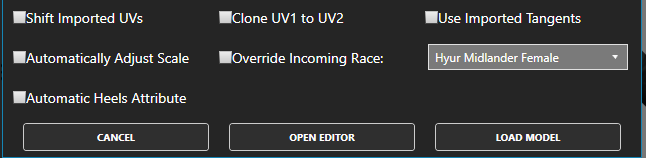
                                                                                            For now, just tick “Clone UV1 to UV2” and hit “Open Editor”

                                                                                            You’ll likely see a warning that says “Group: 0 Part: 1 : : 4 Vertices had major corrections made to their weight data.” Typically, this can be ignored. It’s TexTools normalizing your weights, and unless it’s 200 vertices being adjusted, it’s just making sure that your mesh has proper weights.This can cause issues occasionally, but most of the time, it’s fine!

                                                                                            After you hit “Open Editor”, and waited for your mesh to load, you’ll get (yet another) window that pops up. 

                                                                                            Here, we’ll be assigning our materials. Remember the order we set up, when we named our parts? You’ll have to remember that, and assign to those parts. AD_4nXczVaROM4pnsaBTaATtmkdrg2rnlgDgIbp_318KPDdx6vJ70-3HJQq3DVvgK6bo7kCPTLnncG5K_JlxE7OK1nb1iIAQBseE3EerBkP6mmjwSqBsVyGe6u9Rxlwl-lT2ujBHKZe9tzc9M5wjCPKsDg?key=x2SAouDxP3EayyutRfDV1A
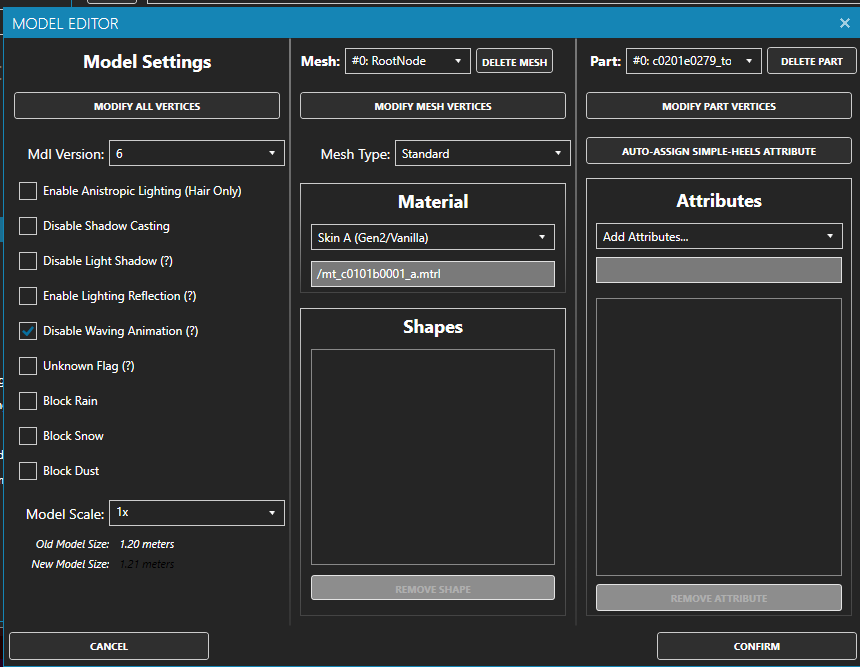
                                                                                            Once you’re done assigning materials, we now will work on assigning attributes! 

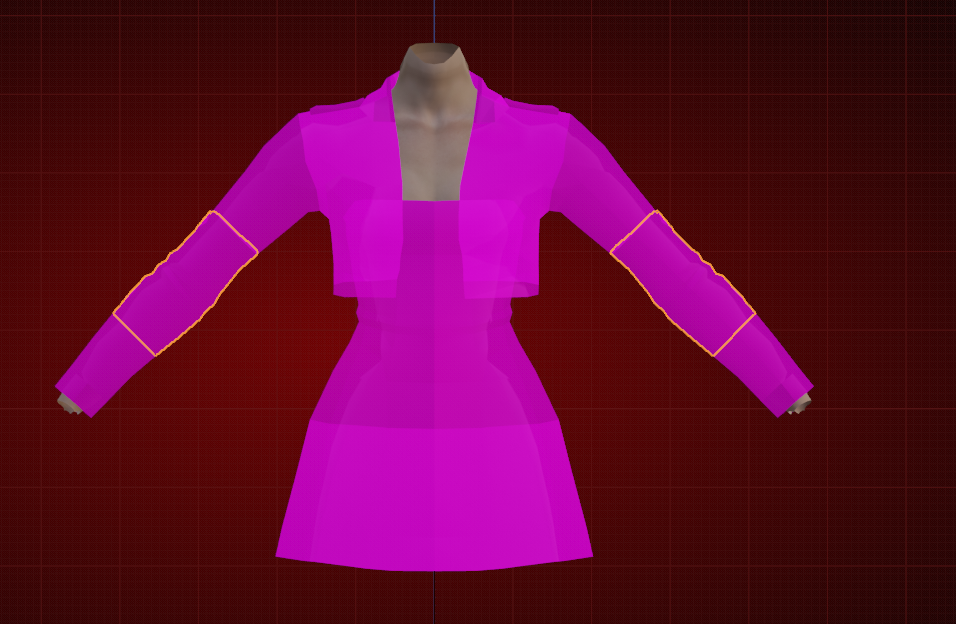
                                                                                            Attributes will dictate what is hidden when. The elbow attribute will hide anything under halfway up the upper arm. Think of how the Edenmorn Sleeve interacts with clothes. 

                                                                                            Assign Elbow Attributes to anything that’s below halfway up the upper arm, but above the forearm.
                                                                                            AD_4nXdAKemeSgZMxOptzh90xc117WMeKaPjM5LCOewC-S1umXH8z7VmDi7jVtbEO7HkYA9zHuLXGSXlcHHJQ7jIk093xxGfpvmRq5Iy7JCwrZVNLnga9YpO8iYD2b3wdANtk8YosWbV_d0WWj7F0iy9cw?key=x2SAouDxP3EayyutRfDV1A

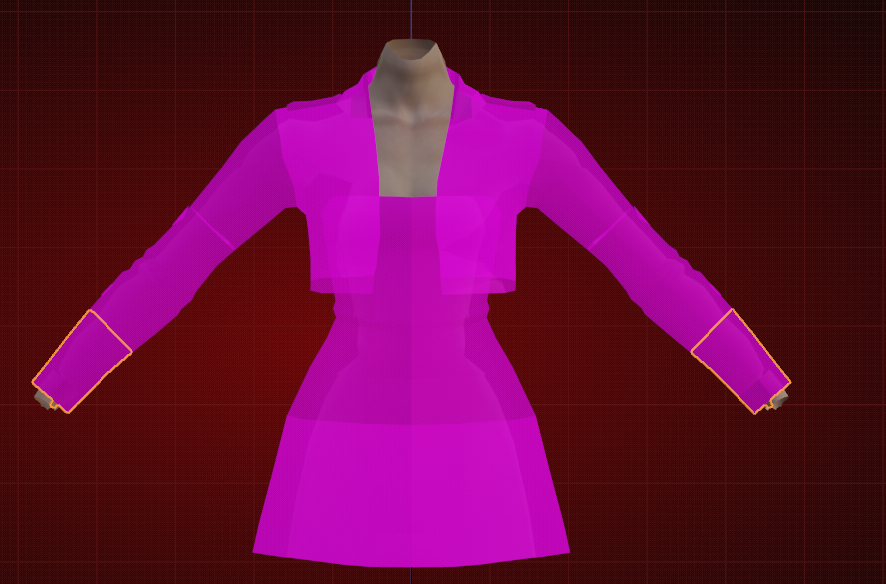
                                                                                            Assign Wrist Attributes to anything below the forearm. AD_4nXcR7QAsVPYi1QlWRuRFwox7HPuS-ur7yP_m2Hu5oYWTaeOzIn2C2ocu_qeNL9GORP8UDLLse7Mk2eMETVRjk1jeyav3EpU0NYgHB6P1JPuCHOKlycqllFB6tboLQbSKjJwnLU7BGPpWYAC6vaK-?key=x2SAouDxP3EayyutRfDV1A
                                                                                            Assign Neck Attributes to the neck connector. AD_4nXdAN0SQs9Z-9yGNiFfCuO41QJ0QbiwcwjYZdNgfOb0JESWtsmyZVTUqLeHN6t0bHeHPuZPQG8FGzo2LiueA3WNvvn9FystamXWY58qEjc3pOA91k-3gmeIyi7UCG7iwEjnE0GVb2OqxQzEy9cH6qQ?key=x2SAouDxP3EayyutRfDV1A
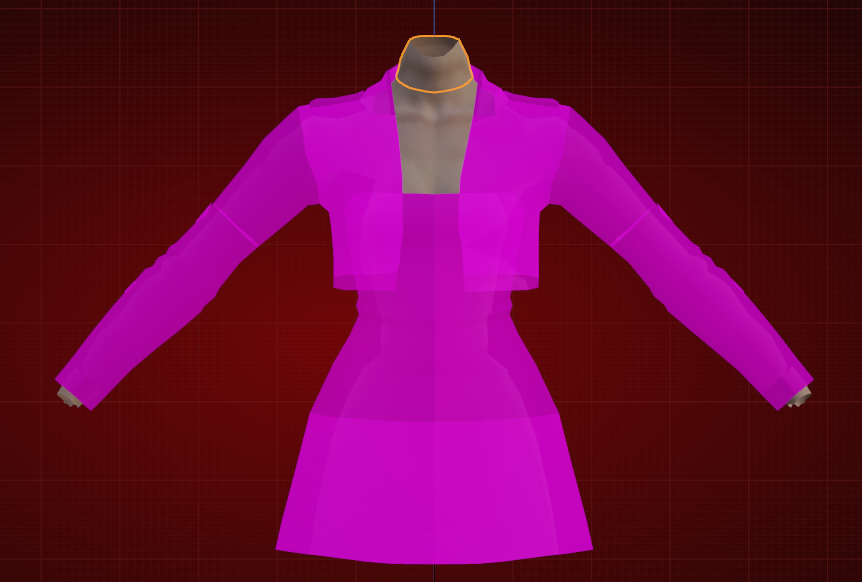
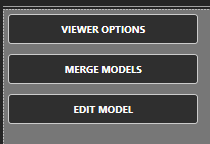
                                                                                            Once you’re done with assigning Attributes and Materials, click confirm. Your mesh should look cohesive and put together. If it looks warped, or wrong, you’ve assigned a material wrong. This is easily fixable by the new  “Edit Model” option, in the upper left corner! Go into this option, and fix your material assignments.
                                                                                            AD_4nXdPp8gYRzSuT7y-ubCZ0Kg71YDMw2FnblckeVAEmXhO-9S4ggsTwmVcHjeFUKSX_beXVJJ4qQvIN9N1C6DDhvM9PKiPP462w_A0qNKruPvbdUcD6VI_gygBqGIMLNhJolJm_f8r4Rv7okeo-HQHPA?key=x2SAouDxP3EayyutRfDV1A

                                                                                            If your materials are assigned correctly, and your mesh still looks warped / wrong, that’s probably a case of “Dawntrail UVs are weird”. This is where that “Shift Imported UVs” option comes in. 

                                                                                              Re-import your mesh with that option ticked, and see if that fixes it. If it does, but it only fixes one part, export that re-imported mesh, and import it back into Blender. 

                                                                                              Delete the bits that were not fixed by “Shift Imported UVs”, and move the bit that WAS fixed over into the original mesh. Delete the original version of that bit, re-export from blender, and re-import into TexTools. This should, fix it! 

                                                                                              Metadata

                                                                                                Metadata is the final step for your mashup to be complete. Open the 3 lines option, and go to “View / Edit Metadata”AD_4nXc8EjpApHJEaNBjdnJS49Kof3xbfwofsmLVx28ibPFkV6bwPE7-KkhLAJIGXWugWXSTJw7EzJlNKzC3rk31cHjTn1YKeKc205S0P-aUjHkjjtP8Zua-Amd_YiUP3q9owcivyxgeod6JJwtR_2SR?key=x2SAouDxP3EayyutRfDV1A

                                                                                                Going into Metadata, you’ll see this tab. There’s a few options to look at here, so we’ll work our way down.

                                                                                                Firstly, racial models!
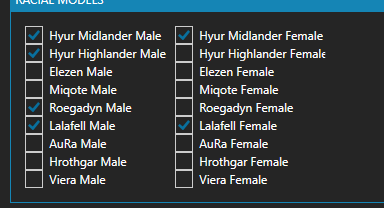
                                                                                                AD_4nXcyTMNEGZyacQZxr21tF-fu_sM1dhkEEn4NThCV5Y3G_NA7DI5AtGVAk32yeiPZ7AdWMOmtlZ4zpG3REai7Wo7mAqqqJEVlTAqGNLyxqOMDmp11HqwCQKzsxDUr7csl0AlNH85mbjENGcgbsr-bFQ?key=x2SAouDxP3EayyutRfDV1A

                                                                                                  Sometimes, meshes will have additional models for Miqote, Au Ra, Elezen, etc. You can disable these alternate meshes with very little issues! 

                                                                                                    These variants exist for skin-tight meshes, such as the swimsuits, or the Emperor’s set. 

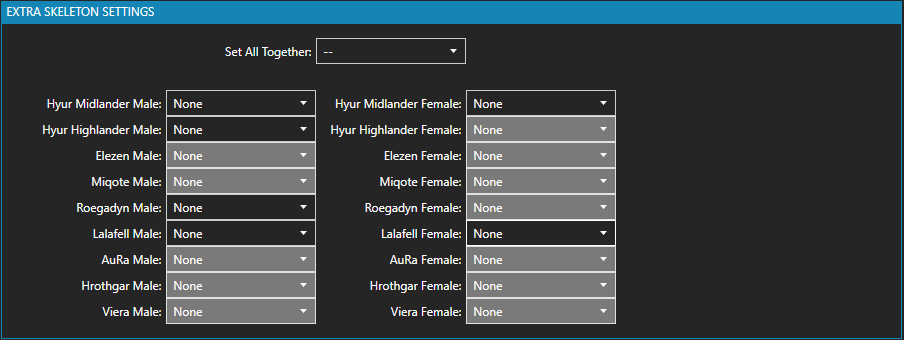
                                                                                                    Next, “Extra Skeleton Settings”AD_4nXcCCnHW73ublP5zuJBc0V8hcimh6hDit5HQURGeuuRkb-IUExBBrOjVzT1h64oc-oNJ2DB0E1MiGKYHkTmpcIHEaYI44Lp-APZaUnGXJTwvyx575NGqMJtr9c6UNXMqHkrCh481EN-VnhHwoeLkbg?key=x2SAouDxP3EayyutRfDV1A

                                                                                                    I’ve never used this option, so we’ll skip it! I figured I’d include it, as it’s worth covering.

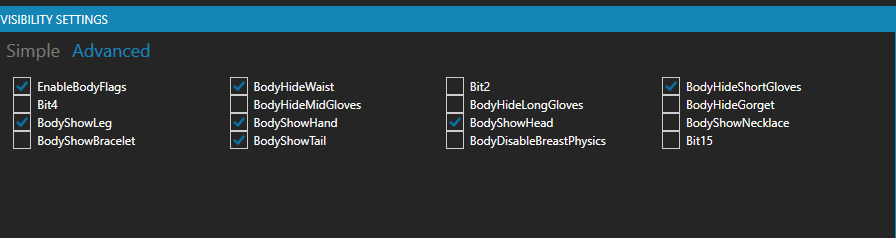
                                                                                                    Visibility settings is one of the smallest things you can change that makes a big difference! The item you imported your mesh on may hide necklaces, bracelets, gloves, and tails, even if the mashup you’ve made would show those. Tick the options that would show realistically with your mashup. Keep in mind that lots of people attach extra accessories / clothing pieces onto bracelets, rings, and necklaces. If you want to turn on all accessories by default, feel free to!AD_4nXeQxiK5d43XnFlLa_CHTFJrgYH8h9j3XN8d4wSgoCHTzt6aLIgzQJIyEbqqEsCDW0A2_UnltfLxRFw8Q2Jh51B4WuDh7KxqQ6NzUIOfBkxmGbqM-3z2YagJmzmJqzI5NuwwXp38cyoHvMa49HQ0Eg?key=x2SAouDxP3EayyutRfDV1A

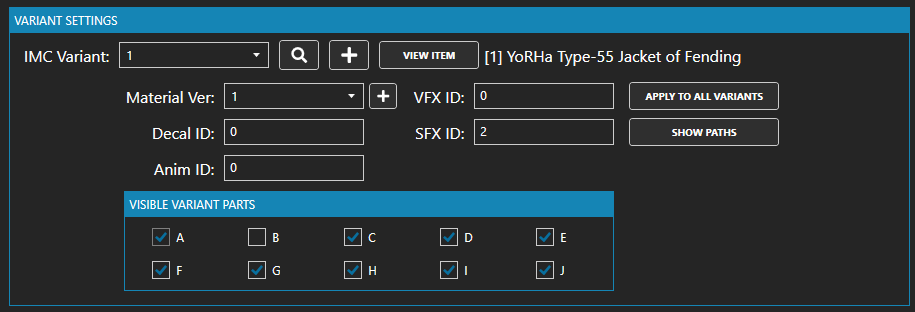
                                                                                                    Lastly, there’s “Variant Settings”AD_4nXfdKWb64S_GGAqfsMSZgza_gMO60dN6o78ftl4A2AJzP_dxbvZueau2wD9GGVt_a_BKbjLt2ndTvmf7RG84PFqatGemD-1SR6iJr-J8KftgbuLRU03gl8x4wujM4OakxyoB5mfU-Xr6cw9s5gsFFw?key=x2SAouDxP3EayyutRfDV1A

                                                                                                    Editing this will allow you to ensure that variants of the item your mashup has affected won’t break. 

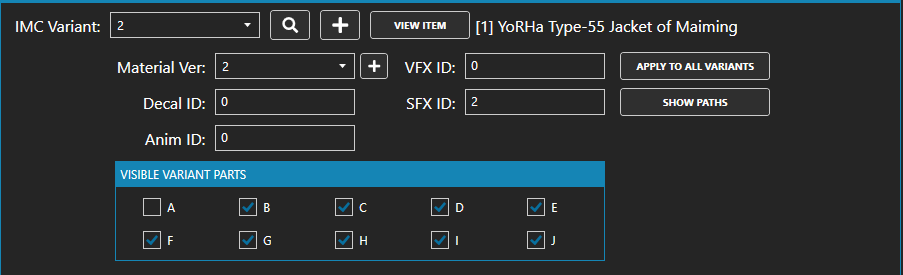
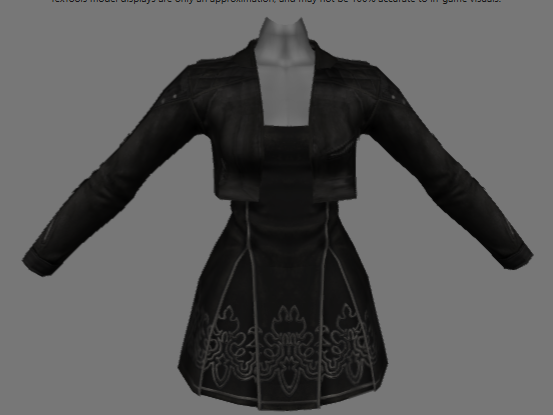
                                                                                                    My mashup affects the Yorha Type-55 Jacket of Fending. The Yorha Type-55 Jacket of Maiming is a variant item of the Jacket of Fending, but it uses a different material version.AD_4nXdVo0iK-yTdhqEelo0GrY7bVBf5Va5jlPkAGdRbZcnK9S0tZ4nWKko0FJ1uNB1nYEHzCd5EywAEccg8cZWGeiR1SOceeEgIoQDgGDJmWXrPSgk59oLM5lX5TvtAD-_6rdNNGJAQ1AZ4j0r3LkZ7zg?key=x2SAouDxP3EayyutRfDV1A

                                                                                                    As such, the Yorha Type-55 Jacket of Maiming is broken looking. AD_4nXc4DrsyfI87IA0GUtWkY0OgCwul21mLIoD8Sv-SZHWKigYnNZ0u5AhJYnQPYn1fEVBI9dulHTjv_AWYhpKBDZd1IPHIBdlxGiYyjHUd0s_H1_fqB5gGqeP2AKGUt7AakrX8m3nydPi4RwXR7o_gIg?key=x2SAouDxP3EayyutRfDV1A
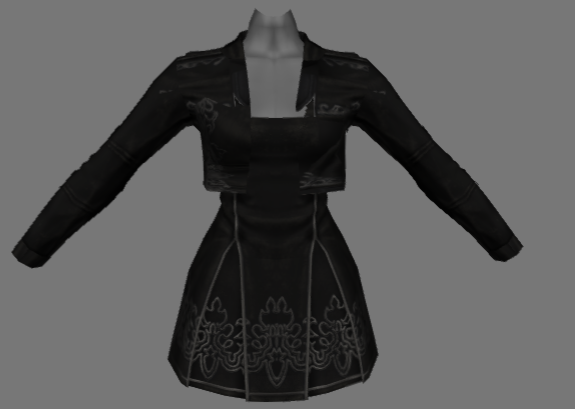
                                                                                                    In the dropdown menu, change the IMC Variant and the Material Version to 1, then Save to FFXIV.
                                                                                                    AD_4nXfdJ7szrtowZ_Yij3L8g6KCdqn8w_6hRWO-ucGqvQq6YTnIcPC1lvrvCUwSdE-UdW2wPzWgJ-Rjeq79jNq7llvp38u-gSTUCYabc7nClvFOd9lZBrghYpJlQoHDANxvKzOAS9tR3I6XESuKzyLX?key=x2SAouDxP3EayyutRfDV1A

                                                                                                    This fixes the variant!

                                                                                                    Modpacking

                                                                                                      With that done, we’re all ready to modpack! In the top left corner, navigate back to “Mods”. 

                                                                                                      We’ll be making our modpack from the “Advanced” option, just to get you familiarized with variants. 

                                                                                                      Upon clicking the Advanced option, you’ll be greeted with this: AD_4nXfCgHBMBQJyRQ_XOv9uslzawVDpk20I2bd8VYJYQF3859whAZ_vszypCbtO4k5J1Jk9oaeclutPZf-WAhv-W8fFEdpUqQ1iKSiRUGyqcXEd0liihKh6CgRTop_U9sBQuweWvUJMbxdJklFtDPiJDw?key=x2SAouDxP3EayyutRfDV1A
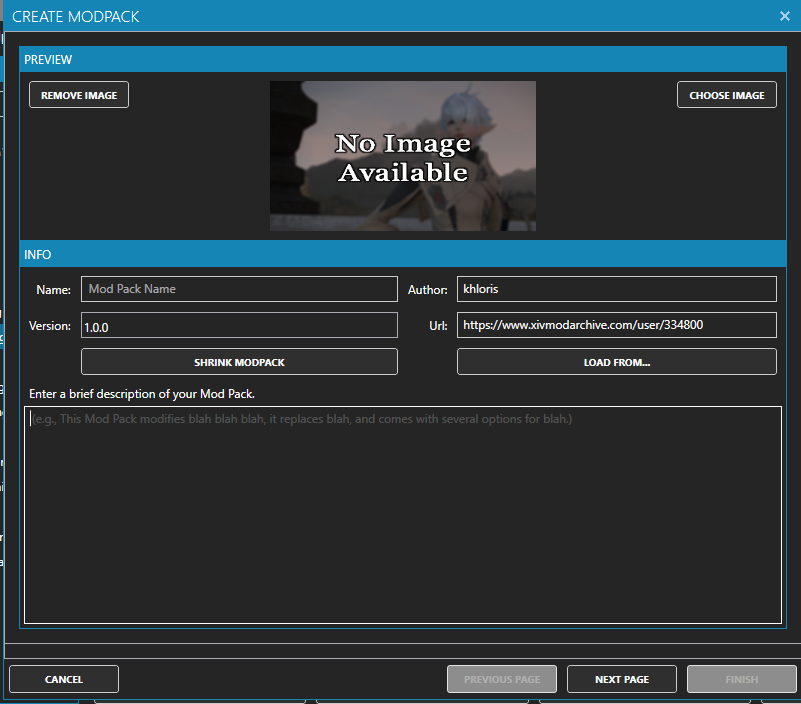
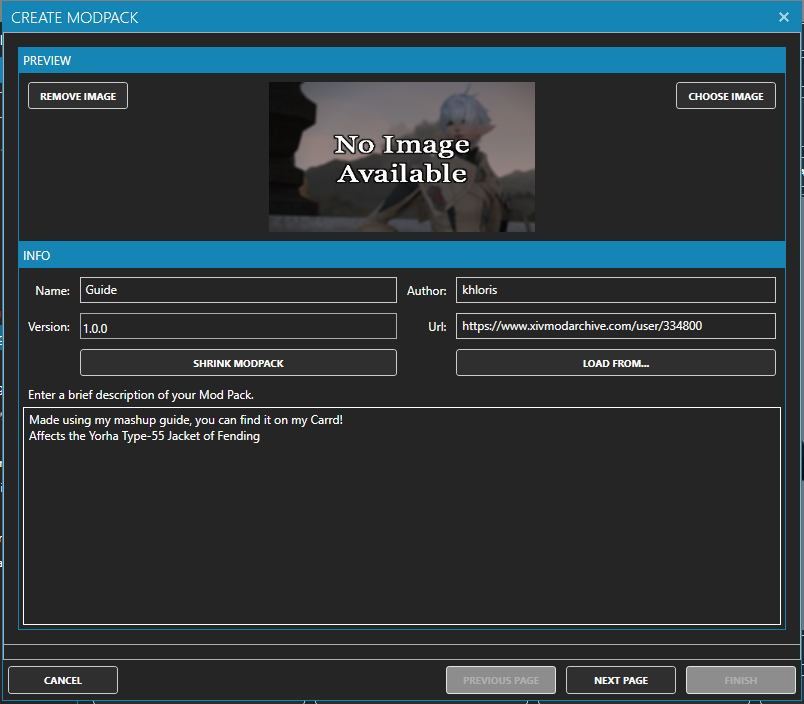
                                                                                                      Everything here is self-explanatory. Name your modpack, and include whatever you need to in the description! I’d recommend including what item your mod affects in the description for TexTools users! AD_4nXfmynA4fB5fb2BxmxQbnH0Y9rUWT8OOP-A8bQRHSzXW3MVifMfhrNwrcaz5txV0ew55blEnpq12wfOqpVF-2mjDHkhirOP3NQ_BSvIfZur1jT9rULvZvfA8GZisnJDXdfbtWpiC8Asef8W_gz7qjQ?key=x2SAouDxP3EayyutRfDV1A
                                                                                                      Clicking on “Next Page” , you’ll be greeted with this. This is what your users will be greeted with, if they’re installing through TexTools.

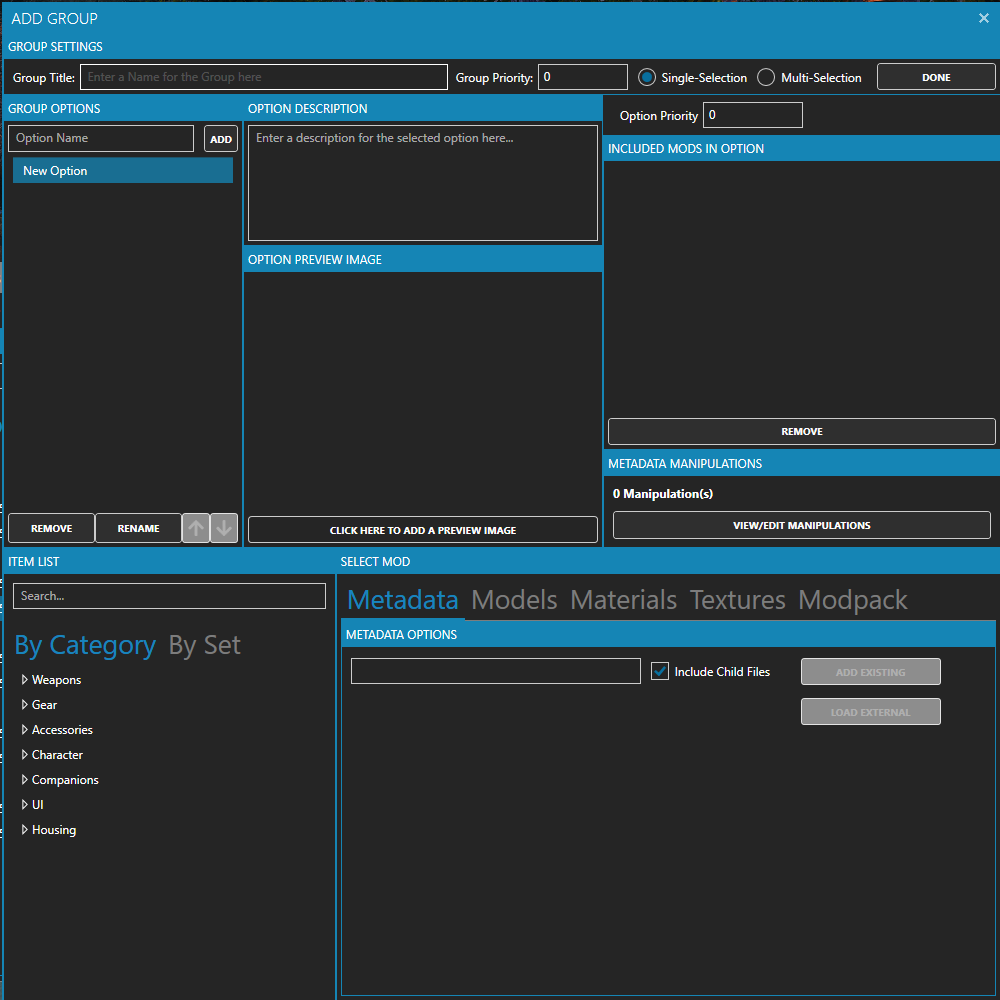
                                                                                                      At the bottom left, click “Add”, then “Standard group. You should have this. AD_4nXcqYUzlFlrlPun5aiBRafhYRrYcBQrrU5loXNBIx6R4H_ly8Yvr8EBaw_nZ7Lf62eIyO9m6fkDJUKUQ3qXBpHDvlIj0zVRbM-inLTNZef4Gw8ZfFE96o7u_kQixLeYJCrVgoIn7ZW1DHZK7PO9X?key=x2SAouDxP3EayyutRfDV1A
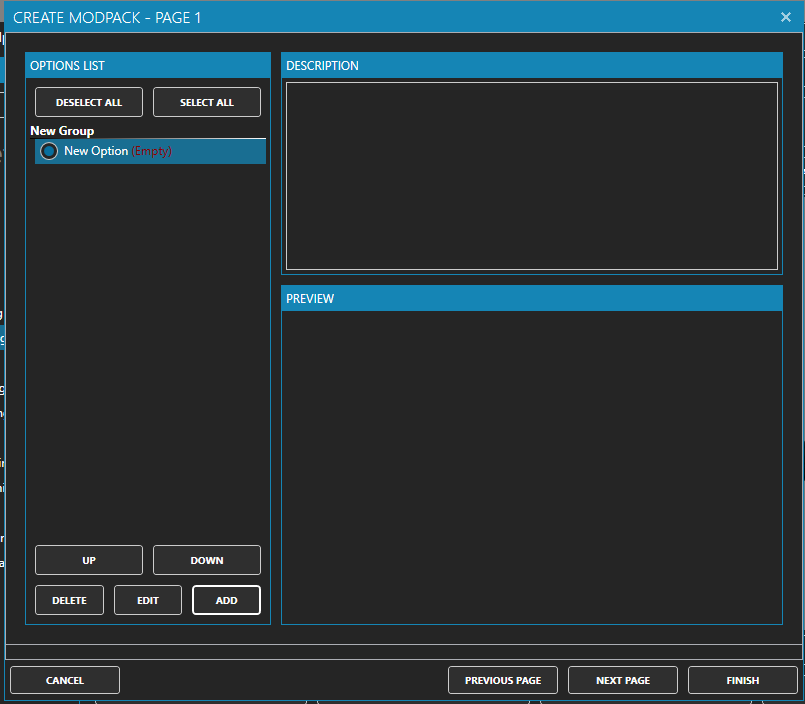
                                                                                                      Select your group, and click Edit. 

                                                                                                      You’ll notice quite a few options, don’t get overwhelmed, move from the top down.AD_4nXdDg4G5VIl2Fl2D9UAI-kaemoXyuj-e8WYvI-v57t0rdUDyxeXNQejE19FUltvhQjryz_sxkGPa5tcQIMHI9fiMoEh2EaYwfs83mF27Gko7y6cJMgYocL0FTRKKN4Sp-Ot8NPb1XJnOt4QDI5Lz1Q?key=x2SAouDxP3EayyutRfDV1A

                                                                                                      At the top, there’s the name for the group, and the type of selection you can add for your users. 

                                                                                                        Multi-Selection is used for if you want to include multiple items, but make each of them toggleable. 

                                                                                                        Single-Selection is used for if you want to include options, but only have one of them toggleable. I’ll include this for different versions of my mashups, and I’ll be using this one today. 

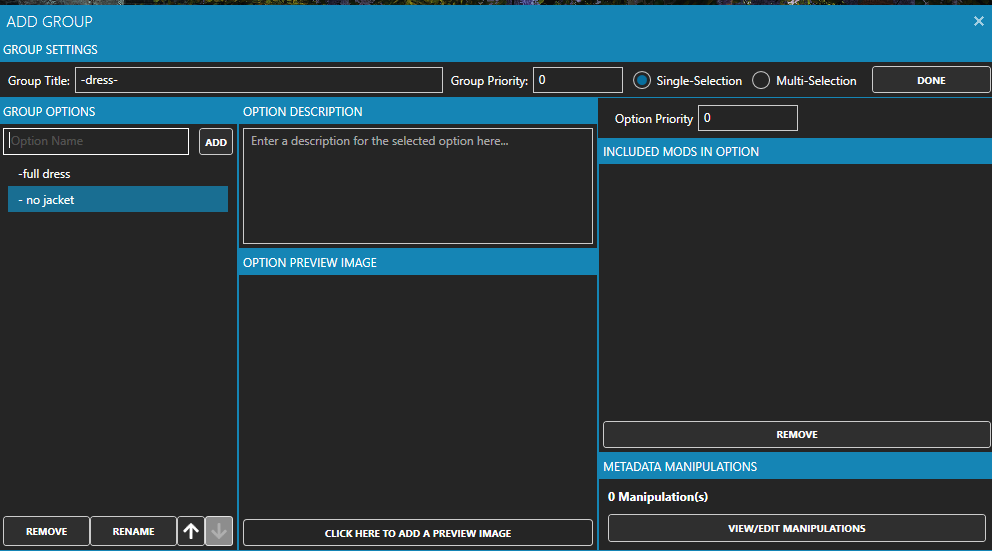
                                                                                                        Rename your group option whatever you’d like, I’m naming it “-dress-” because it’s pretty c: 

                                                                                                        In order to rename your option that you’re given, double click it, or click the “Rename” option at the bottom of the bow. 

                                                                                                        To add new options, type in the name you’d like, and click “Add” on the right.AD_4nXfnHaRZYO7C9oJQvXbgTAdPKBAnrh4Ef-0xozk5XA5Nx-ZSgp9pjyTmWYT1hmfaE26hlypX7XyDQWwWYKRY8p9onx9Q-Q9ahqC56xLpRHxzN2M5xLF1go4_y4agn7RREEkPYBwWeG_jmZrFPiyP_Q?key=x2SAouDxP3EayyutRfDV1A

                                                                                                        Now, we get to add the contents!

                                                                                                        Click your first option, and move to the bottom of the window. AD_4nXfPylU6kEcpMh0ueMBWq7Do-SHjyYRAD56DS2YnqoIr0bouUuFpo7bwDMlK4TlKKl0_sH_3s4wmvrM181ILn2cQY73DYiRTz5Yazhj6Mxz-Ug6QYc6DvvGjHwEXVsDgGWQWJbKuKddraxM6zJYz?key=x2SAouDxP3EayyutRfDV1A
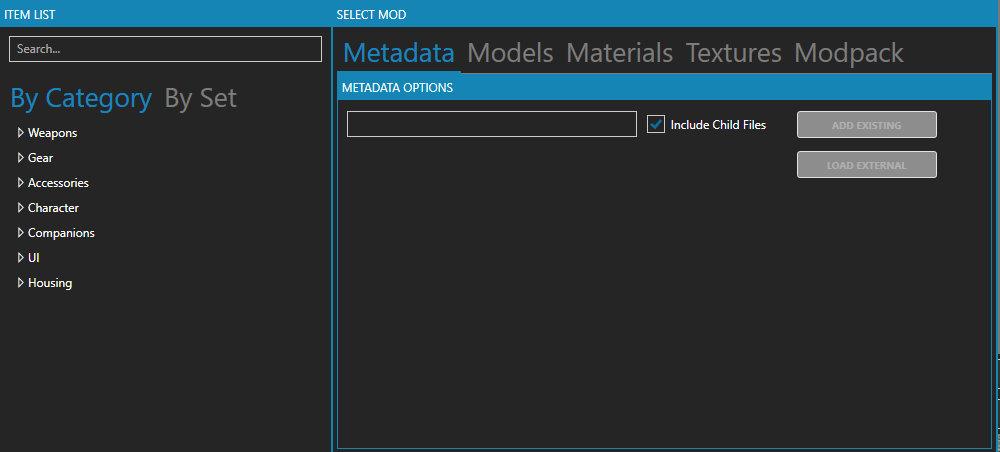
                                                                                                        Search for your item, click on it, and click “Add Existing”

                                                                                                          This will add all the components of your mashup. The metadata, textures, materials, and model. 

                                                                                                          If you want to only add textures, or models, you’ll have to move to the Models / Materials / Textures / Modpack option. I won’t be covering that here.

                                                                                                            The modpack option allows you to add colorset options, and it’s why you can export colorsets as modpacks. 

                                                                                                            For your option, if you choose to include options, do the same process. 

                                                                                                            My option is a model option, where the jacket isn’t included. As such, I’ll move to the models tab. AD_4nXd88eq3NJW2D5N_KXQt3-d-D0YCXd07RMIqDdbC1p4-smkm9DZtmDpr5Zytxs2b3g6_if2WVVSL3Z4JhNIW85qCH94XmMS-c31waPvcSUIuI3OXPe0vus_Gz37Xv2KQNTywqxEVYrDdnp4CR3xP9w?key=x2SAouDxP3EayyutRfDV1A
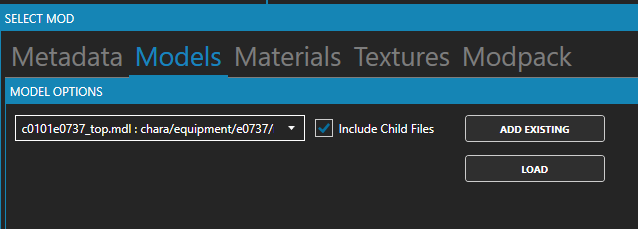
                                                                                                              This tab allows you to import new models during modpacking, on any race. 

                                                                                                              Make sure you’re loading your model on the correct race / gender. 

                                                                                                              The Model Importer will tell you what race / gender you’re loading on!
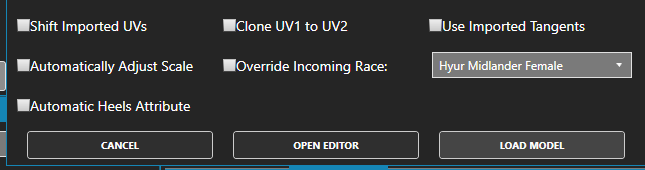
                                                                                                              AD_4nXcr_I0jycH2x2Q3dH9nEREF_hxC5gP0jdFqN-OdDEhkx8PaMlo8l164ngyGQBjC8li4TAeEPUhKQYGjHJe_x8AFFjs2VPZZzIPxSI8Qj7IdAzE380XWDPF9bE0Z0_znfpUvBeK3iZIYFSC7MSVsvw?key=x2SAouDxP3EayyutRfDV1A

                                                                                                                Make sure your attributes + material assignments are correct, and then load as usual! 

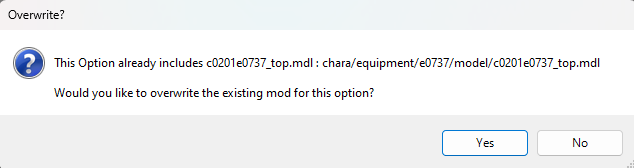
                                                                                                                When you’ve loaded your new model, it’ll give you this warning. Hit yes, and close the tab!AD_4nXd-pC0xUhS3hNKVJJBevElzjA8pRK905ZOG8onoY_N0y9Myq1insGrfbunu13tR61464H_oTNPq3M8KHyjHrLl5jRDq7w4fl_MKB42e8g8BEaKDVR6onmftKjVgafHPAOFw_lQ6I2cPIZ_nOPTrFg?key=x2SAouDxP3EayyutRfDV1A

                                                                                                                This is the last option for the modpack, so we can click “Done” at the top right corner, and click “Finish” to export our modpack!AD_4nXcdpe_sSRH9jweHzD9_ZG-stUn61I2CrHMZlurQG94ARjitZ15WloGXOtrSA344pE_t_0uSnr1p-69gThGUPU1l_CCwK6iwjPhjqP1uncypUS0B9bb_hV3idQa1um0nev8Ewr3rbtufn8AeaZMgSQ?key=x2SAouDxP3EayyutRfDV1A

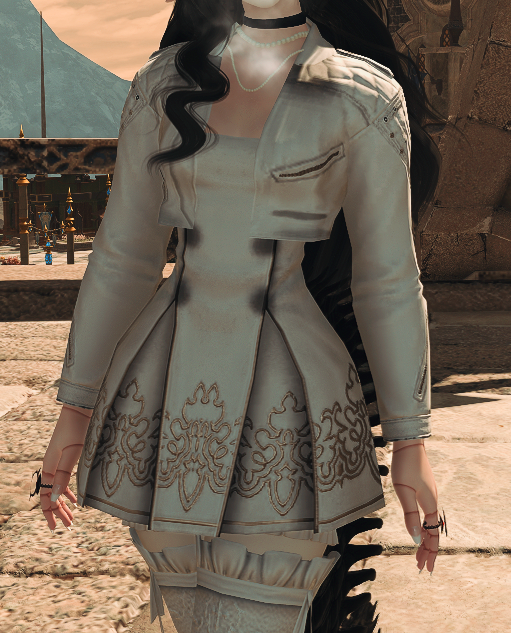
                                                                                                                And just like that, our mashup is done! If you see any issues with your textures, like the black spots that you can see on mine, I added a walkthrough on editing your textures below!


                                                                                                                Texture Edits

                                                                                                                To edit your textures, I recommend exporting them as pngs, and editing them in an art program you’re familiar with. I use Procreate, but Medibang and FireAlpaca are both free alternatives that I’ve used in the past and recommend!

                                                                                                                Editing your Normal

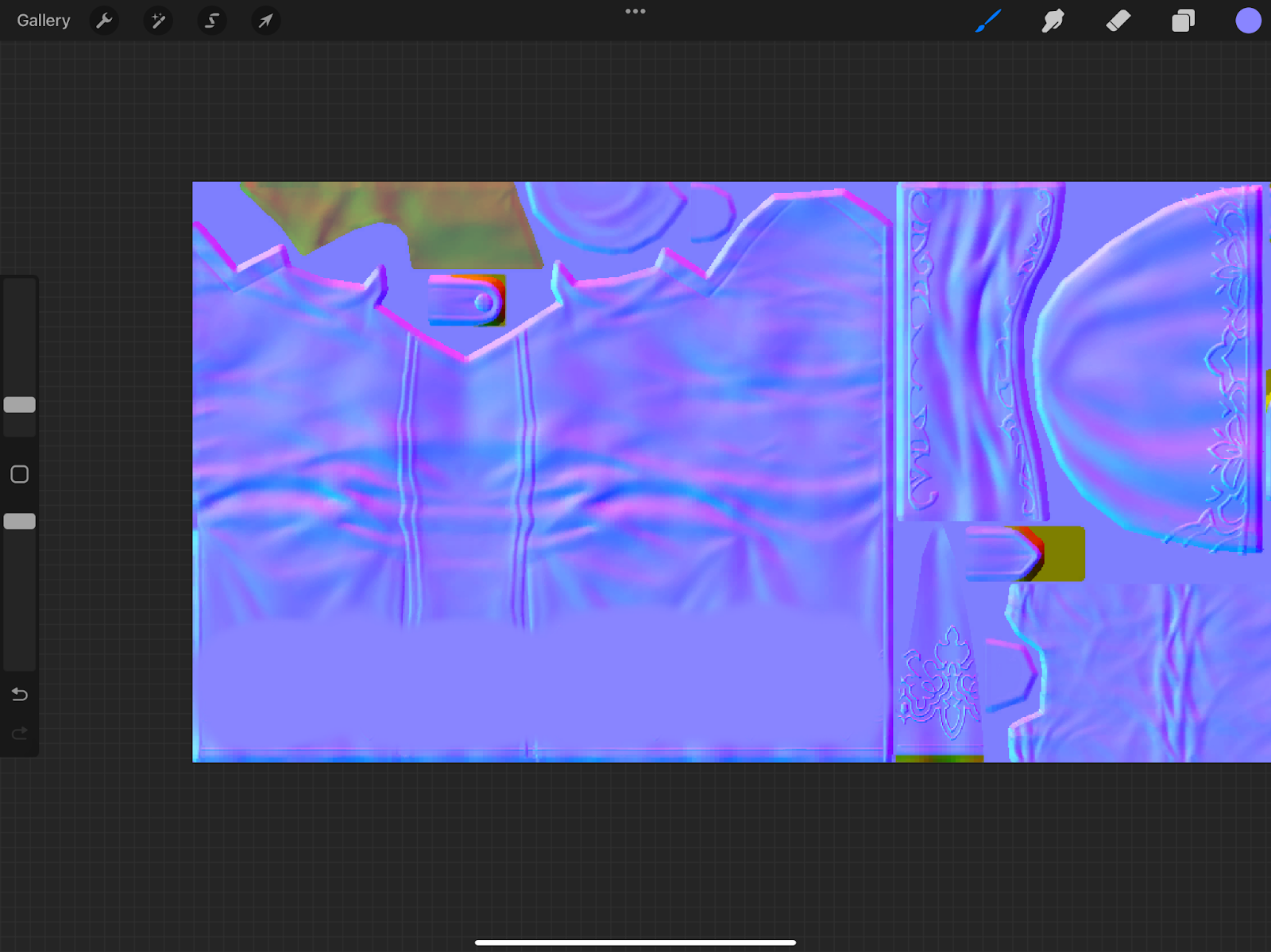
                                                                                                                Normals are used to determine how light affects different parts of the mesh. Threading, embroidery, and creases on vanilla models are all done through the normals. As of Dawntrail, colorsets are no longer controlled by Normals, but by the Index instead. Normals will also affect the transparency of the mesh. This tutorial will cover removing accents on the normal, and adding transparency. 

                                                                                                                  You’ll want to begin by exporting the PNG of the normal you want to replace. If you still have the normal from setting up your mashup, fantastic! 

                                                                                                                  Open this PNG in your art program. For me, I upload the PNG(s) to Google Drive, and download it from Google Drive onto my iPad.

                                                                                                                    Do not send this PNG over discord. Discord has a funky compression, and it’ll change your image dimensions and the alphas in the image. Sometimes, it’ll just corrupt the normal as a whole. Email the png to yourself, use Google Drive, etc, just no discord!

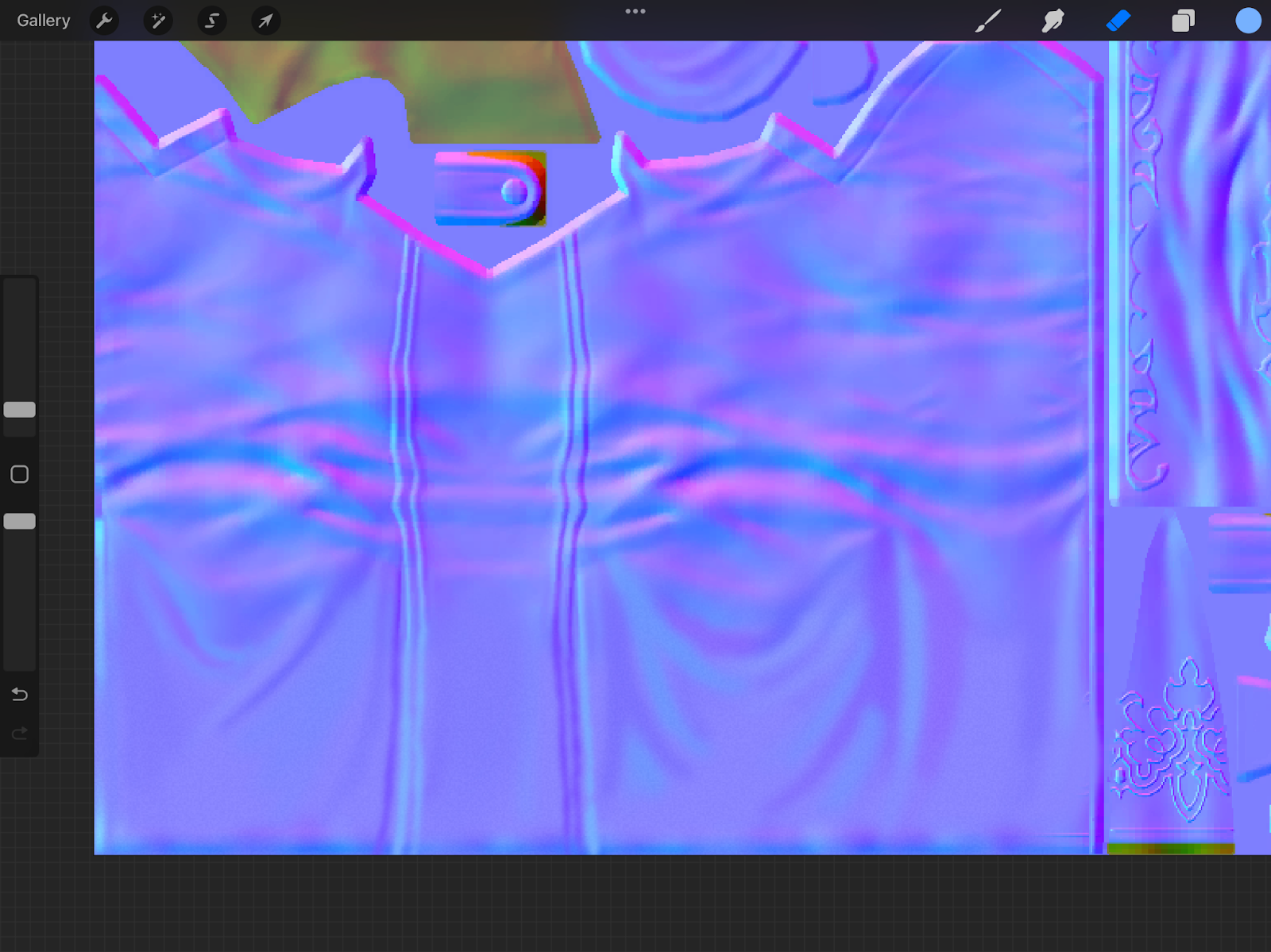
                                                                                                                    To remove details, color pick one of the purples around the detail you’d like to remove. Color over these details with an airbrush, like so:AD_4nXdKrt0FNIAXOBNs_S7AAKo1YPD_lkfv8B8zmYSQ8MiMg3ZCip1d2pSARqtKkSMtw-BJU3gMJMga0Jm1hQ3feeChnI2BCmtk06FhJn6K9JxUENpQqrBscbNQWhv1Nn6Dxfyn575r2ZEvHUQJ-qJuVA?key=x2SAouDxP3EayyutRfDV1A

                                                                                                                    You’ll notice the texture difference, the lack of ruffles / seam. My recommendation for this is keep color picking + drawing over the details until you believe it matches well enough!

                                                                                                                    Add a noise filter, and increase / decrease the noise level until it matches. For me, 1-2% is normally more than enough!AD_4nXfc-BSzQE9vP68brD0qPksHlTyKLfjRio0rPsSAwKdN4fXsJk7nw7OcCOJMbqGLoUYMjRbY86CdGyLFWMpbuOErBKdnMYAlLhqc7Hdcq-etqa2IA_PTj_J-GrCe7W9d5aOWOnVkuG_JZ-YqCnfzkQ?key=x2SAouDxP3EayyutRfDV1A

                                                                                                                    As for making the normal transparent, that’s achieved by editing the blue channel! You turn it all the way off, or partially, it depends on how much you tone down the blue! AD_4nXeYD-GvW6JEZYbytsQ7wx-u4VBJeMdFyYzXU2sXPV10KzpmWdp4vmoKSr9iiD13xBn_0M015y0xgma91AQt-DfqvMn8QgL0YRc-1tJMMAJT2yTmvTaUiXS-Kxcxfc8n0IZf5RFFjOFjLFT8vggSiw?key=x2SAouDxP3EayyutRfDV1A
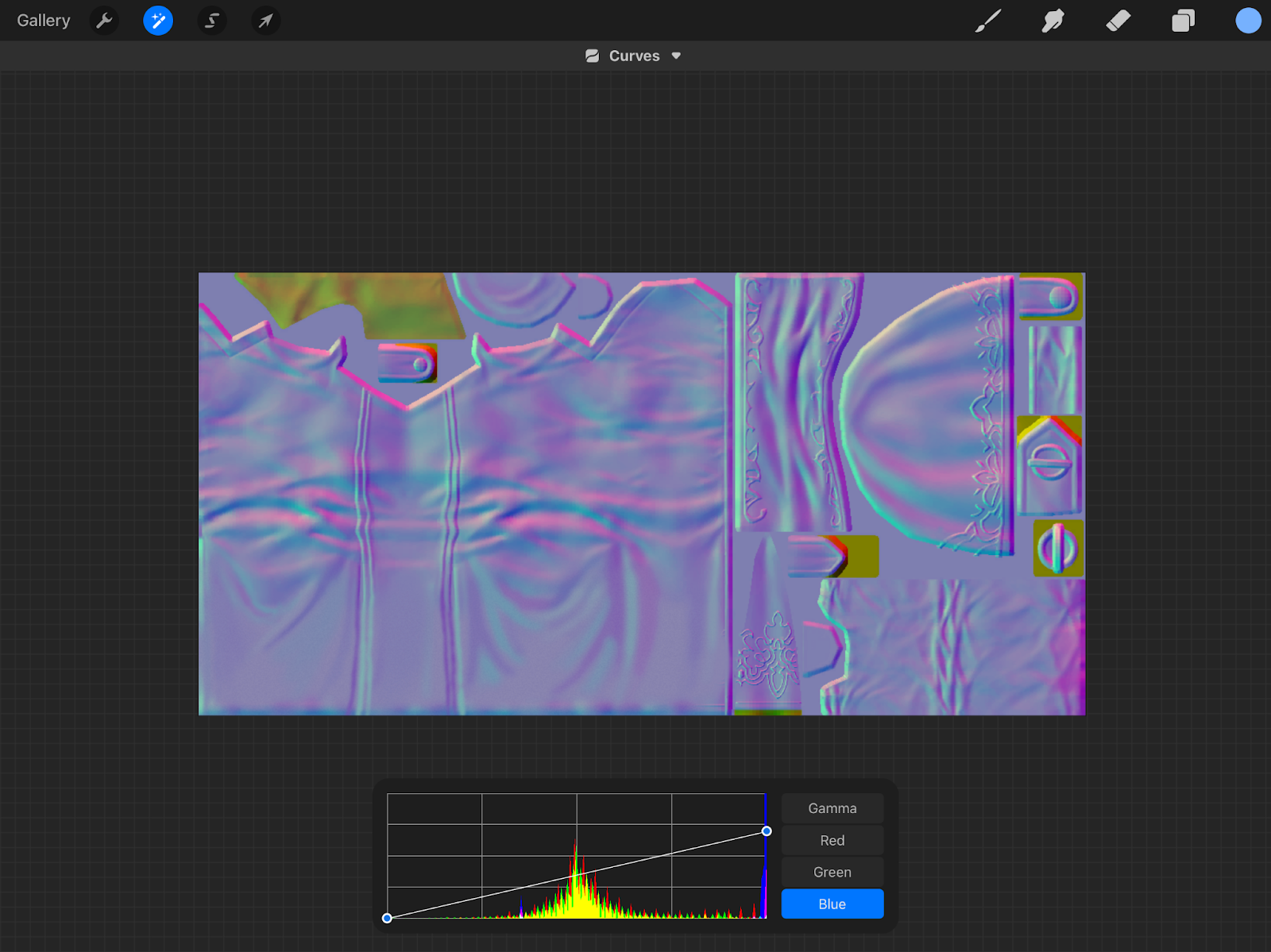
                                                                                                                    In this picture, I’ve turned the blue channel about 25% of the way down. As a result, this mesh will only be ~75% visible. 

                                                                                                                    Editing your Multi

                                                                                                                    The multi controls what is / isn’t true to the colorset. The black spots on the guide mashup, for example, are caused by the multi. Multis are used to fake shadows without using the normal / mesh shadows. Editing these also tends to be much more simple! 

                                                                                                                      Once again, export your png to your PC, upload to Google Drive, and import into your art program. Color pick the light green color, and draw over the dark green spots. These dark green spots are where your ‘shadow’ would be. 

                                                                                                                      You don’t have to be as exact with this. The multi is a very small picture (256x512), so most of the details / lines that you’ll leave will be blurred / lost in compression. AD_4nXep2PcrcjupEPpF6pA6WTotF1NnWkMrnYGpYDZD8Jx-S41XVlmbDNNFlKyfYp9ylqHBnRznTPROW3Ltd7HgKSYKV39SbfjFSeaP68kyn5VW0ar03dhzmqzU01kZDCs5fZ9FurzOKV2YU7_KJ1rr1A?key=x2SAouDxP3EayyutRfDV1A
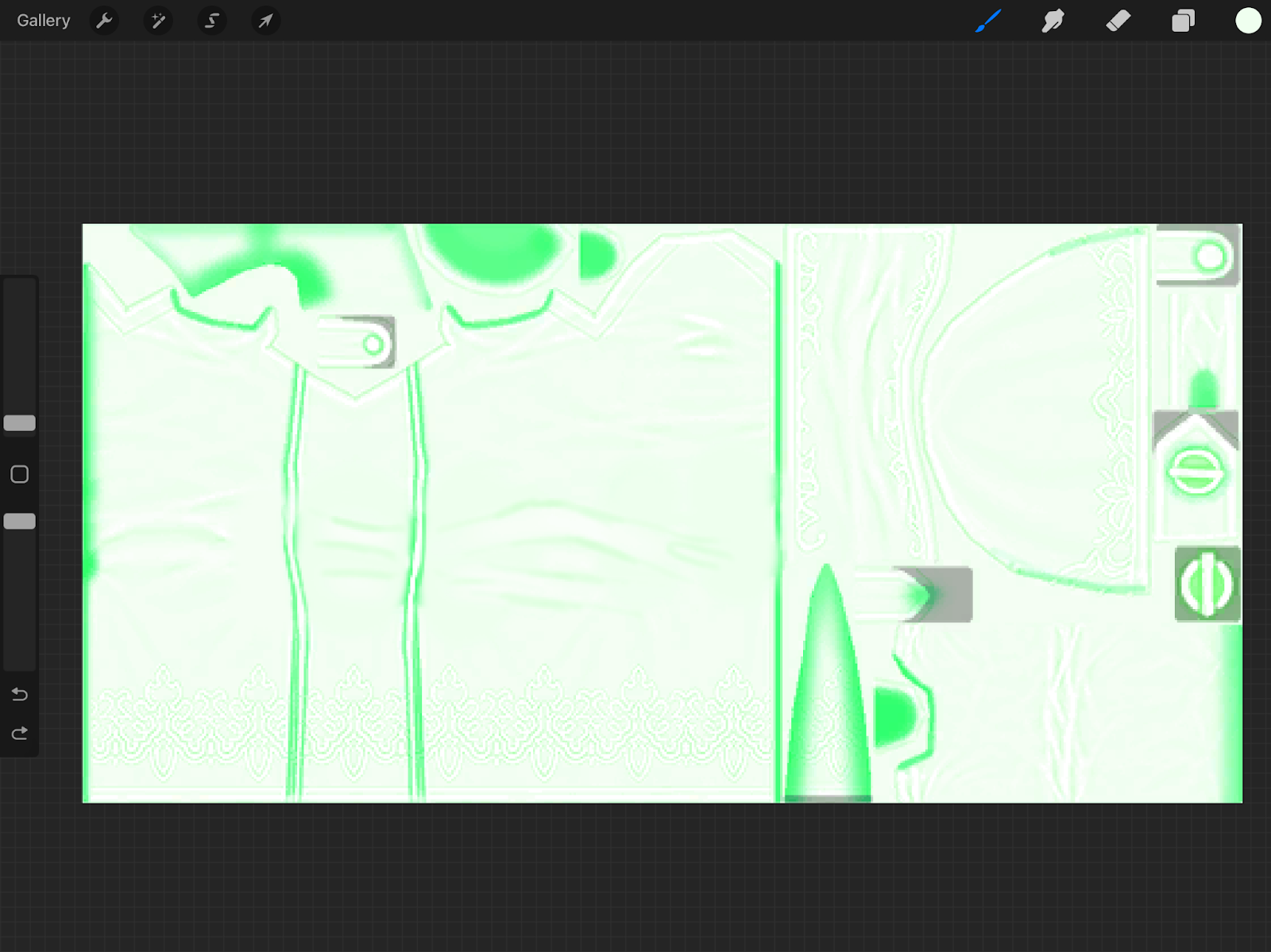
                                                                                                                      Attached picture for example. My lines are by no means perfect, but it gets the job done.

                                                                                                                      Editing your Index

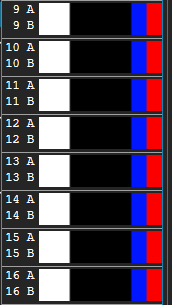
                                                                                                                      Indexes control which areas are affected by colorset rows. Red areas are rows that will end with an A (1A, 2A, 3A, 4A, etc), green areas are rows that will end with a B (1B, 2B, 3B, 4B, etc).  Attached is a colorset row example, for visual aid.
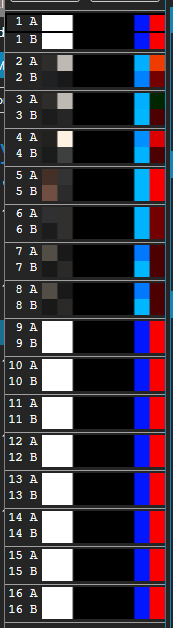
                                                                                                                      AD_4nXeyoDqxmrsXuUjnQpiC4qJM0TC1QSbay1sBaecrI1z0w4giU2g13TLbixF9atr2uA2OZmZMP5gOFAS9DFsXEZx36WvCInYvIEyfgSuz51OKI3dWYv15ZgqfEVo2t2a8x6sEPIi8rUkfZ6g3z7nx9w?key=x2SAouDxP3EayyutRfDV1AAD_4nXfsG12l6fe_5caoH6PuWP2AT88xvpPVBlIJ_EGNJ1fr74IqLdaEWBFg2JVisxKUZ6VhLdUXXCx7P3kVK-6iuojNjpkEx1ki1o_G6tuBSzWRYRs4Z3wnQKYRNt2L-YscFeyCh4BFXOBh72skD3kF-g?key=x2SAouDxP3EayyutRfDV1A

                                                                                                                        In this index, I’ll be getting rid of the same details that i did with the normals. Once again, I’m color picking from the colors around the details, and filling in with that color. AD_4nXdaI45Kiljc3Xzfm8haN9S70vnZae_5SFgTK0jqnFLGP0HGGjf9sST3dwkWjQPvnDq6Ip6K27UXJevToHC1HrcHJ7GDlRWwuiBPmPHiVjCGV6HcPuBcnZnU4j3BHi_Cz03vef1mvQjIBzksCT0bCg?key=x2SAouDxP3EayyutRfDV1A
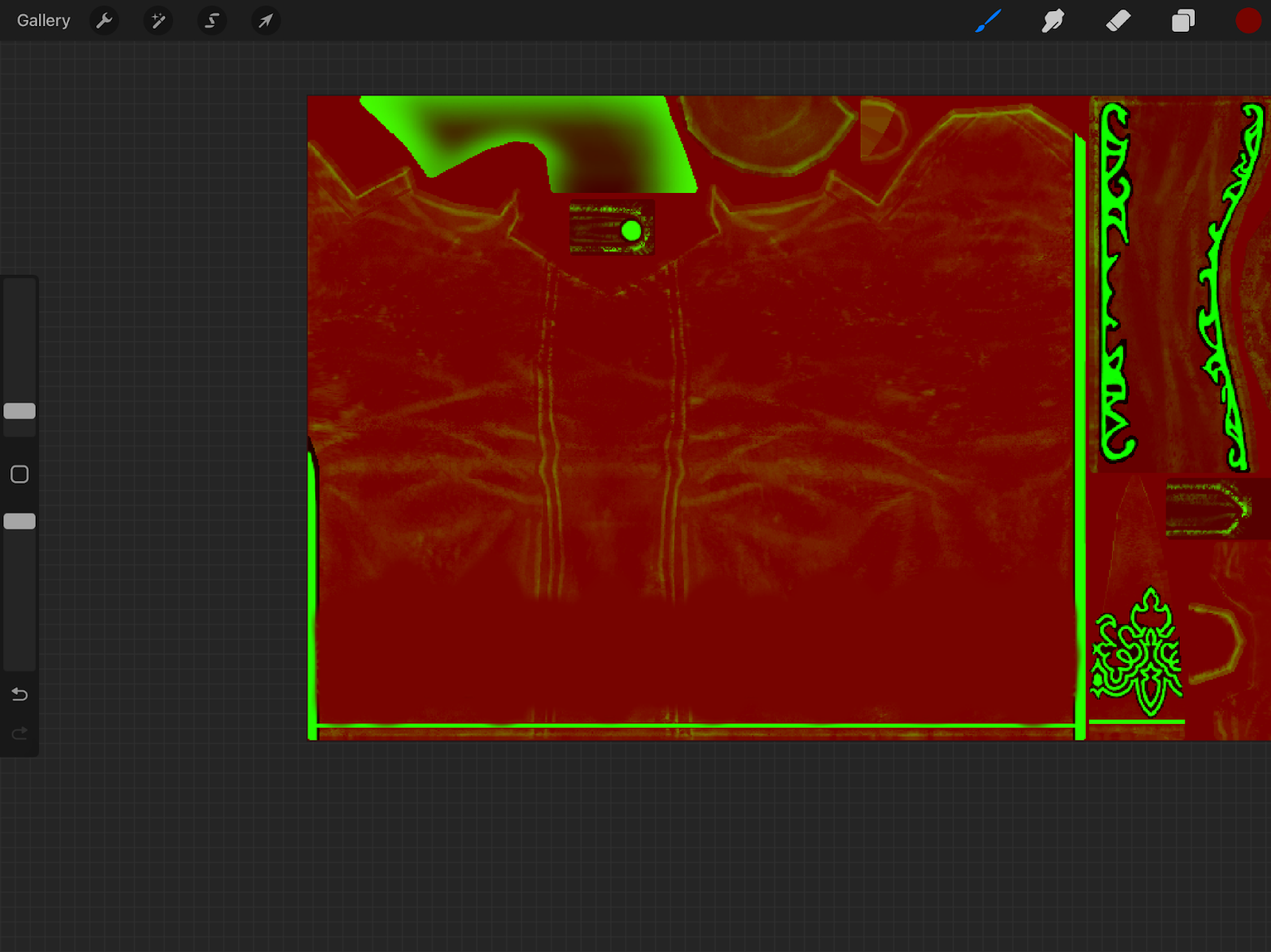
                                                                                                                        Then, I’m going to go through and clean it up a bit, adding the seams + creases back most importantly. AD_4nXfDHbtqGUwTp3eEL_768_j4maH6e0F2gSreq-8_6i9dRumEYN8kfCJbOW3ryNKcKoJLZ2TGPovX8gSYYIBfMOvx5Zp6X2E4b8tfRHXQefv9iwnsSwIENWs-pZnfdJnna9A_YWeN3-2k42mp-7R6SA?key=x2SAouDxP3EayyutRfDV1A
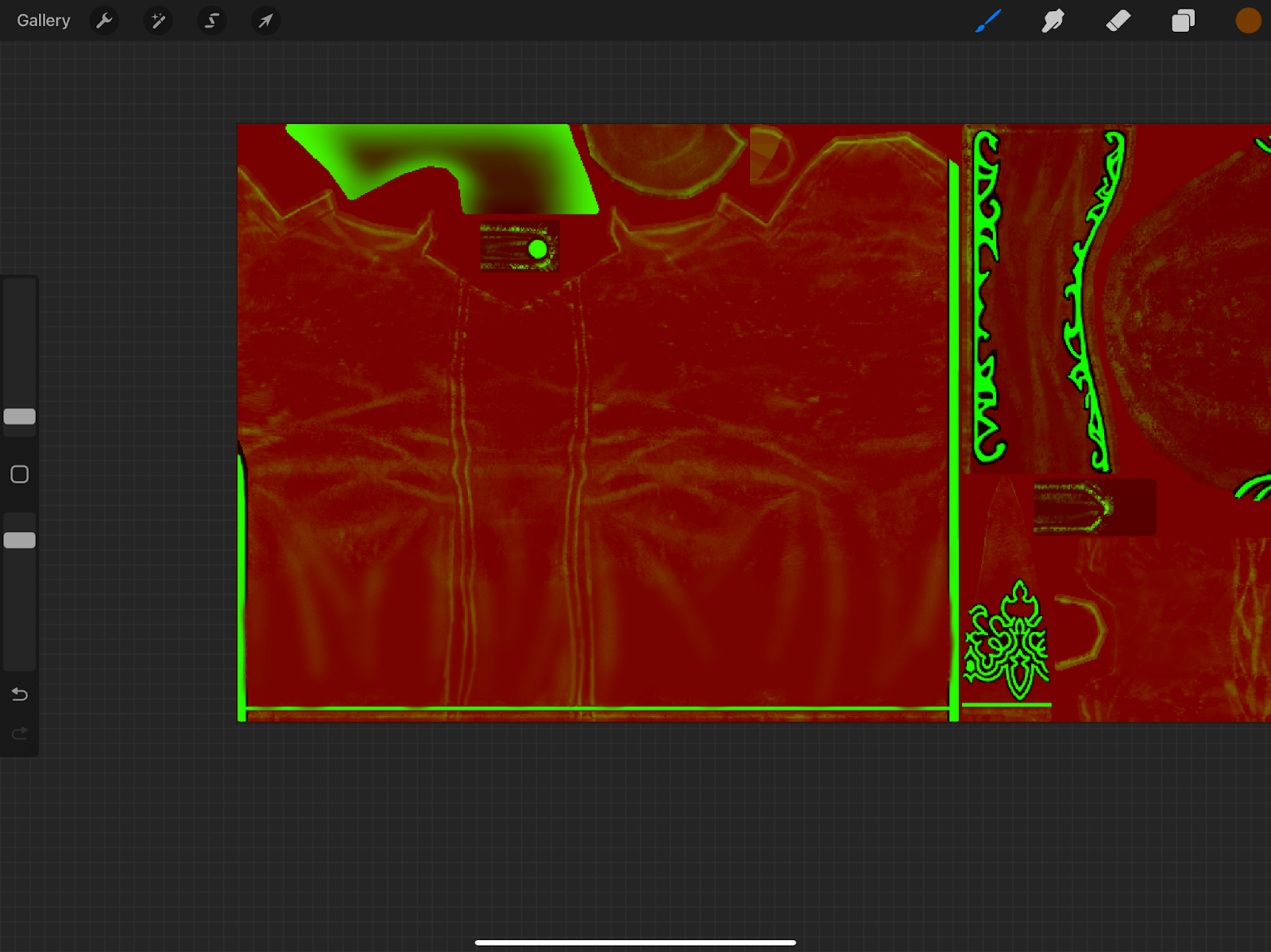
                                                                                                                        EDIT: If you’d like to add custom colorset rows, you can do so using a similar method! AD_4nXcT3lfgb_Fy903t4-T2EBg2UGiSTscFLgGp7OXcSWqX_a8D6_osv-DPdlXaPWCjo2FcXxRS90Bpxsv5ujKtxzIjiYqD9u4yqs941RDNkMn_emuCS5h5n6JdPAUUETOU6ciX5xb9F6bjfCpDq-P7?key=x2SAouDxP3EayyutRfDV1A

                                                                                                                        Here’s a quick reference I found showing all the colorset rows that’re tied to the index! I couldn’t find the creator, so please message me if you’d like me to credit you in the guide!! 


                                                                                                                        Fixing Seams

                                                                                                                        If your mashup has any notable seams, especially in direct sunlight, here’s how I fix them! 

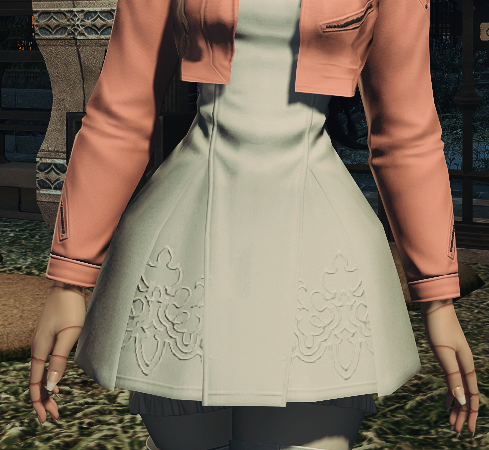
                                                                                                                          Sometimes you can see these seams in Blender or TexTools, but most of the time they’re only visible ingame, like so:
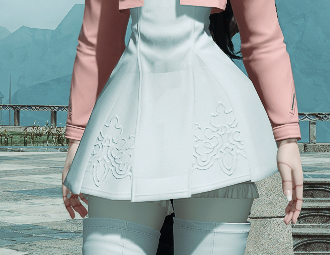
                                                                                                                          AD_4nXe3BM9Dwis-Vf1X_Q6epli_F-2dmbz40q2NkCLJgXWnK11RQ3th8nKfBmkKAS2zULGEA8fVoH0KI5MEEC0rLj0V0t54A7cAJrBGjdBtnceuMzAgQxPZJlwj-8058Yr57CwORcxL0-FVRjjrXX8DOw?key=x2SAouDxP3EayyutRfDV1A

                                                                                                                          I’ll fix these seams by various methods!

                                                                                                                          Setting the Mesh’s Normals from Faces

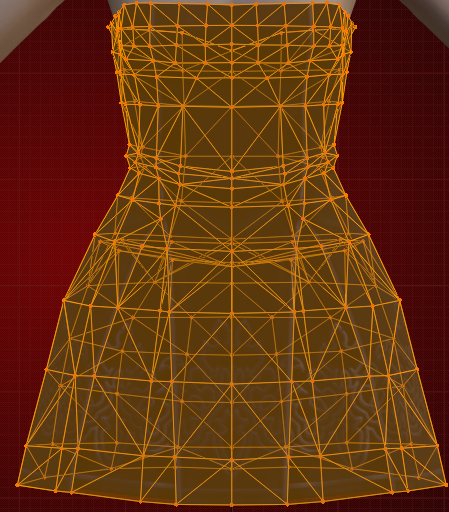
                                                                                                                            In blender, go into “Edit Mode”, and hit A to select your entire mesh.AD_4nXfNXNL8VkJQ1zqtElFAKrw_pOJTVNSsrkFPJh23qeBGH4BlCYOofNQ7M64RNrjR6P-mqkddenXpN_BzyiCIyCxyR2srx7N3pPZ_S3iUIHo8YpIVtWbuNtyP1q3x8zzDARzAZV1hecBpaaiCgF4-QA?key=x2SAouDxP3EayyutRfDV1A 

                                                                                                                            From there, look at the top left box, and find the one named “Mesh”. It’ll be to the right of the dropdown box where you go into edit mode!AD_4nXeth5Rz18OLiB-T7EL_VFZXCnVunn2fNo-aM6DrJkNIWwJhMj5AsymAypcAWvG3JatayZF_GHQEwcYf2N2uPFku0CN8aHQxJ54bTMgvXuigmWZgmAN32bfJl8SyvN8GF_y1KcgLdbaC1h4dhcxU?key=x2SAouDxP3EayyutRfDV1A

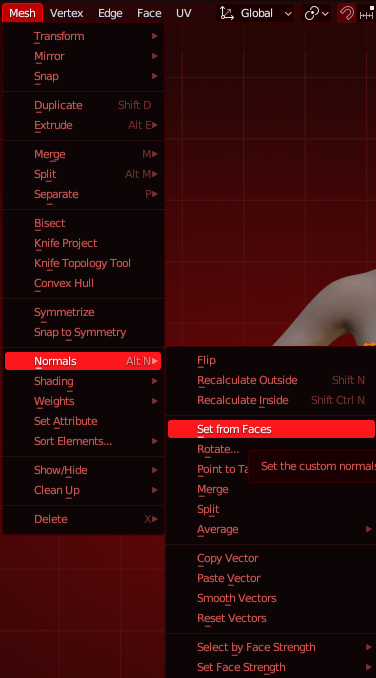
                                                                                                                            Click “Mesh”, and go into “Normals”, from there, you’re looking for “Set from Faces”AD_4nXdH2CUHdjeDlhJVU3PHJJc1WJAUFm7uO8s7NuPxdm35W1PK6jvB9JfHIYOzxi-y-phpK4UJsq1XYgHem8CePzHMT3kf-dm_lZNPXxyP2lkQHMWeMmOmHt9toqltdTnTuhGw3aksKi7Lml0pMSAyUg?key=x2SAouDxP3EayyutRfDV1A

                                                                                                                            Click this, and your mesh in blender may go funky looking, or it may just fix the seams! It’s always a bit of a gamble, but the result is the same. 

                                                                                                                            Import this back into TexTools, and once you’re done, test it ingame! Your seams should be fixed!
                                                                                                                            AD_4nXdCTEee0WYULNli0otQhwCwjMSz_GoAz2vnSKkgfbTi_tfugI4bPHpS_0UXlBtb7_bU9qAa04RW0HVfMGlOPO8knE_vPUVfNkphILiiVg4uG1sc0CC9mdtfDjzBmempijwgRoilZGv9zpiZibIe?key=x2SAouDxP3EayyutRfDV1A

                                                                                                                            Average Face Area

                                                                                                                              Similar process to setting the normals from faces, but different buttons! 

                                                                                                                              Once again, hit A to select your mesh. AD_4nXctnuQOcPPB4QCO6BWdWQ9_g7dkASv4jitYuMdu2aqIZ8Xao1dkw8arS-MtExZfWVWeXr6ps4pDVvaYvM9KLtuygArBDZ3nTlGRu4QBe_m71TsJeLlRyDI7Y565Bn0rYOJsbBsbHcFwYyGyEtj9wg?key=x2SAouDxP3EayyutRfDV1A

                                                                                                                              From there, look at the top left box, and find the one named “Mesh”. It’ll be to the right of the dropdown box where you go into edit mode!

                                                                                                                              AD_4nXeth5Rz18OLiB-T7EL_VFZXCnVunn2fNo-aM6DrJkNIWwJhMj5AsymAypcAWvG3JatayZF_GHQEwcYf2N2uPFku0CN8aHQxJ54bTMgvXuigmWZgmAN32bfJl8SyvN8GF_y1KcgLdbaC1h4dhcxU?key=x2SAouDxP3EayyutRfDV1A

                                                                                                                              Click “Mesh”, and go into “Normals”, from there, you’re looking for “Average” and then “Face Area”
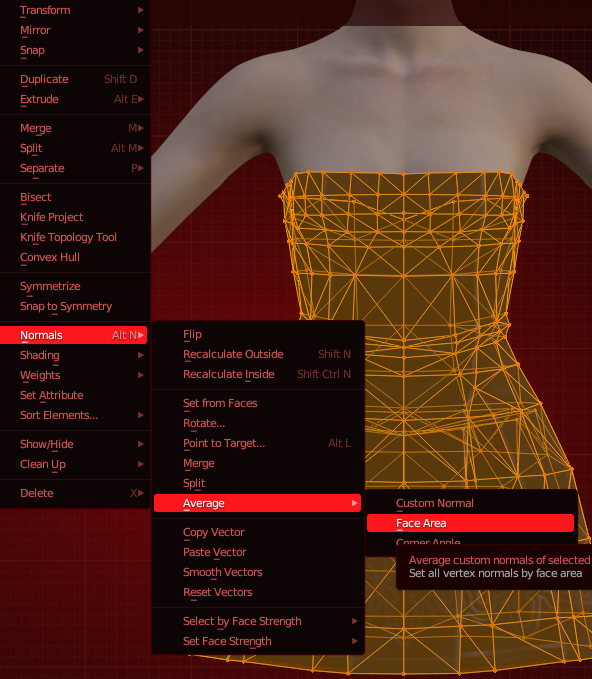
                                                                                                                              AD_4nXdOB7stZH8VEvF15b_pNVRvjMa3LZHrM-mYqgctDNV89NrdH5CPaA-OYkO9q-1aLkJogo-bWCKv7wL4zqUFBqIhN7-7Mybe-iyTah2PHdPtudhIJUiu1fLQ1G2pbQVFzzB2ldZNMOIP4gFP-DEDdg?key=x2SAouDxP3EayyutRfDV1A

                                                                                                                              Click this, and it’ll be done! Export into TexTools, and test to see if this fixed your seam.

                                                                                                                              Recalculate Outside/Inside

                                                                                                                                By far, this is the most complicated method, but also the one I find to be the most consistent. 

                                                                                                                                  Make sure you merged all your vertices by distance beforehand, otherwise this won’t work!!

                                                                                                                                  Right click your mesh, and copy + paste it. Move the new duplicate mesh under the n_root, and name it x.1 (for me, this will be 1.1)AD_4nXd5ofMik8AwtTC2px_MY0j8iq7vHJxco0Skoph7cdNa5iA7Yi7bulgEO-IbeEQG_mFG6MGpI1yZyZUtFV0yQFZpfkE0u3UNps1gRtwljBTFFhqHWNu_0qsdEMZb3A6eGEx1y8Pzeg8yzv_O0mjm?key=x2SAouDxP3EayyutRfDV1A

                                                                                                                                  Click on Part 1.0, and select the entire mesh with A.

                                                                                                                                  From there, click on “Mesh”, then “Normals”. You’ll have two options here, doesn’t really matter which. You can recalculate outside, or inside. Whichever one you do to 1.0, you have to do the opposite for the other.

                                                                                                                                    If you Recalculate 1.0 outside, you have to recalculate 1.1 inside. 
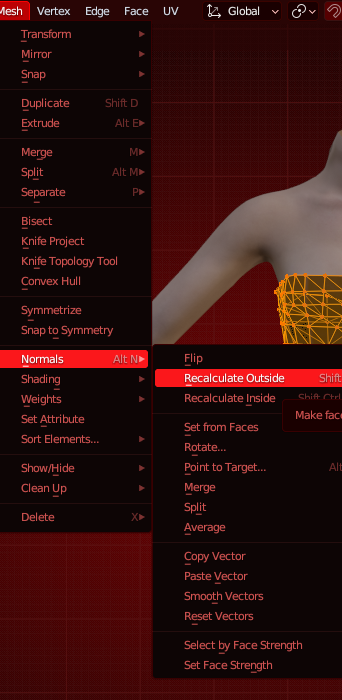
                                                                                                                                    AD_4nXfWrnOdoKiJ8hBOoT_TOl2ISzWpo63_oDHN_XVYmtxHjoVUw0OfbhJoV8JyANjEfFnxGT4xUMWd0o2Ox5kSa_BtCdGYnTkTchwD5xRhseab6OCkEh_EVoY2ktDCAR9muHU2NwgXT6w9wdITPqVlig?key=x2SAouDxP3EayyutRfDV1A

                                                                                                                                      As usual, export to TexTools, and see if this fixed your seam. 


                                                                                                                                      Additional Links

                                                                                                                                      Guides

                                                                                                                                      XIV Mods:
                                                                                                                                       https://www.xivmods.guide/ 
                                                                                                                                      Ezo’s Mashup Guide: https://youtu.be/widThuFoVPw?si=YsNdVG86qVb3OM7y&ref=xivmods.guide 

                                                                                                                                      Ezo’s Adding Patterns Onto Gear: https://docs.google.com/document/d/1k2Rv8bio3dsAJG8OpzF1wUpyevKfM9lg31yF0FTazIA/edit?usp=sharing 
                                                                                                                                      Xochii’s Mashup Guide: https://docs.google.com/document/d/1MHqhtEm_9S7tafzi0Jl4I8-Tse1NpexL8jZI5P6JWZw/edit?ref=xivmods.guide 

                                                                                                                                      Atlasing Textures: https://docs.google.com/document/d/1I__FLHNnik3VgETopXRy7OAiFiTjZmjODvs7NZQZPZ8/edit?usp=drive_link 
                                                                                                                                      Rasp’s Hair Mashup Guide: https://docs.google.com/document/d/1c5_f2MIJ4d4exXzWEHskFOhOa-6zgsxMMWXX41lHpVs/edit?ref=xivmods.guide 
                                                                                                                                      Lialee’s Hair Mashup Guide:
                                                                                                                                      https://youtu.be/NEzuB32B4sA?si=9WGsiQkDCF4B1MA- 

                                                                                                                                      Rasps Modding Tips & Solutions: https://docs.google.com/document/d/1qCAwMLU23G-kXLvDqLpMs8dwDL9E0Rt9Ej-9fN7V3zo/edit?usp=sharing 

                                                                                                                                      Rasps’s Hat Compatibility Guide: https://docs.google.com/document/d/14ilv6pUa8afrw3CxcFyrwyiOilJ1FP_GMKv6q891Uzc/edit?usp=sharing 
                                                                                                                                      Long Glove Compatibility: https://docs.google.com/document/d/1bKNHm1fcRR68IFZHD-SV6Ued2qShyDhSd90irin2ghk/edit 
                                                                                                                                      TexTools Metadata Guide: https://docs.google.com/document/d/1M04dbdV1qUt0EzRalvwbB1oI3aPT6t8KEf9KgQfGn6E/edit 

                                                                                                                                      Sparrow’s Advanced Modpack Guide: https://docs.google.com/presentation/d/1MEYV2ez6vvND3GWrXGNY6etcj5tUBuetwbRvuW3q4e4/edit?usp=sharing 

                                                                                                                                      Servers

                                                                                                                                      Vanilla Creatives (dedicated to Vanilla Mashups, has a guide channel, FAQ channel, 2 mod help channels, and is very active!):
                                                                                                                                      https://discord.gg/TB8h6nFbxr 

                                                                                                                                      XIVMods & Resources (consists of a website and Discord server, has a catalogue of guides, plus help channels!):

                                                                                                                                      https://discord.gg/8x2G75D46w 

                                                                                                                                      Modding 101 (a server fully dedicated to learning and teaching about mods! Several help channels, guides (videos and written), etc!):
                                                                                                                                      https://discord.com/invite/Mx8TnSCzRz 
                                                                                                                                      FFXIV TexTools (catalog of resources, channel for helpful tools, and several dedicated channels to various parts of modding):
                                                                                                                                      https://discord.gg/ffxivtextools 
                                                                                                                                      Elsewhere (guides, resources, links, mod help channels, and a tips channel where odd tips and tricks are dropped!):
                                                                                                                                      https://discord.gg/4cqpCRT7HP 
                                                                                                                                      WCIF (has a threads channel dedicated to fixing bugs / helping with modding errors, also has a guides channel, plus compilations of various mod types (F3 au ra sculpts, wedding dresses, etc!):
                                                                                                                                      https://discord.gg/3EhAa79btN 
                                                                                                                                      The Catalogue (similarily to WCIF, has a channel dedicated to fixing bugs / helping with modding errors, also has a guides channel!):
                                                                                                                                      https://discord.gg/thecatalogue 
                                                                                                                                      HexMods (has an active mod help channel!):
                                                                                                                                      https://t.co/6Vfz7QTUoP 
                                                                                                                                      Lunar Tear (has another active mod help channel, and a questions channel, both of which are active!):
                                                                                                                                      https://discord.gg/lunartear 
                                                                                                                                      B+ Mods (has a guides and questions/help channel, both of which are actively updated!):
                                                                                                                                      https://discord.gg/kEq8KDJYF3 

                                                                                                                                      Rue+ (has several help channels dedicated to upscaling, general mod issues, and guides!)

                                                                                                                                      https://discord.gg/6raeVuY2Pa 

                                                                                                                                      Yet Another Body (has a mod help + resources channel!):

                                                                                                                                      https://discord.gg/bnuuybooty