# Ear/Tail Physics
Ear and tails are the easiest to implement! To demonstrate , I will be using Bone Dynamics Pro. You can use the free lite version (honestly what I use).
With working with ear physics , you will essential double your work flow. If you want to include ear physics option and a static ear option (for non elezen, mitoqe and lalafel), youll have to create a version for static ear too.
**As with anything involving Blender, please make sure you are saving frequently!!**
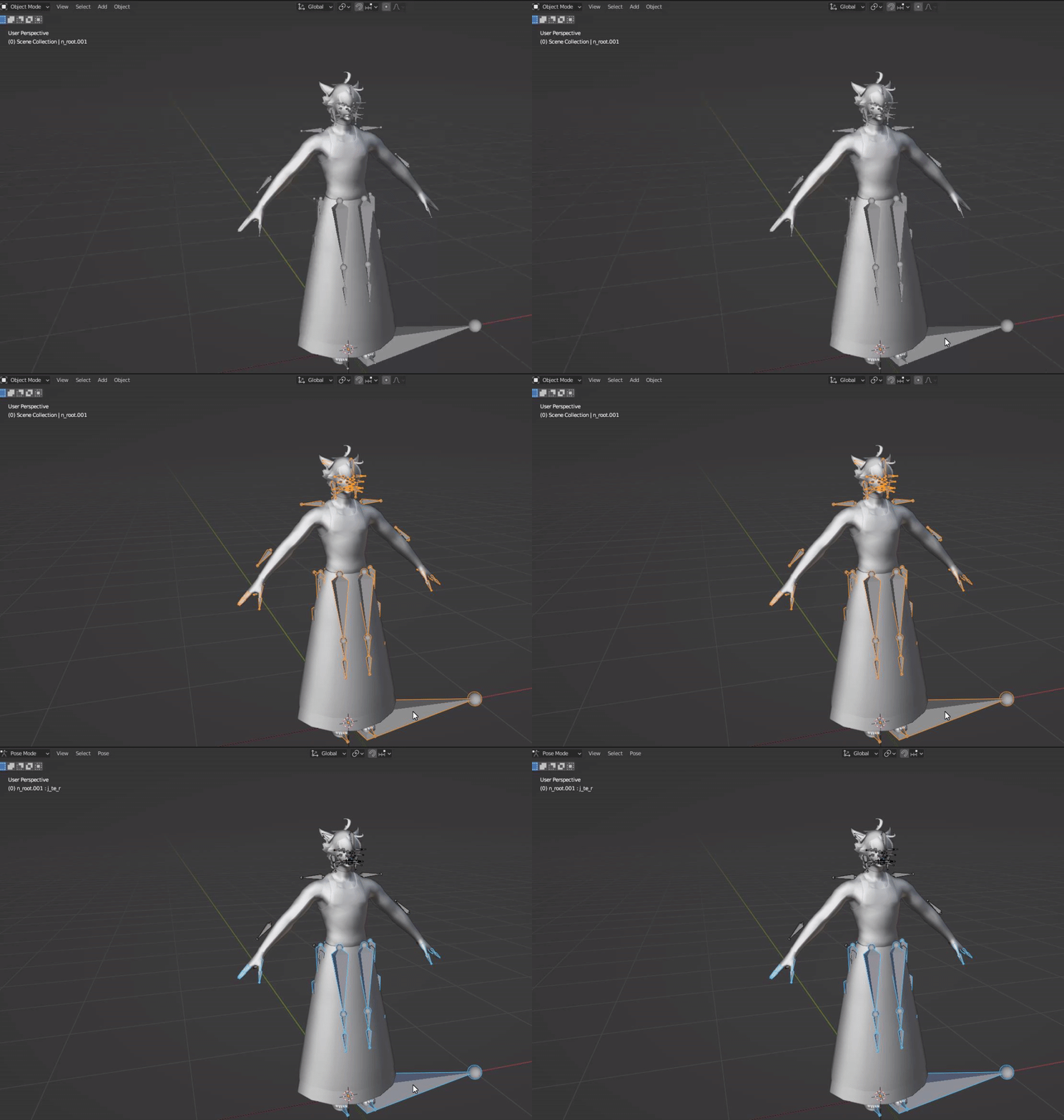
1. Select your armature and go into pose mode.
- Default short cut key to pose mode is Ctrl + Tab (for windows atleast)
- [](https://xivmodding.com/uploads/images/gallery/2024-11/niGnOKYyQsDA6woC-step1.gif)
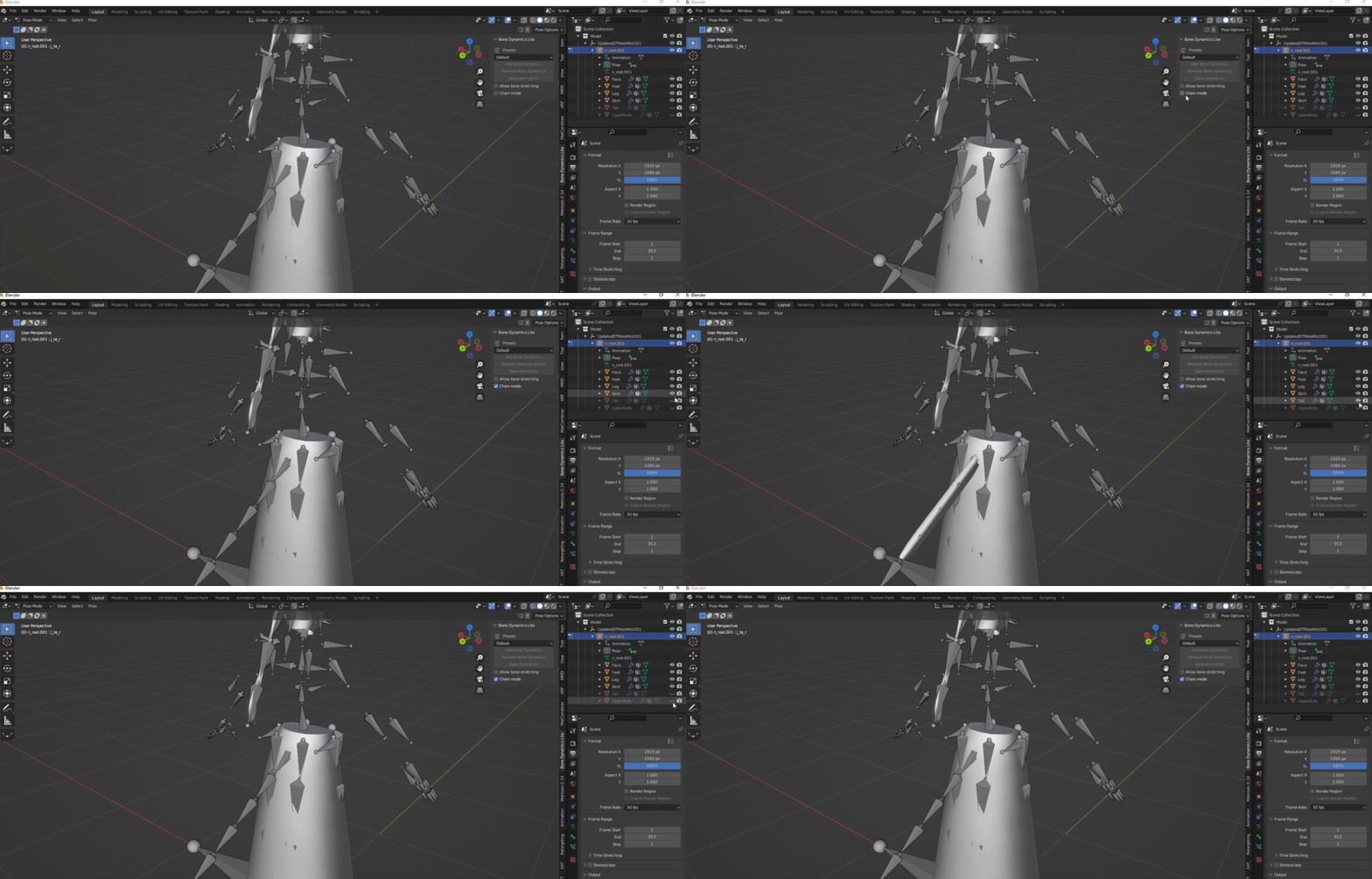
2. Rotate camera behind and disable the UpperBody and Tail Mesh so we can see the bones more clearly.
3. Navigate to the Bone Dynamic Lite Tab and enable “Chain Mode”
- [](https://xivmodding.com/uploads/images/gallery/2024-11/D9TR4FaKCldxRfFK-step2.gif)
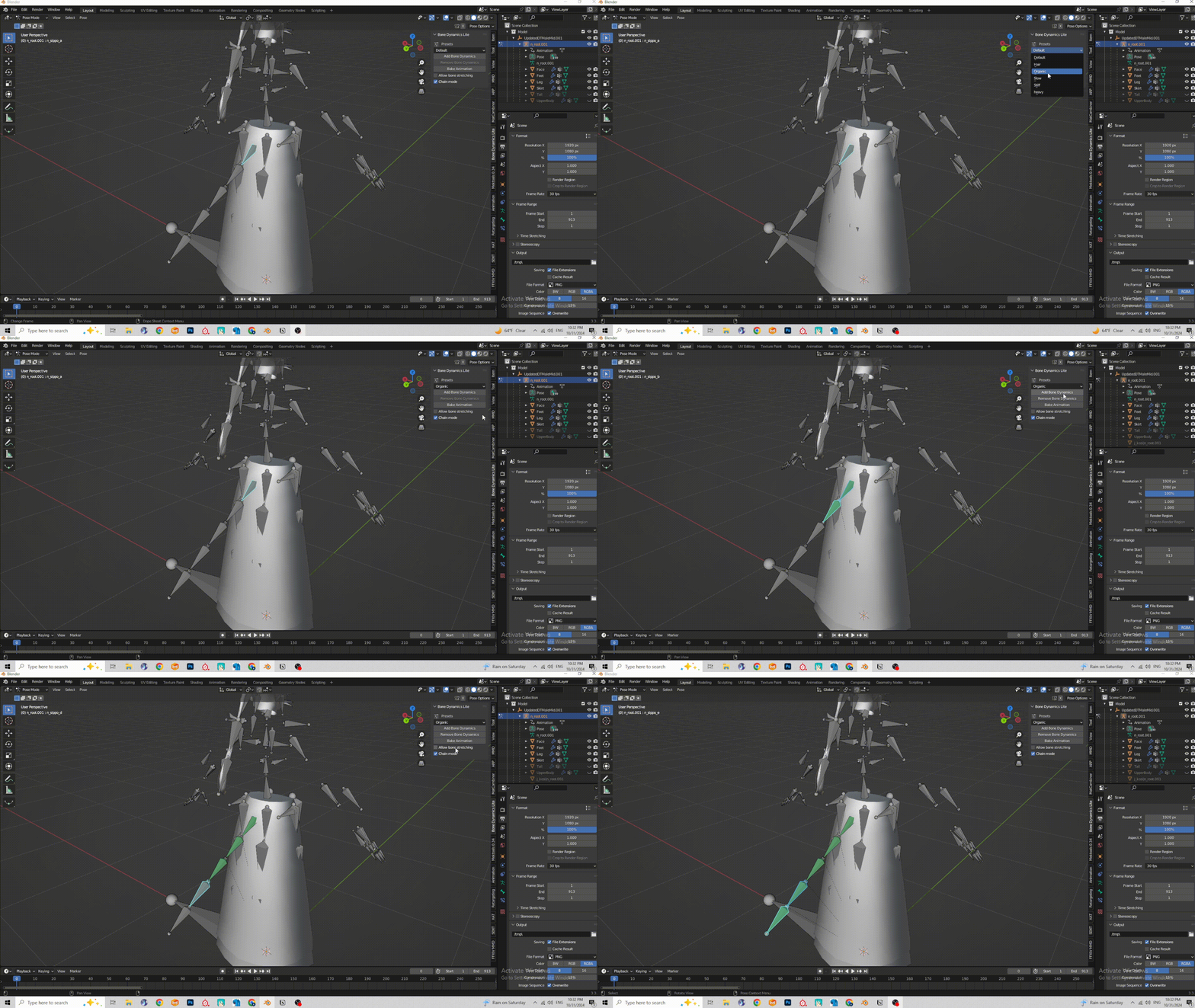
4. For Tail and hair, I usually use the organic preset. Very smooth and feels natural to me. Feel free to test other presets!
- If you are using BD Pro, you are able to make your own preset and adjust parameters to your liking.
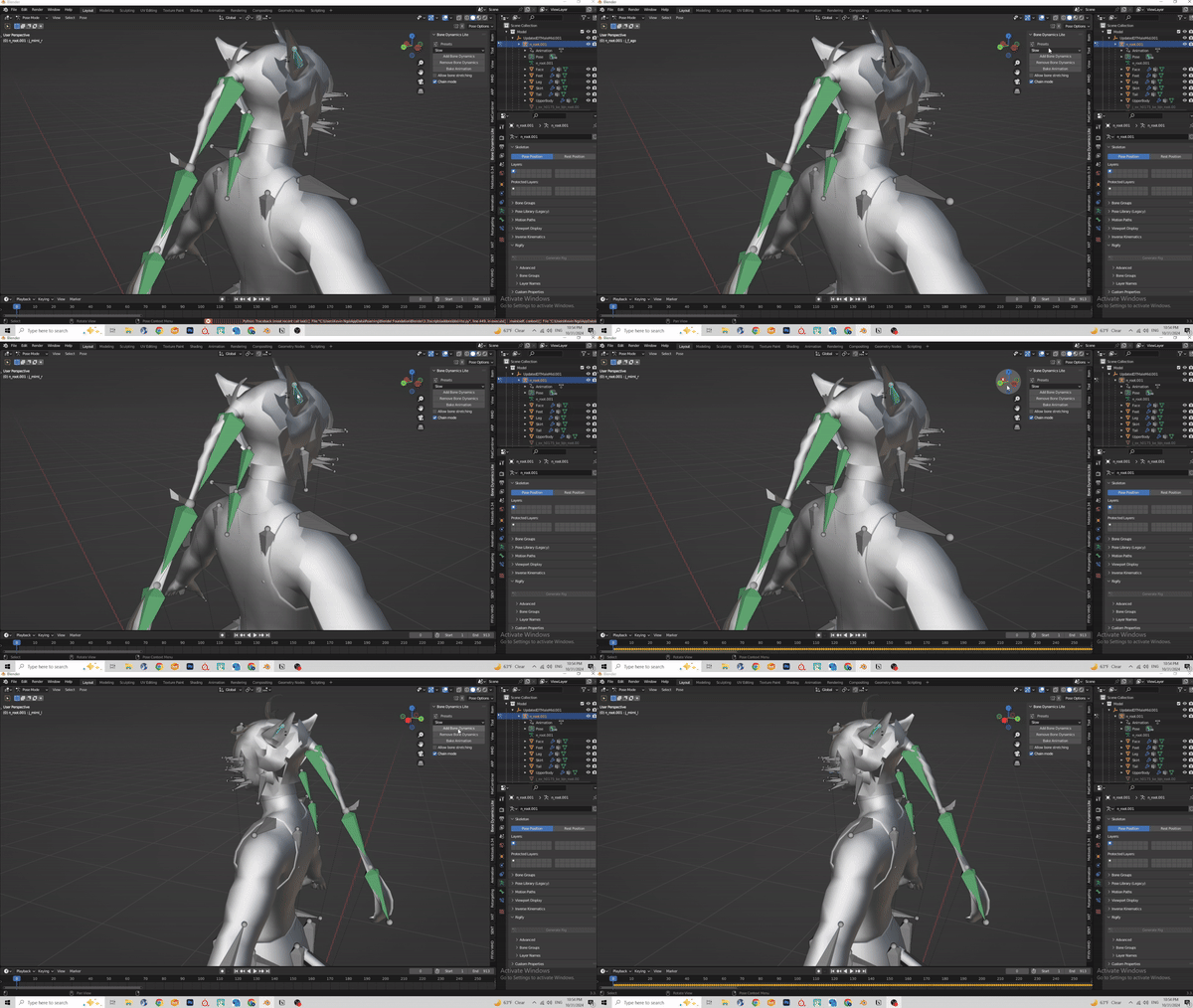
5. We’ll have to select the bones from the beginning to end. In this example we’re starting with n\_sippo\_a.
6. With the bone selected, click on the add bone dynamics option. This will change the bone to a green color
- [](https://xivmodding.com/uploads/images/gallery/2024-11/BBn8JLx4tWExdEQD-step3.gif)
7. Repeat previous step until you have reached the end of the tail
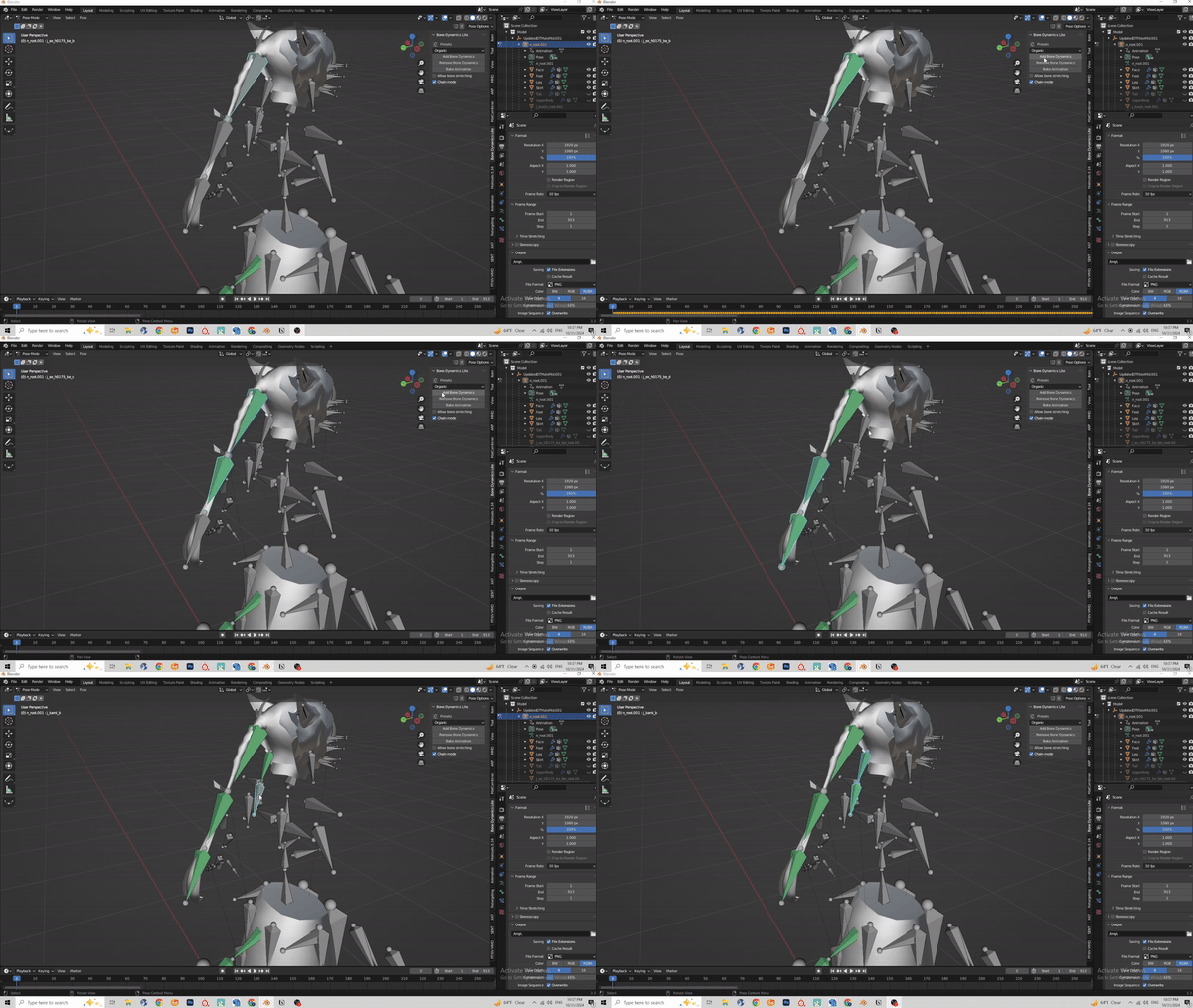
8. The process is the same for the hair. Hair bones are:
- j\_kami
- j\_ex (this is if your hairstyle has a pony tail)
- [](https://xivmodding.com/uploads/images/gallery/2024-11/0FX3vr9vJ5TLThdE-step4b.gif)
9. Here is a little preview of the physics. Not too bad!
- [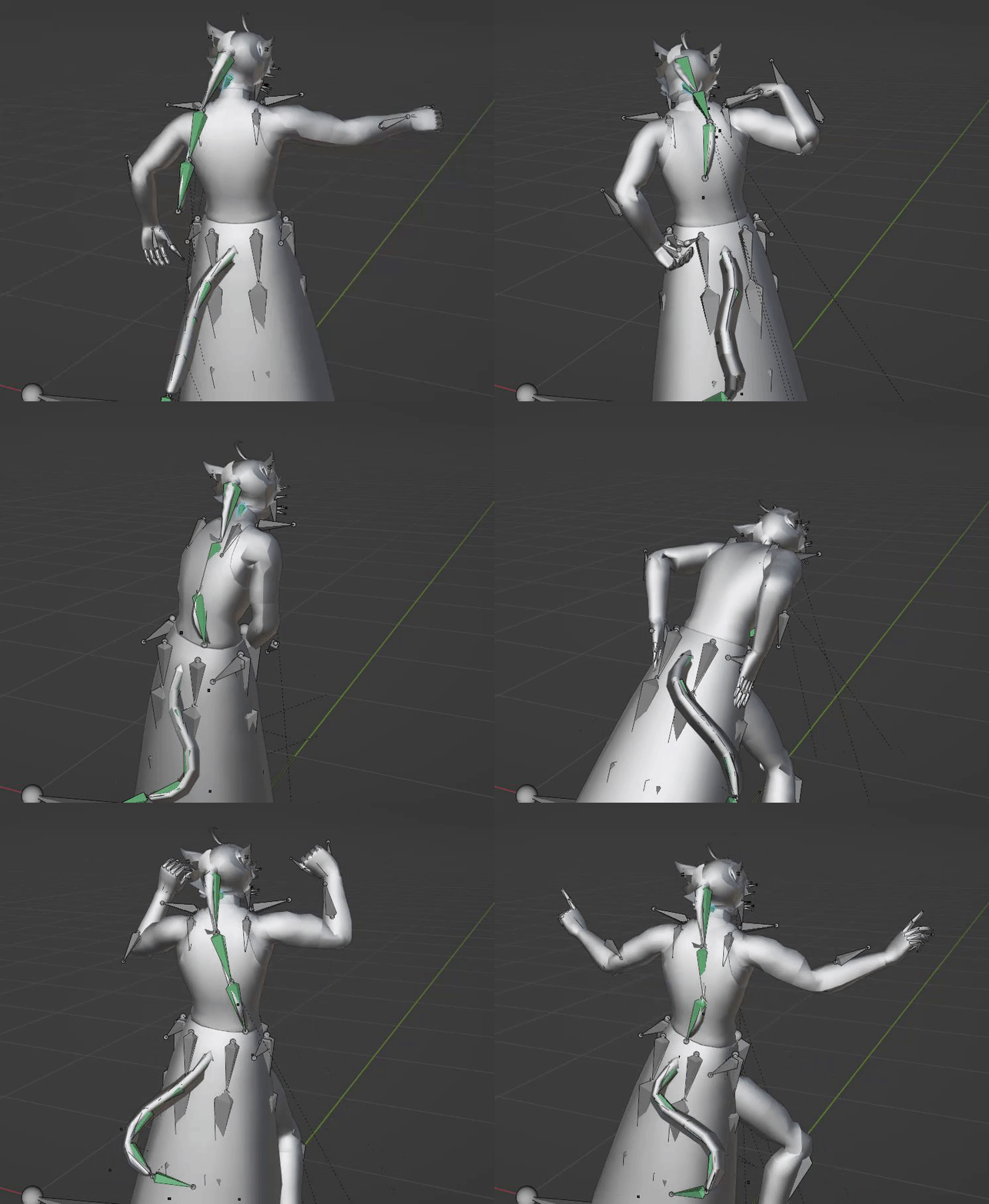](https://xivmodding.com/uploads/images/gallery/2024-11/pxQThPUaxpo36zSE-step5.gif)
10. Now for ear physics. This is where things get a bit weird. Lalafels, Elezen and mitoqes use the j\_mimi bones, viera use a completely different ear bone (j\_zerc). So (in theory atleast) ear physics using the j\_mimi bones will not be comptabile with viera ear bones.
11. Ear bones can be a little hard to see sometimes
- [](https://xivmodding.com/uploads/images/gallery/2024-11/nxFqnzrXsXw6QVHC-step6.gif)
12. For ear physics, I use the Slow option. Organic makes it too flowy for my taste.
- Organic:
- [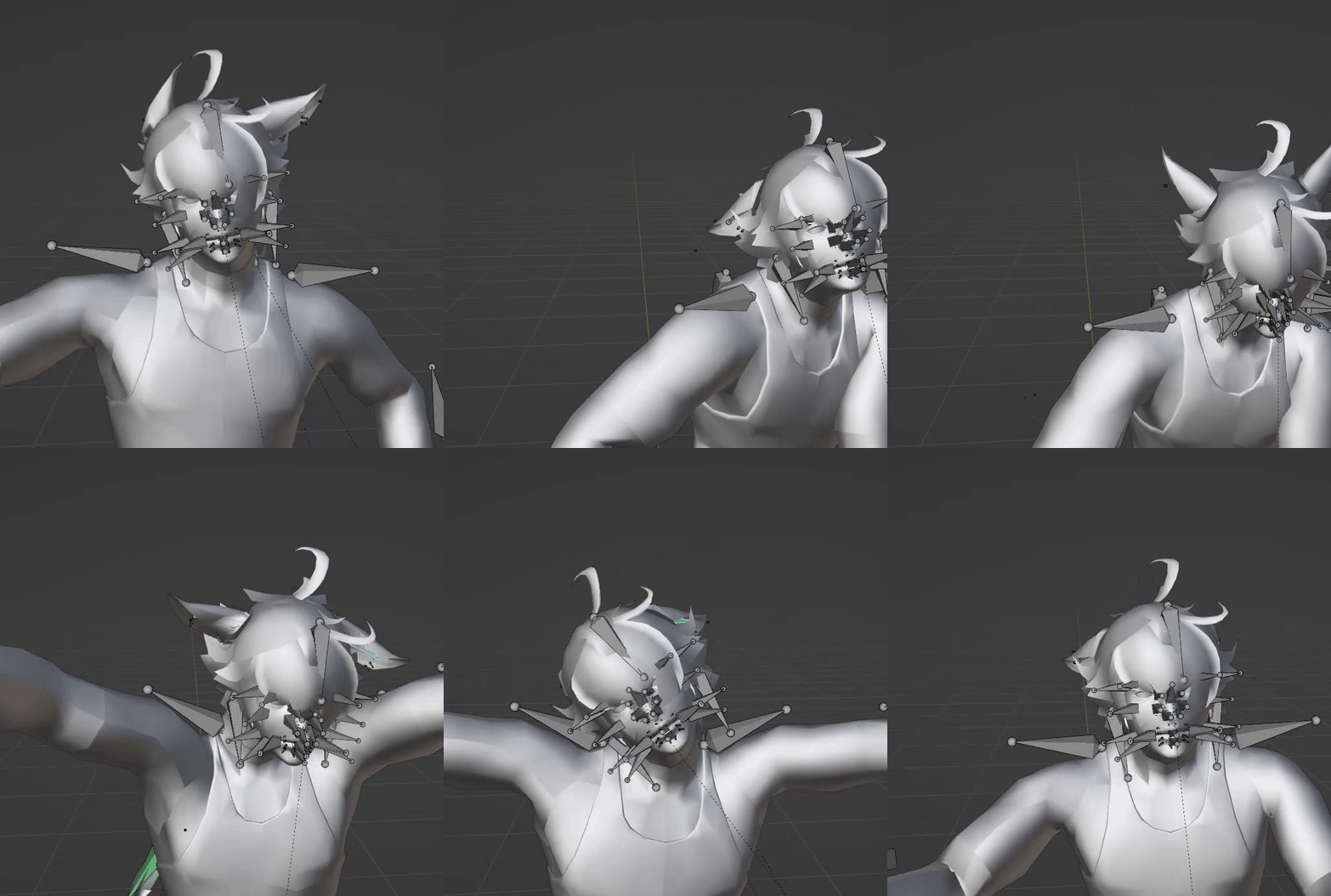](https://xivmodding.com/uploads/images/gallery/2024-11/uygNEofQPFHlgoID-organicphysics.gif)
- Slow:
- [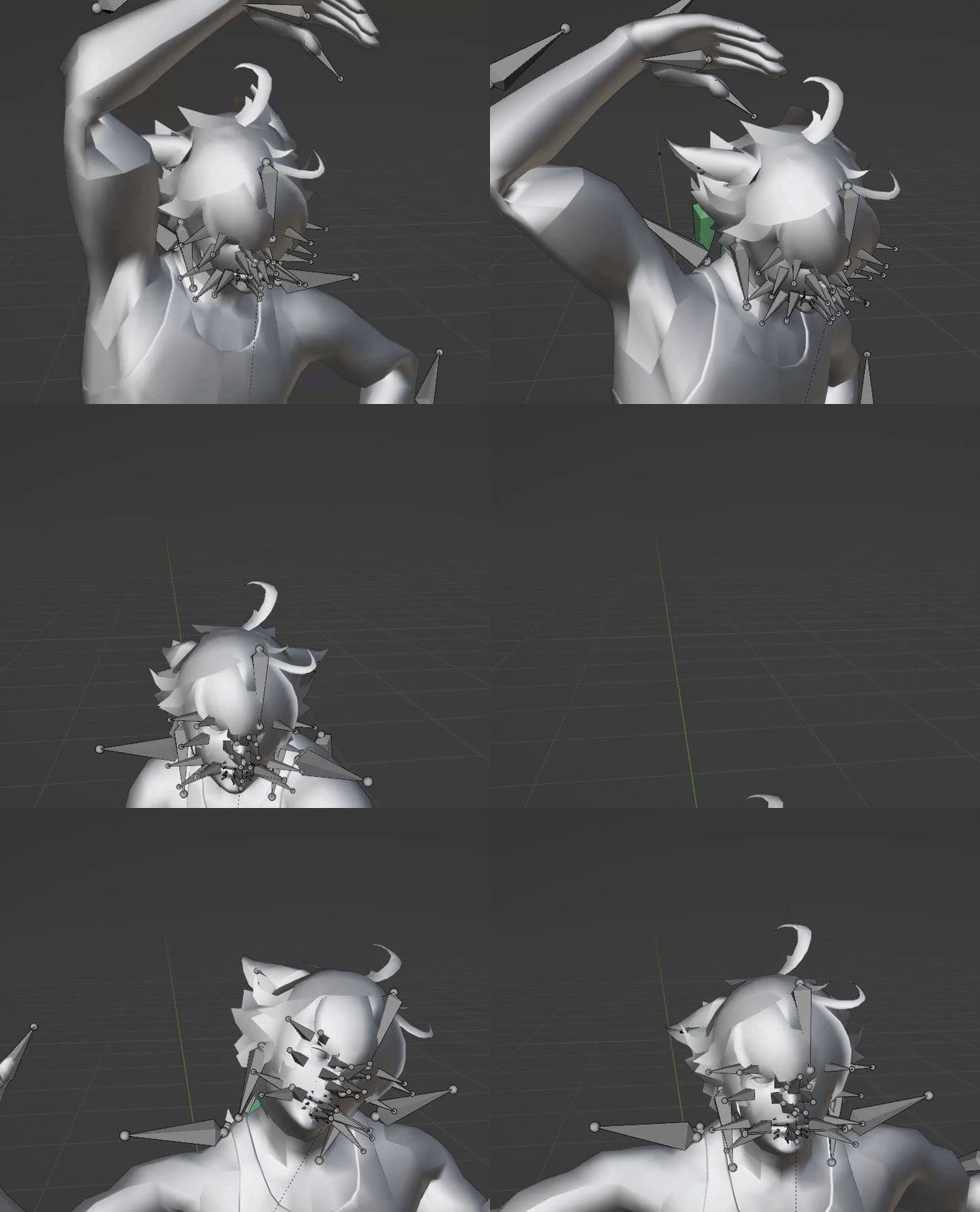](https://xivmodding.com/uploads/images/gallery/2024-11/FZndrhsZyurXz3h0-slowphysics.gif)
13. Once all the physics have been applied, run through the motion a few times to see if its to your liking!
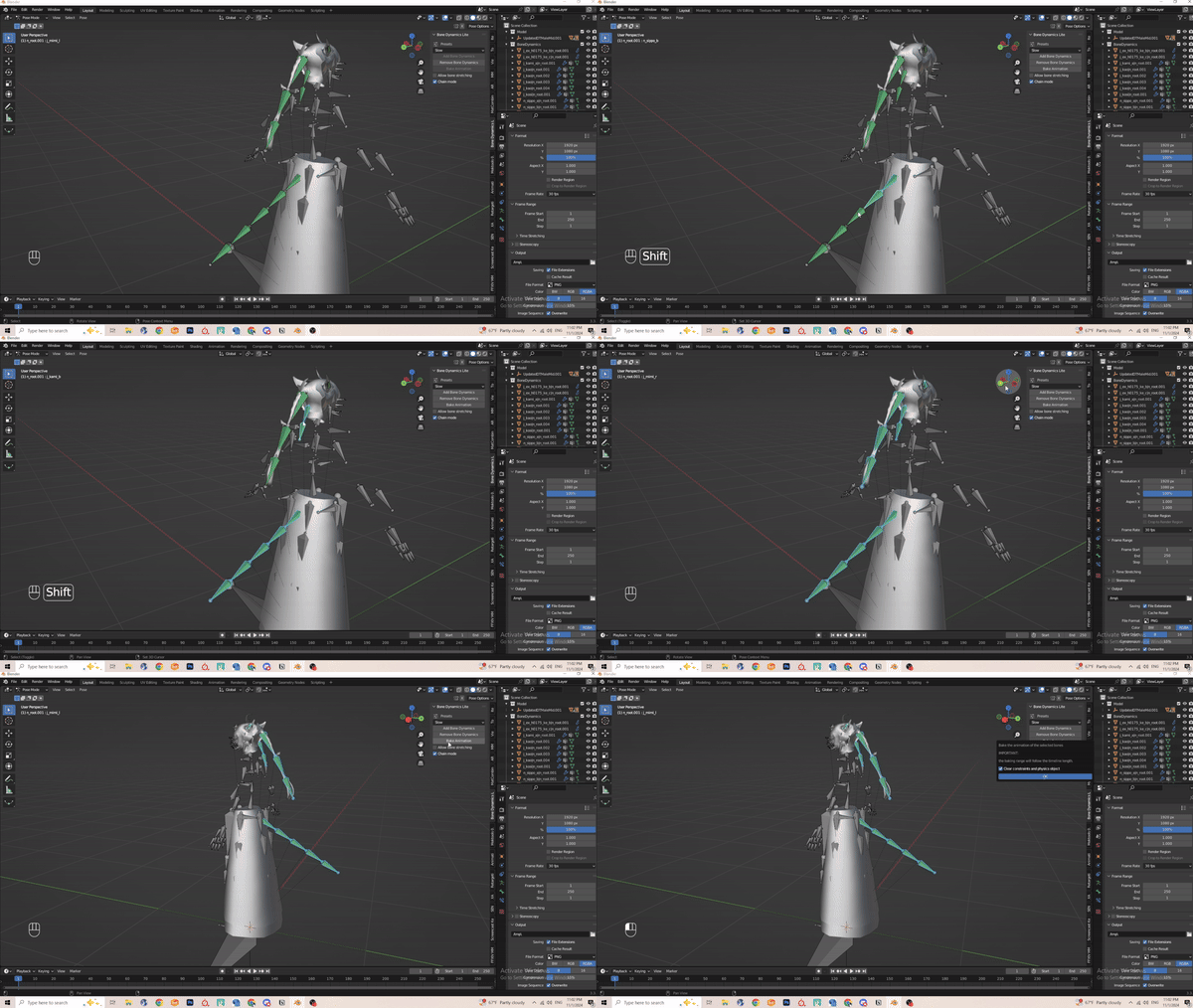
14. Now to bake the physic motion into the animation itself. Select the first bone, then use shift + click and select all the green bones.
- [](https://xivmodding.com/uploads/images/gallery/2024-11/rz3gV0FVmn0hPcr6-step7.gif)
15. **Before you click on Bake Animation. PLEASE SAVE YOUR PROGRESS!**
16. Select Bake animation and click okay
- Baking can vary depending on animation length.
17. Once baking is complete, preview the motion.
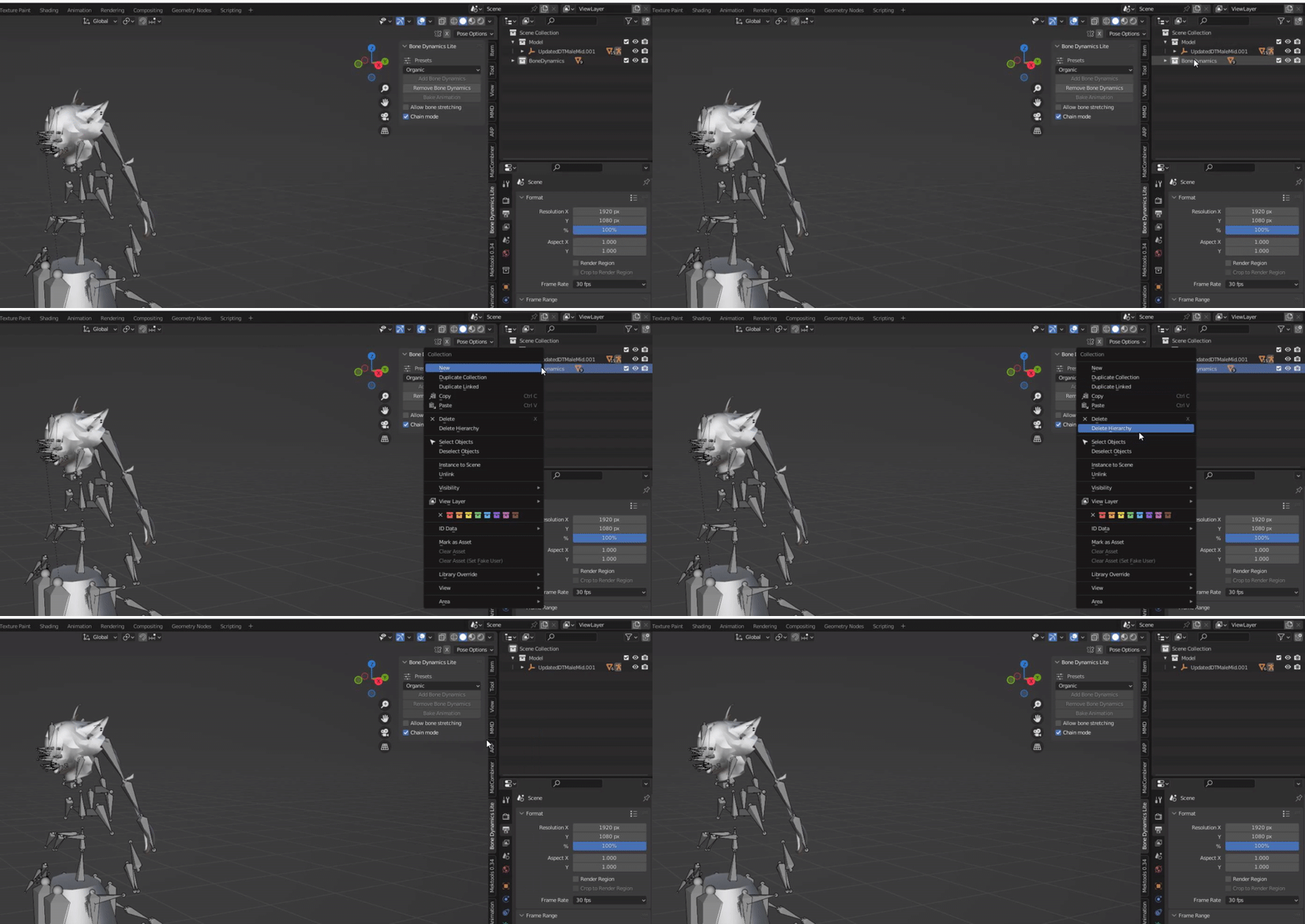
18. Navigate to scene section and select the BoneDynamics Icon. Right click and delete hireachy.
- [](https://xivmodding.com/uploads/images/gallery/2024-11/wmZTuJIoVxKuSsLI-step8.gif)
19. Once you verified everything works properly you can export the animation. Refer to the end of chapter 3 on how to export.
20. Now that you made a Ear physics version, you can quickly make a static ear version easily.
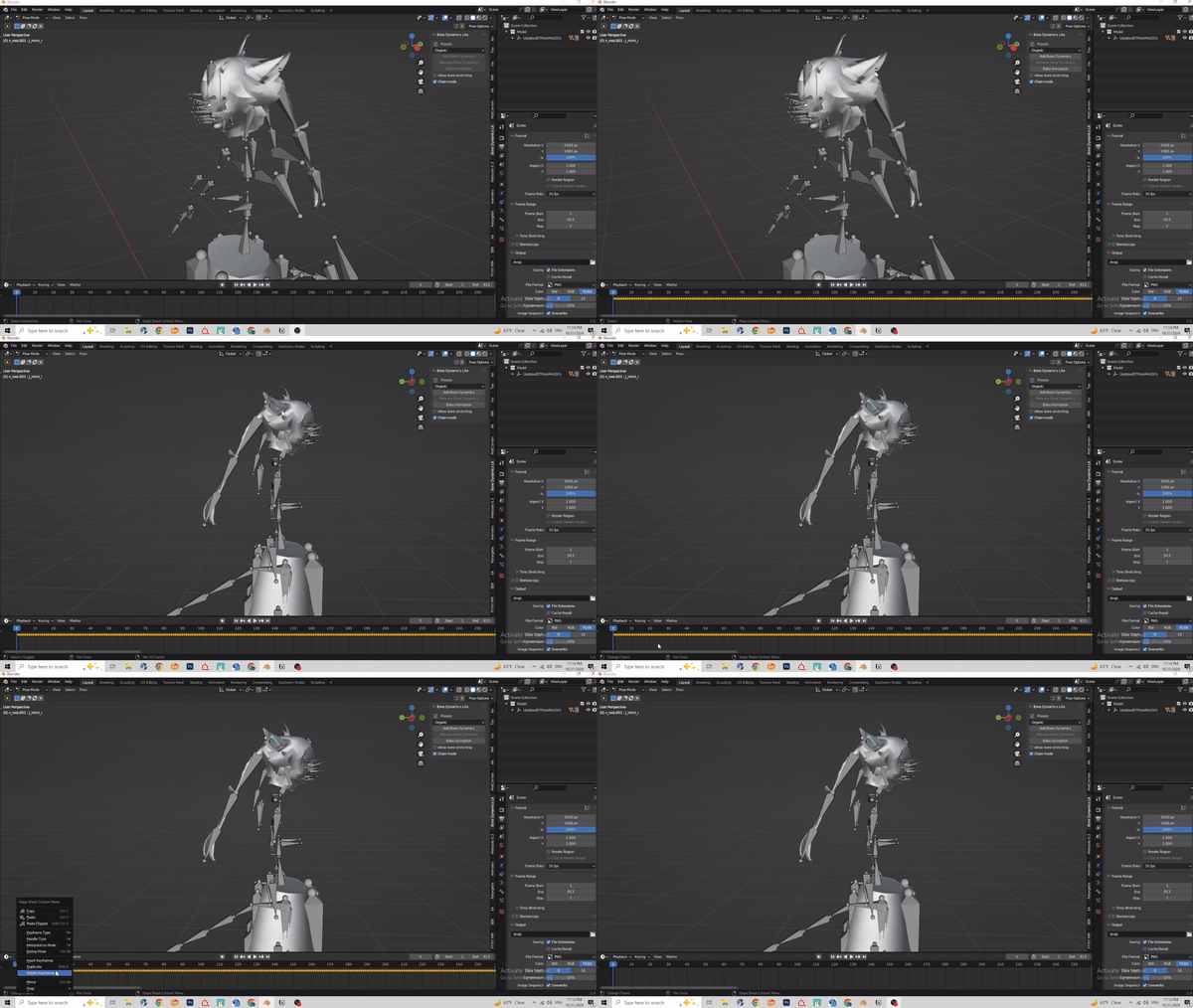
21. Select the armature and go back into pose mode. Select the two ear bones (j\_mimi\_l and \_r , shift + select the other ear bone)
22. Upon selecting those two, the animation track will show the frames. In the animation track section, you can press DEL or X > Delete keyframes to delete all the ear physics animation.
- [](https://xivmodding.com/uploads/images/gallery/2024-11/kiS7QoEuKnfSB4tb-step9.gif)
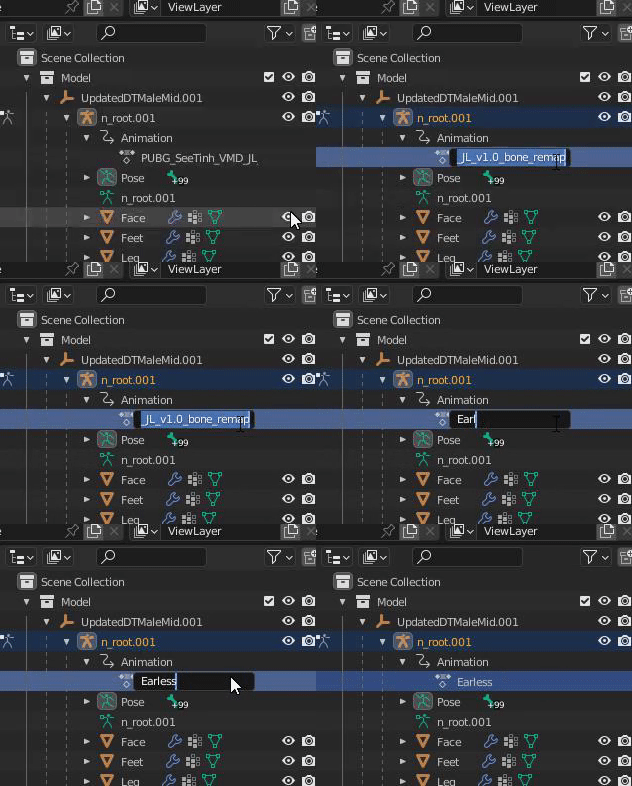
23. Normally what helps me is renaming the animation track and export file to Earless(motion name here).
- [](https://xivmodding.com/uploads/images/gallery/2024-11/SWvkD0cGfDisHctv-step10.gif)
24. And thats all for ear and tail physics!